> ## Documentation Index
> Fetch the complete documentation index at: https://docs.ravenna.ai/llms.txt
> Use this file to discover all available pages before exploring further.
# Everyday tasks
> Use Copilot to search tickets, look up knowledge, summarize conversations, draft replies, chart analytics, and find users with natural language.
Use Copilot for the tasks you do every day: finding tickets, looking up answers in your knowledge base, catching up on conversations, and drafting replies.
 ***
## Tickets
### Search and filter tickets
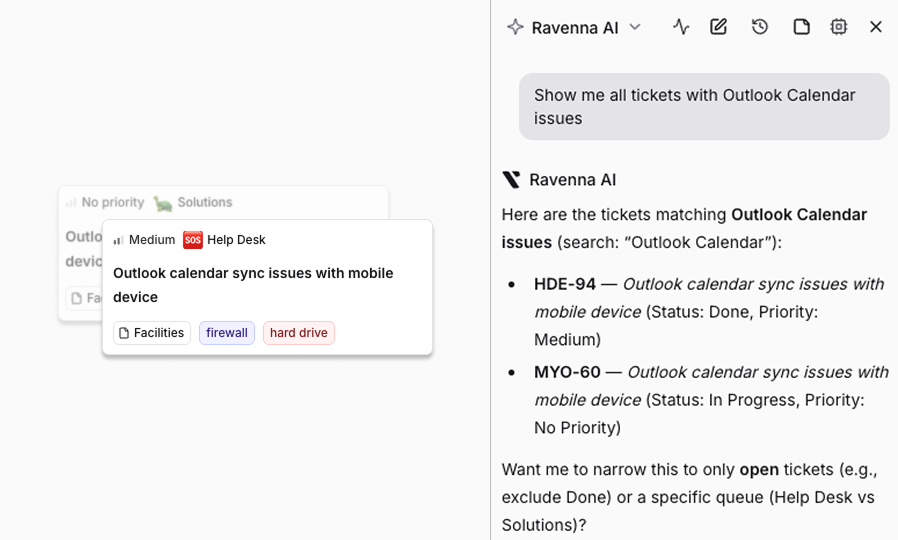
Find tickets using natural language. Copilot understands what you mean even when your wording does not exactly match the ticket content, so you can describe what you are looking for in your own words.
**Supported filters:**
* Priority, status, assignee, or requester
* Channel or form
* Tags and source (Slack, email, web)
* Date ranges (created, updated, resolved, due date)
When Copilot returns search results, it shows interactive ticket cards you can click to go directly to the ticket. It also displays the active filters so you can see exactly what criteria were applied.
You can ask Copilot what ticket statuses or tags are available in your workspace if you are not sure what to filter by. For example, "What ticket statuses do we have?" or "Show me all tags."
**Example prompts:**
Show me open tickets in the IT Support channel assigned to me
Find high priority HR tickets created in the last 7 days
What tickets did the Benefits team resolve this week?
### View ticket details
Get complete ticket information, including the conversation history, current status, priority, who it is assigned to, custom field values, and tags. Reference tickets by their ID, like `IT-4892` or `HR-2041`.
**Example prompts:**
Show me the details on IT-4892
What's the latest on HR-2041?
Summarize the conversation on HOPS-1157
### Summarize and draft responses
When you open Copilot from a ticket page, it can read the full conversation and help you work through it.
**Summarize**: Ask Copilot to summarize a ticket's conversation to quickly understand what has happened, what decisions were made, and what still needs to be done.
**Draft responses**: Ask Copilot to write a reply based on the conversation and your knowledge base. Copilot shows the draft as an interactive suggestion you can review, edit, and insert into the ticket.
**Example prompts:**
Summarize this ticket conversation
What are the open action items on this ticket?
Draft a reply explaining the next steps for this employee's laptop replacement
Draft a response using what the knowledge base says about our VPN setup process
### Create and update tickets
Create tickets by describing what you need. Set the channel, form, priority, and assignee. If the form has custom fields (like dropdowns or multi-select options), Copilot fills them in based on your description.
**Example prompts:**
Create a ticket for a password reset in the IT Support channel and assign it to Jamie Lee
File a high priority ticket about the VPN being down for the Austin office and tag it outage
Escalate IT-4892 to high priority
Assign HR-2041 to Jamie Lee and set the due date to next Friday
**What you can update on a ticket:**
* Title and description
* Priority, status, and category
* Assignee, requester, and followers
* Tags and custom field values
* Due date
* Channel (move to a different channel) and form (change the ticket's form)
* Parent ticket
* Privacy settings
You can also use Copilot to [create and manage forms and channels](/documentation/automate/copilot/configure-workspace) that define how tickets are submitted
***
## Knowledge base
### Search your knowledge base
Search your organization's internal knowledge base for answers about company policies, processes, and procedures. Copilot understands what you mean even when your wording does not exactly match the document content, so you can ask questions in your own words. It cites the source documents so you can verify the information.
**Example prompts:**
What is our PTO policy?
How do I set up the VPN on a Mac?
What are the steps for offboarding an employee?
### Walkthrough: answering a ticket using your knowledge base
When you are working on a ticket, you can ask Copilot to find relevant information from the knowledge base and use it to draft a reply.
Navigate to the ticket and open the Copilot side panel. Copilot automatically has context about the ticket's conversation.
What does our knowledge base say about resetting two-factor authentication?
Copilot returns relevant passages with source citations. Ask it to turn that into a response.
Draft a reply to this employee explaining the 2FA reset process based on what you found
***
## Analytics and reporting
Ask Copilot to count, chart, or trend data over tickets, ticket messages, knowledge base documents, or workflow runs. Copilot renders the chart in the conversation, then offers to save it to a dashboard as a reusable widget.
### Chart data on demand
Describe the breakdown or trend you want. Copilot picks the right card type — a grouped metric for breakdowns and totals, or a trend for time series — and renders it inline.
**Example prompts:**
Graph tickets by status
How many high priority tickets did we get this month?
Show ticket volume per day for the last 30 days
Break down workflow runs by status this week
### Save a chart to a dashboard
After Copilot renders a chart, it suggests **Add this to a dashboard** or **Create a new dashboard with this chart**. Pick an existing dashboard to keep related widgets together, or start a new one.
**Example prompts:**
Add this to my Support Overview dashboard
Create a new dashboard called Weekly Ops Review with this chart
### Manage dashboards
Ask Copilot to list, read, or update dashboards without leaving the conversation.
**Example prompts:**
What dashboards do we have?
Show me the latest numbers from my SLA Compliance dashboard
Change the date range on the Support Overview dashboard to the last 90 days
Rename the deflection widget on my AI Impact dashboard to Weekly deflection rate
Saved widgets inherit each dashboard's default date range and time interval. Update the dashboard's view options to shift every widget on it at once.
Learn more about [analytics dashboards](/documentation/measure/analytics)
***
## Users and channels
Find information about people and Slack channels in your workspace.
Search for users by name, get contact information, and look up user details for ticket assignments.
**Example prompts:**
Who is Jamie Lee?
What's Priya Patel's email address?
List available Slack channels and connected Slack app integrations.
**Example prompts:**
What Slack channels do we have?
Tell me about the IT Support channel
***
## Get help with Ravenna
Copilot can also search Ravenna's own product documentation to help you learn how features work or figure out how to do something in the platform. When Copilot finds relevant documentation, it shares links you can click to read the full article.
**Example prompts:**
How do I create a new form for time-off requests?
How do I set up a triage channel in Slack?
What workflow triggers are available?
How do I connect a new integration?
***
## Tips
* **Use Copilot from the ticket page** for summarization and drafting. It automatically has the full conversation.
* **Ask naturally.** You do not need to use exact keywords when searching. "What's our vacation policy?" works just as well as searching for the exact document title.
* **Reference tickets by ID** (like `IT-4892` or `HR-2041`) to go straight to the ticket you need.
* **Check source citations.** Copilot cites which knowledge base documents it pulled from, so you can verify accuracy or share the source with the requester.
Learn more about [using Copilot](/documentation/automate/copilot/using-copilot), [tickets](/documentation/tickets/channels), [knowledge base](/documentation/automate/knowledge/overview), and [users](/documentation/platform/roles-access)
***
## Tickets
### Search and filter tickets
Find tickets using natural language. Copilot understands what you mean even when your wording does not exactly match the ticket content, so you can describe what you are looking for in your own words.
**Supported filters:**
* Priority, status, assignee, or requester
* Channel or form
* Tags and source (Slack, email, web)
* Date ranges (created, updated, resolved, due date)
When Copilot returns search results, it shows interactive ticket cards you can click to go directly to the ticket. It also displays the active filters so you can see exactly what criteria were applied.
You can ask Copilot what ticket statuses or tags are available in your workspace if you are not sure what to filter by. For example, "What ticket statuses do we have?" or "Show me all tags."
**Example prompts:**
Show me open tickets in the IT Support channel assigned to me
Find high priority HR tickets created in the last 7 days
What tickets did the Benefits team resolve this week?
### View ticket details
Get complete ticket information, including the conversation history, current status, priority, who it is assigned to, custom field values, and tags. Reference tickets by their ID, like `IT-4892` or `HR-2041`.
**Example prompts:**
Show me the details on IT-4892
What's the latest on HR-2041?
Summarize the conversation on HOPS-1157
### Summarize and draft responses
When you open Copilot from a ticket page, it can read the full conversation and help you work through it.
**Summarize**: Ask Copilot to summarize a ticket's conversation to quickly understand what has happened, what decisions were made, and what still needs to be done.
**Draft responses**: Ask Copilot to write a reply based on the conversation and your knowledge base. Copilot shows the draft as an interactive suggestion you can review, edit, and insert into the ticket.
**Example prompts:**
Summarize this ticket conversation
What are the open action items on this ticket?
Draft a reply explaining the next steps for this employee's laptop replacement
Draft a response using what the knowledge base says about our VPN setup process
### Create and update tickets
Create tickets by describing what you need. Set the channel, form, priority, and assignee. If the form has custom fields (like dropdowns or multi-select options), Copilot fills them in based on your description.
**Example prompts:**
Create a ticket for a password reset in the IT Support channel and assign it to Jamie Lee
File a high priority ticket about the VPN being down for the Austin office and tag it outage
Escalate IT-4892 to high priority
Assign HR-2041 to Jamie Lee and set the due date to next Friday
**What you can update on a ticket:**
* Title and description
* Priority, status, and category
* Assignee, requester, and followers
* Tags and custom field values
* Due date
* Channel (move to a different channel) and form (change the ticket's form)
* Parent ticket
* Privacy settings
You can also use Copilot to [create and manage forms and channels](/documentation/automate/copilot/configure-workspace) that define how tickets are submitted
***
## Knowledge base
### Search your knowledge base
Search your organization's internal knowledge base for answers about company policies, processes, and procedures. Copilot understands what you mean even when your wording does not exactly match the document content, so you can ask questions in your own words. It cites the source documents so you can verify the information.
**Example prompts:**
What is our PTO policy?
How do I set up the VPN on a Mac?
What are the steps for offboarding an employee?
### Walkthrough: answering a ticket using your knowledge base
When you are working on a ticket, you can ask Copilot to find relevant information from the knowledge base and use it to draft a reply.
Navigate to the ticket and open the Copilot side panel. Copilot automatically has context about the ticket's conversation.
What does our knowledge base say about resetting two-factor authentication?
Copilot returns relevant passages with source citations. Ask it to turn that into a response.
Draft a reply to this employee explaining the 2FA reset process based on what you found
***
## Analytics and reporting
Ask Copilot to count, chart, or trend data over tickets, ticket messages, knowledge base documents, or workflow runs. Copilot renders the chart in the conversation, then offers to save it to a dashboard as a reusable widget.
### Chart data on demand
Describe the breakdown or trend you want. Copilot picks the right card type — a grouped metric for breakdowns and totals, or a trend for time series — and renders it inline.
**Example prompts:**
Graph tickets by status
How many high priority tickets did we get this month?
Show ticket volume per day for the last 30 days
Break down workflow runs by status this week
### Save a chart to a dashboard
After Copilot renders a chart, it suggests **Add this to a dashboard** or **Create a new dashboard with this chart**. Pick an existing dashboard to keep related widgets together, or start a new one.
**Example prompts:**
Add this to my Support Overview dashboard
Create a new dashboard called Weekly Ops Review with this chart
### Manage dashboards
Ask Copilot to list, read, or update dashboards without leaving the conversation.
**Example prompts:**
What dashboards do we have?
Show me the latest numbers from my SLA Compliance dashboard
Change the date range on the Support Overview dashboard to the last 90 days
Rename the deflection widget on my AI Impact dashboard to Weekly deflection rate
Saved widgets inherit each dashboard's default date range and time interval. Update the dashboard's view options to shift every widget on it at once.
Learn more about [analytics dashboards](/documentation/measure/analytics)
***
## Users and channels
Find information about people and Slack channels in your workspace.
Search for users by name, get contact information, and look up user details for ticket assignments.
**Example prompts:**
Who is Jamie Lee?
What's Priya Patel's email address?
List available Slack channels and connected Slack app integrations.
**Example prompts:**
What Slack channels do we have?
Tell me about the IT Support channel
***
## Get help with Ravenna
Copilot can also search Ravenna's own product documentation to help you learn how features work or figure out how to do something in the platform. When Copilot finds relevant documentation, it shares links you can click to read the full article.
**Example prompts:**
How do I create a new form for time-off requests?
How do I set up a triage channel in Slack?
What workflow triggers are available?
How do I connect a new integration?
***
## Tips
* **Use Copilot from the ticket page** for summarization and drafting. It automatically has the full conversation.
* **Ask naturally.** You do not need to use exact keywords when searching. "What's our vacation policy?" works just as well as searching for the exact document title.
* **Reference tickets by ID** (like `IT-4892` or `HR-2041`) to go straight to the ticket you need.
* **Check source citations.** Copilot cites which knowledge base documents it pulled from, so you can verify accuracy or share the source with the requester.
Learn more about [using Copilot](/documentation/automate/copilot/using-copilot), [tickets](/documentation/tickets/channels), [knowledge base](/documentation/automate/knowledge/overview), and [users](/documentation/platform/roles-access)