> ## Documentation Index
> Fetch the complete documentation index at: https://docs.ravenna.ai/llms.txt
> Use this file to discover all available pages before exploring further.

# Workflows

> Build no-code automated workflows that respond to ticket and Slack events and execute actions across your integrated tools using a visual builder.
<div className="dark:hidden">
  <Frame>
    ![Workflows overview](https://d1kzozfjh72w00.cloudfront.net/documentation/screenshots/automate/workflows/Overview-light.png)
  </Frame>
</div>

<div className="hidden dark:block">
  <Frame>
    ![Workflows overview](https://d1kzozfjh72w00.cloudfront.net/documentation/screenshots/automate/workflows/Overview-dark.png)
  </Frame>
</div>

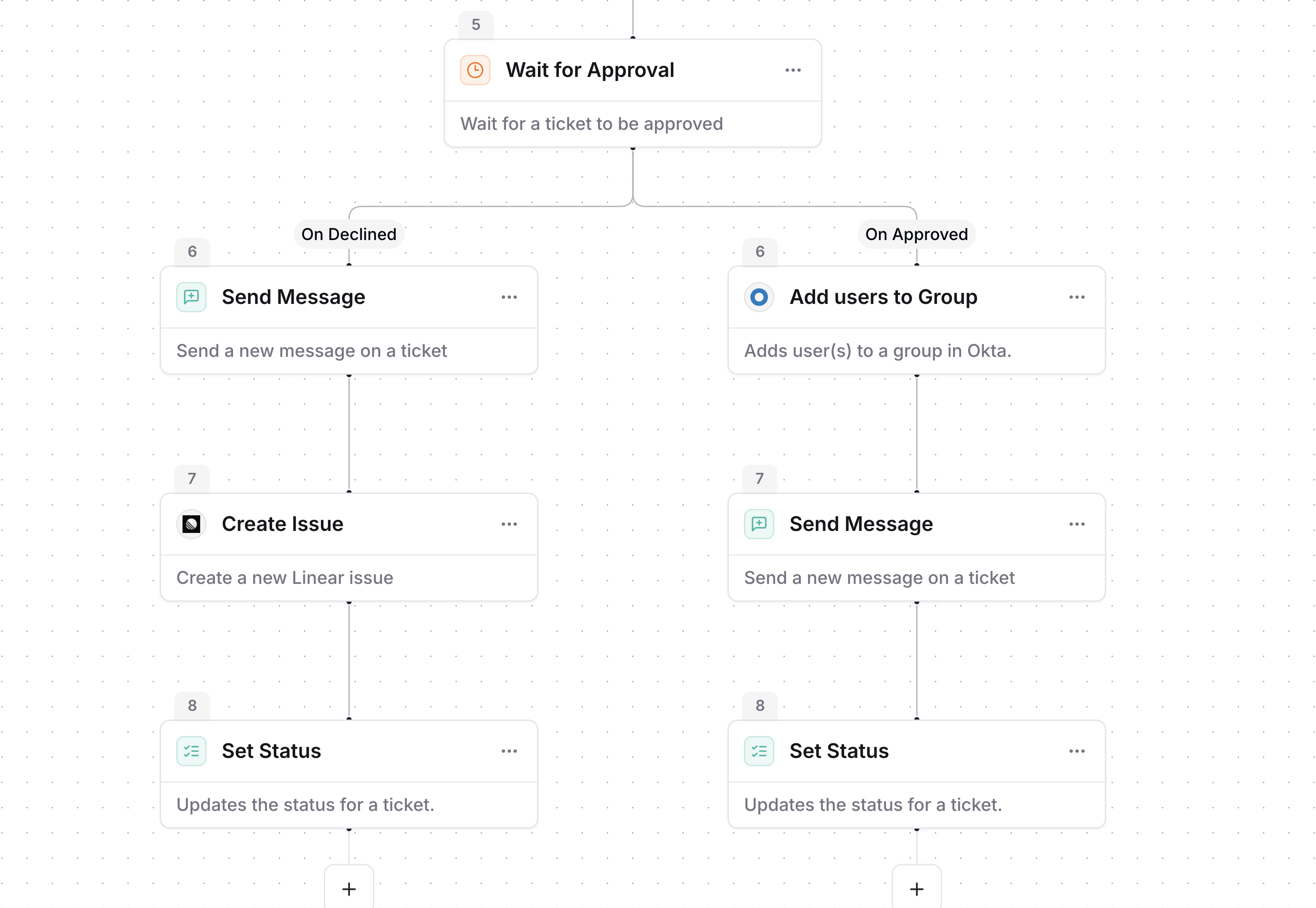
Build automated workflows that respond to events and execute actions across your integrated systems. The visual builder connects triggers and actions without any coding required.

<View title="Human" icon="user">
  ## What you can do

  <CardGroup cols={2}>
    <Card title="Auto-assign tickets" icon="user-check">
      Assign tickets to team members based on category, priority, or custom fields
    </Card>

    <Card title="Send notifications" icon="bell">
      Notify teams in Slack when high-priority tickets are created or status changes occur
    </Card>

    <Card title="Sync with external systems" icon="refresh-cw">
      Create or update issues in Jira, Linear, or other ticketing systems when tickets are created
    </Card>

    <Card title="Manage user access" icon="key">
      Automate Okta user provisioning, group assignments, and password resets
    </Card>

    <Card title="Route incidents" icon="route">
      Trigger PagerDuty or Incident.io workflows when critical issues are detected
    </Card>

    <Card title="Validate on-call" icon="shield-check">
      Check on-call schedules and route tickets to the appropriate responder
    </Card>
  </CardGroup>

  ***

  ## Workflows vs agent rules

  Workflows and <Tooltip headline="Agent rules" tip="Natural language instructions that define agent behavior" cta="Learn about agent rules" href="/documentation/automate/agents/configure">agent rules</Tooltip> both automate work, but they fit different situations.

  |                        | Workflows                              | Agent rules                     |
  | ---------------------- | -------------------------------------- | ------------------------------- |
  | **How they run**       | Background automation                  | Conversational, real-time       |
  | **What starts them**   | Events, schedules, or manual triggers  | User messages to the agent      |
  | **How you build them** | Visual builder with steps and branches | Natural language instructions   |
  | **User interaction**   | No interaction during execution        | Interactive dialogue with users |

  ### Using both together

  Workflows and agent rules work well in combination. A common pattern is to let the agent handle the conversation — collecting information and answering questions — and then trigger a workflow for the backend processing, such as provisioning access, creating issues in external systems, or running multi-step approval flows.

  Reference workflows in agent rules using `@Workflow Name` to connect the two. The agent collects what it needs from the user, then hands off to the workflow.

  <Info>
    You can build workflows manually with the visual builder or use <Tooltip headline="Copilot" tip="AI assistant for workflow creation and management" cta="Learn about Copilot" href="/documentation/automate/copilot/build-automations">Copilot</Tooltip> to generate them from a natural language description. Start with simple workflows manually and use Copilot for more complex automation.
  </Info>

  ***

  ## How workflows work

  Every workflow has a **trigger** that starts the automation and one or more **actions** that perform tasks. When the trigger condition is met, the workflow executes its connected actions in sequence, in parallel, or through <Tooltip headline="Converging branches" tip="Points where multiple parallel paths reunite into a single step" cta="Learn about building workflows" href="/documentation/automate/workflows/workflow-builder#converging-branches">converging branches</Tooltip> that rejoin into a single path.

  ### Triggers

  Triggers listen for events like ticket creation, status changes, or Slack reactions. Add filters to ensure workflows only activate for relevant events.

  Available triggers include ticket created, ticket assigned, form submitted, category assigned, status changed, tags changed, task completed, message sent, agent trigger, cron schedule, and third-party integration events.

  ### Actions

  Actions perform tasks like creating tickets, sending Slack messages, or calling external APIs. Data flows between steps automatically, so information from the trigger is available in subsequent actions.

  Available actions include ticket management (create, update, assign, set status), messaging (Slack, email), integration actions (Jira, Linear, Okta, Google Workspace), AI steps (summarize, decision maker, custom prompt), and control flow (conditional, if/else, wait, goto).

  <Note>
    Microsoft Teams: a dedicated **Send Microsoft Teams Message** workflow action is not yet available. Ticket triggers (created, status changed, and so on) fire for tickets opened in Microsoft Teams just like Slack. See the [Microsoft Teams integration overview](/integrations/microsoft-teams/overview).
  </Note>

  ### Data flow

  Information flows automatically between workflow steps. Reference data from triggers or previous actions using dynamic values in the workflow builder. Click a field input and select from available data sources. Values resolve when the workflow runs, and the builder highlights invalid references before publishing.

  <Callout icon="link" color="#6B7280">
    See all available [triggers and actions](/documentation/automate/workflows/triggers-actions) with configuration details
  </Callout>

  ***

  ## Common use cases

  **Auto-triage support tickets:** Categorize and assign incoming tickets based on keywords, priority, or requester information. Route high-priority issues to senior engineers and standard requests to the general support queue.

  **Sync tickets with Jira:** Create Jira issues when tickets are created in specific channels or categories. Keep status synchronized between systems and notify requesters when issues are resolved.

  **Automate user onboarding:** Automate Okta account creation, group assignments, and access provisioning based on department or role information from HR tickets.

  **Escalate critical issues:** Escalate high-priority or SLA-breaching tickets by notifying management, creating PagerDuty incidents, or triggering on-call workflows.

  ***

  ## Getting started

  <Steps>
    <Step title="Create a collection">
      Organize workflows by team or process using [collections](/documentation/automate/workflows/collections)
    </Step>

    <Step title="Build your workflow">
      Add a trigger and connect actions using the [visual builder](/documentation/automate/workflows/workflow-builder)
    </Step>

    <Step title="Test and publish">
      Test your workflow with manual triggers, then [publish](/documentation/automate/workflows/publish) to make it active
    </Step>

    <Step title="Monitor execution">
      View detailed [logs](/documentation/automate/workflows/monitor) for every workflow run
    </Step>
  </Steps>

  ***

  ## Tips

  * **Start with one specific scenario.** Build a linear workflow that handles a single case. Add branching and complexity after you confirm the basics work.
  * **Use Copilot for complex workflows.** Describe what you want in plain language and Copilot builds the trigger, steps, and connections for you.
  * **Name steps clearly.** Descriptive step names make workflows easier to understand when multiple team members work with them.
  * **Keep workflows focused.** Create separate workflows for distinct processes rather than one workflow that handles everything.
  * **Test before publishing.** Use manual triggers with realistic data. Check edge cases like missing fields or error conditions.

  <Callout icon="link" color="#6B7280">
    Learn more about [building workflows](/documentation/automate/workflows/workflow-builder), [triggers and actions](/documentation/automate/workflows/triggers-actions), and [Copilot workflow building](/documentation/automate/copilot/build-automations)
  </Callout>
</View>

<View title="Agent" icon="bot">
  ## System overview

  A workflow is a background automation: one trigger connected to one or more actions. When the trigger event fires and passes its filters, the workflow engine creates a run and executes the action graph. Actions can run sequentially, in parallel branches, or through converging paths that wait for all parents to complete.

  |                      | Workflows                                      | Agent rules                      |
  | -------------------- | ---------------------------------------------- | -------------------------------- |
  | **Execution**        | Background, asynchronous                       | Conversational, real-time        |
  | **State**            | Multi-step with wait states, approvals, delays | Stateless, single-turn responses |
  | **Triggers**         | Events, schedules, agent handoff               | User messages                    |
  | **Branching**        | Conditional paths, parallel execution          | Linear rule matching             |
  | **External systems** | Native integration actions, HTTP requests      | Tool calls                       |

  **Use workflows when you need:** approval gates, parallel execution across systems, scheduled automation, wait states (for messages, approvals, inactivity), multi-step orchestration with error handling.

  **Use agent rules when you need:** conversational information gathering, simple ticket updates, interactive dialogue, single-action responses.

  ***

  ## Available building blocks

  **Triggers:** Ticket lifecycle (created, assigned, status changed, tags changed, archived, approval decision), form submitted, task events (completed, template applied), message sent, Slack reactions (added/removed), agent trigger, cron schedule, and third-party integration events.

  **Actions by category:**

  * **Ticket management:** Create Ticket, Update Ticket, Set Status, Set Priority, Add Assignee, Add Followers, Add Approvers, Add Tags, Move Ticket, Share Ticket, Search Tickets, Publish Ticket, Link Ticket, Apply Task Template, Send CSAT
  * **Wait and monitoring:** Wait (duration), Wait Until (absolute date), Wait for Approval, Wait for Message, Wait for Inactivity, Monitor Ticket, Check for New Messages
  * **Control flow:** Conditional, If/Else, Goto, Loop
  * **AI:** Summarize Ticket, AI Decision Maker, Custom Prompt
  * **Messaging:** Send Message, Send Email
  * **HTTP:** HTTP Request (external API calls)
  * **Integrations:** Okta, Google Workspace, Slack, Jira, Linear, Fleet, Jamf, and others (see integration docs)

  For detailed descriptions and use cases for each trigger and action, see the triggers and actions reference.

  ***

  ## Agent-workflow integration

  The agent can trigger workflows using the Agent Trigger. Reference a workflow in agent rules with `@Workflow Name`.

  * If the workflow has a form configured on its Agent Trigger, the agent pre-fills the form fields from conversation context and presents it to the user for review before submission.
  * Without a form, the agent shows a confirmation button so the user can approve before the workflow runs. To skip confirmation, add explicit auto-trigger language to the agent rule (for example, "automatically run the workflow without asking for confirmation").
  * The agent must have explicit access to the workflow, granted by referencing it in a rule with `@`.

  **Recommended pattern:** Use the agent to handle the conversation (collecting information, answering questions, confirming intent) and hand off to a workflow for backend processing (provisioning, approvals, multi-step orchestration). This separates conversational logic from execution logic.

  ***

  ## Common patterns and recommended approaches

  **Approval flows:**
  Trigger on ticket creation or form submission. Add approvers (use Round Robin for load balancing or All for any-available approval). Add a Wait for Approval step, then branch into approved, declined, and timeout paths. The approved path provisions access or executes the request. The declined path notifies the requester with the reason. The timeout path escalates the request, reassigns to a backup approver, or auto-closes the ticket as expired.

  **Employee onboarding and provisioning:**
  Trigger on form submission in the IT queue. Use parallel branches to provision across systems simultaneously: Okta group assignment, Google Workspace account, Slack channel invites. Converge the branches, then send a summary notification. Each branch is independent, so one failure does not block the others.

  **Ticket escalation:**
  Trigger on status change or inactivity. Use a conditional to check priority or SLA status. Escalation path reassigns the ticket, notifies management, and optionally creates an incident in PagerDuty or Incident.io. Non-escalation path sends a reminder.

  **External system sync:**
  Trigger on ticket creation. Create an issue in Jira, Linear, or another system. Use the Link Ticket action to attach the external issue URL back to the Ravenna ticket. This maintains bidirectional traceability.

  **Scheduled maintenance:**
  Use a Cron trigger for recurring tasks like checking for stale tickets, sending digest reports, or running periodic cleanup. Cron-triggered workflows do not have ticket context, so you cannot reference ticket fields in downstream steps.

  **Wait-then-follow-up:**
  After an action (like sending a message or requesting info), add a Wait for Message or Wait for Inactivity step. Branch based on whether a response was received (timeout vs. success). Use this for follow-up reminders or auto-resolution after inactivity.

  ***

  ## Constraints and gotchas

  * **One trigger per workflow.** If you need the same actions for multiple events, create separate workflows or use a broad trigger with conditional branching.
  * **Cron triggers have no ticket context.** You cannot use ticket dynamic values in workflows triggered by a schedule. Use cron workflows for batch operations that query or iterate over tickets via other means.
  * **Agent Trigger requires explicit access.** The agent can only trigger workflows it has been granted access to via `@` mentions in rules.
  * **Converging branches wait for all parents.** A converging step does not execute until every parent branch completes or is skipped. Design parallel branches to be independent so one slow branch does not delay the entire workflow.
  * **Wait steps have timeouts.** Wait for Message and Wait for Approval both default to 3 days. Wait for Approval branches into On Approved, On Declined, and On Timeout, so always plan a path for stalled approvals (escalate, reassign, or auto-close).
  * **Published workflows are live immediately.** There is no staging environment. Test thoroughly in draft mode before publishing.

  ***

  ## Building guidance

  * **One workflow per process.** Do not combine unrelated automations into a single workflow. Separate workflows are easier to debug, monitor, and maintain.
  * **Start linear, add complexity later.** Build a straight-line workflow first (trigger, then action, then action). Add conditional branches and parallel paths only after the linear version works.
  * **Name workflows descriptively.** The agent references workflows by name in rules. Clear names like "IT Access Provisioning" or "Jira Sync for Engineering" make rules more readable.
  * **Generate complex workflows from descriptions.** For multi-branch workflows with many actions, generating the structure from a natural language description and then reviewing the result is more efficient than building step by step.
  * **Prefer native integration actions over HTTP Request.** If an integration has a dedicated action (Okta, Jira, Linear, etc.), use it instead of calling the API via HTTP Request. Native actions handle authentication, error handling, and output parsing automatically.
</View>
