> ## Documentation Index
> Fetch the complete documentation index at: https://docs.ravenna.ai/llms.txt
> Use this file to discover all available pages before exploring further.
# Notifications
> Manage Ravenna notifications in a unified inbox with granular controls for Slack and email delivery across approvals, assignments, and comments.
Configure notification preferences to control when and how you receive updates about tickets, assignments, approvals, and team activity. Organization admins set default preferences in organization settings while individual users customize their own notification settings.
## Notification center
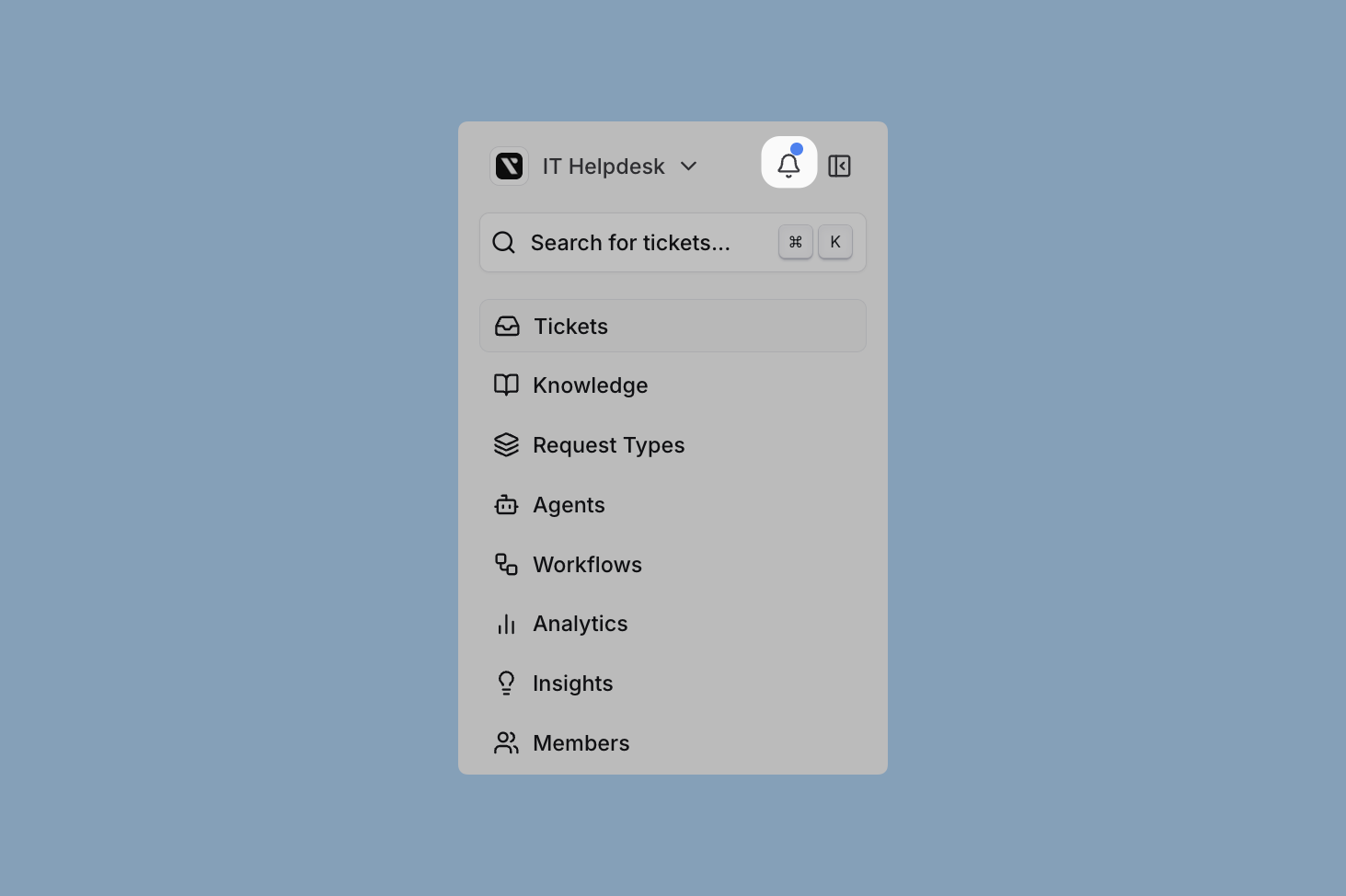
View and manage all your Ravenna notifications in one place. Approvals, assignments, comments, and team activity surface in a single view, helping you stay focused without jumping between channels and individual tickets.
***
## Notification events
Control which types of updates generate notifications. Each event type can be enabled or disabled for Slack and email delivery independently.
Notifications when tickets or tasks are assigned or unassigned to users.
* New ticket assignments
* Ticket reassignments between users
* Removal from ticket assignments
* Task assignments and unassignments on tickets you work on
Enabled by default for both Slack and email notifications. Rapid assign/unassign changes on the same task are consolidated into a single notification to reduce noise.
Notifications when you become the requester on a ticket.
* Tickets you create yourself
* Tickets created on your behalf (for example, by an agent or a workflow)
* Tickets where you are later set as the requester
Enabled by default for both Slack and email notifications. Use this preference to control whether you receive a confirmation when a ticket lands in your name.
Approval-related notifications for sign-off workflows.
* Approval requests for tickets requiring sign-off
* Approval decisions (approved/declined)
* Changes to approval requirements
**Slack**: Approval notifications are always delivered and cannot be toggled off by users or organization admins. This ensures approvers never miss time-sensitive requests.
**Email**: Approval notifications are configurable and enabled by default.
Communication and collaboration updates.
* New messages on tickets you're following
* Follower additions and removals
* @ mentions in ticket conversations
* File attachments and updates
Enabled by default for both Slack and email notifications.
Ticket lifecycle notifications.
* Status changes (open, in progress, resolved, closed)
* Ticket resolutions and closures
* Reopened tickets
* Archive and unarchive actions
Enabled by default for both Slack and email notifications.
Service level agreement notifications.
* SLA breach warnings
* SLA violation alerts
* Time-based escalations
Enabled by default for both Slack and email notifications.
Learn more about [configuring SLAs](/documentation/automate/slas)
Granular property change notifications.
* Priority changes
* Tag additions and removals
* Channel transfers
* Custom field updates
* Due date changes
Disabled by default to reduce notification volume. Enable only for users who need detailed property change tracking.
***
## Delivery channels
Notifications deliver through Slack and email. Configure delivery preferences for each notification event type independently.
The current Microsoft Teams beta does not yet expose a dedicated notification-channel selector. Approvals are delivered as Adaptive Cards in the approver's chat (see [Microsoft Teams approvals](/integrations/microsoft-teams/approvals)); thread-level events post into the ticket's connected Teams channel. See the [Microsoft Teams integration overview](/integrations/microsoft-teams/overview) for beta scope.
Direct messages provide private, focused notifications for individual users. Configure when Ravenna sends DMs:
* **For Slack-originated tickets**: Select between thread notifications, DM notifications, or both
* **For web and email tickets**: Enable DM notifications for non-Slack originated tickets
* **Approval workflows**: Approval requests always generate Slack notifications regardless of user preferences or origin. This cannot be disabled
Learn more about [Slack integration](/integrations/slack/overview)
Public channel notifications are controlled by channel settings:
* **Request channels**: Controlled by Silent Mode and Granular Updates settings
* **Triage channels**: Team notifications for ticket management
* **Ephemeral messages**: Contextual notifications visible only to specific users
**Silent Mode**: When enabled in channel settings, silent mode prevents ticket mirrors from appearing in request channels and automatically excludes requesters from email notifications. This reduces notification noise while keeping followers, assignees, and other stakeholders informed.
Learn more about [Slack channels](/integrations/slack/overview) and [triage channels](/integrations/slack/triage-channel)
Email notifications provide backup delivery and offline access:
* Digest emails for daily and weekly summaries
* Critical alert emails for high-priority issues
* Backup delivery when Slack is unavailable
**Requester exclusion**: When silent mode is enabled in channel settings, requesters are automatically excluded from email notifications. This prevents users from receiving email updates about tickets they created, reducing notification volume while keeping other participants informed.
Learn more about [email integration](/integrations/email/overview)
***
## Configuring notifications
Configure notification preferences at the organization level to set defaults for all users, or at the individual user level to customize personal notification settings.
### Organization admin configuration
Organization admins set default notification preferences for all members. These defaults provide a baseline experience while allowing individual users to customize their own settings.
Go to **Settings → Organization → Notification Policies**.
Set organization-wide defaults for Slack and email notifications for each event type.
Changes apply immediately to users who haven't customized those specific settings.
**Understanding organization defaults**
When managing organization notification policies, keep these behaviors in mind:
* **User customizations persist**: If a user has customized a specific setting, changing the organization default won't affect them
* **Per-setting granularity**: Customization is tracked individually for each notification type (for example, "Assignments" for Slack)
* **No bulk reset**: You cannot force all users back to organization defaults. Users must individually reset their customized settings
### User configuration
Individual users customize notification preferences to control when and how they receive updates.
Go to **Settings → Notifications** in your user profile.
Settings marked with "Using default" follow your organization's policies.
Toggle any setting to customize it. Your preference persists even if organization defaults change.
Click the reset icon next to any customized setting to revert to your organization's default.
Once you customize a notification setting, your preference takes precedence over organization defaults until you manually reset it.
***
## Troubleshooting
If you're not receiving expected notifications:
Verify your individual notification settings in **Settings → Notifications**.
Check that you are properly assigned or following relevant tickets.
Ensure the specific notification type is enabled for your preferred delivery channel (Slack or email).
Check with your admin if organization-level defaults have changed recently.
If you're receiving too many notifications:
Turn off "Ticket properties" notifications to reduce volume significantly.
Disable notification types that aren't relevant to your role or responsibilities.
Consider using email digest notifications instead of real-time Slack notifications for less urgent updates.
Unfollow tickets that no longer require your attention.
Slack approval notifications have special handling that differs from other notification types:
* Always delivered via Slack regardless of user or organization preferences
* Cannot be toggled off in Slack notification settings (not shown as a configurable option)
* Include action buttons for quick responses
* Update automatically when decisions are made
Email approval notifications remain configurable and can be enabled or disabled like other notification types.
Slack approval notifications always deliver because they require timely action. If you're receiving approval notifications inappropriately, review your role assignments and approval workflows.
## Mental model
Notifications are event-driven messages sent to users when ticket activity occurs. Notifications deliver through two channels: Slack (DMs and channel messages) and email. Each notification event type can be independently enabled or disabled for each delivery channel.
Notifications are controlled at two levels:
1. **Organization defaults**: Set by organization admins. These are the baseline for all users.
2. **User overrides**: Individual users can customize any setting. Once customized, the user's preference persists even if the organization default changes.
This is a "default with override" model. The organization sets sensible defaults, and users opt in or out of specific notification types as needed.
***
## Notification event types
| Event type | Default (Slack) | Default (Email) | Notes |
| ------------------------------ | -------------------------- | ---------------------- | -------------------------------------------------------------------------------------------- |
| **Assignments** | Enabled | Enabled | Ticket assigned/unassigned/reassigned, task assigned/unassigned |
| **Ticket created** | Enabled | Enabled | Fires for the requester when a ticket is created or when they are later set as the requester |
| **Approvals** | Always on (cannot disable) | Enabled (configurable) | Slack approval notifications are forced-on for timeliness |
| **Messages and collaboration** | Enabled | Enabled | New messages, follower changes, @mentions |
| **Status updates** | Enabled | Enabled | Status changes, resolutions, closures, reopens |
| **SLA alerts** | Enabled | Enabled | SLA breach warnings and violations |
| **Ticket properties** | Disabled | Disabled | Priority, tag, channel, custom field, due date, requester changes |
Key behavior: Slack approval notifications cannot be disabled by users or organization admins. This is a system-level guarantee that approvers always receive approval requests promptly.
***
## Notification recipients
Who receives notifications depends on the ticket role:
| Role | Receives notifications |
| -------------------------- | ----------------------------------------------------------------------------------------------------------- |
| **Assignee** | Assignment changes, new messages, status updates, SLA alerts |
| **Followers** | New messages, status updates (based on preferences) |
| **Requester** | Ticket created or requester set on a ticket, status changes, new public messages (unless silent mode is on) |
| **Approvers** | Approval requests (always via Slack), approval decisions |
| **Workspace admins** | SLA alerts and breaches |
| **Channel auto-assignees** | SLA alerts when no specific assignee exists |
***
## Channel notification settings
Channel-level settings affect how notifications appear in Slack:
**Silent mode**: When enabled on a channel, ticket mirrors do not appear in the request Slack channel, and requesters are excluded from email notifications. Triage channel notifications and DM notifications for assignees/followers still work normally.
**Granular updates**: When enabled on a channel, detailed property change notifications (snooze, priority changes) are sent to the triage channel.
These settings interact with user preferences. Silent mode reduces noise in public channels while maintaining internal team visibility.
***
## Constraints and gotchas
* Slack approval notifications are always delivered and cannot be disabled at any level. This is by design.
* User customizations are per-setting. Changing one notification type does not affect others.
* There is no bulk reset for user customizations. Each user must individually reset their preferences to return to organization defaults.
* Silent mode affects both Slack channel notifications and email notifications for requesters. It does not affect DM notifications to assignees or followers.
* "Ticket properties" notifications are disabled by default because they generate high volume. Enable selectively for users who need detailed change tracking.
* Organization default changes only affect users who have not customized that specific setting. Users with overrides are not affected.
* Email notifications serve as backup delivery when Slack is unavailable and for digest summaries.