> ## Documentation Index
> Fetch the complete documentation index at: https://docs.ravenna.ai/llms.txt
> Use this file to discover all available pages before exploring further.

# Setting up a Triage Channel

> Set up a Ravenna triage channel in Slack so your team can review, assign, and act on incoming tickets in a single private workspace.

export const Checkbox = ({items = []}) => {
  const [checked, setChecked] = useState(Array(items.length).fill(false));
  const toggle = index => {
    setChecked(prev => {
      const copy = [...prev];
      copy[index] = !copy[index];
      return copy;
    });
  };
  return <div className="custom-checkbox-list">
      {items.map((text, index) => <div key={index} className="custom-checkbox-item flex items-center mb-2">
          <input type="checkbox" checked={checked[index]} onChange={() => toggle(index)} className="mr-2" />
          <span>{text}</span>
        </div>)}
    </div>;
};

Setting up a Triage channel in Slack helps your team manage incoming requests more efficiently, all without leaving Slack. Each workspace can have one Triage channel, which is a private space where mirrors of new requests are automatically sent. This makes it easier to track, collaborate, and take action in one place.

Agents in your workspace can take action on tickets directly within the Triage channel, just like they do in Ravenna or a public request Slack channel. All actions sync back to the original request thread and Ravenna, so everything stays up to date.

<Tabs>
  <Tab title="Interactive walkthrough">
    <div style={{ position: 'relative', paddingBottom: 'calc(62.55208333333333% + 41px)', height: 0, width: '100%' }}>
      <iframe src="https://demo.arcade.software/tpNI76OmUmmcfg9IN41g?embed&embed_mobile=tab&embed_desktop=inline&show_copy_link=true" frameBorder="0" loading="lazy" allowFullScreen allow="clipboard-write" style={{ position: 'absolute', top: 0, left: 0, width: '100%', height: '100%', colorScheme: 'light' }} />
    </div>
  </Tab>

  <Tab title="Step-by-step">
    <Steps>
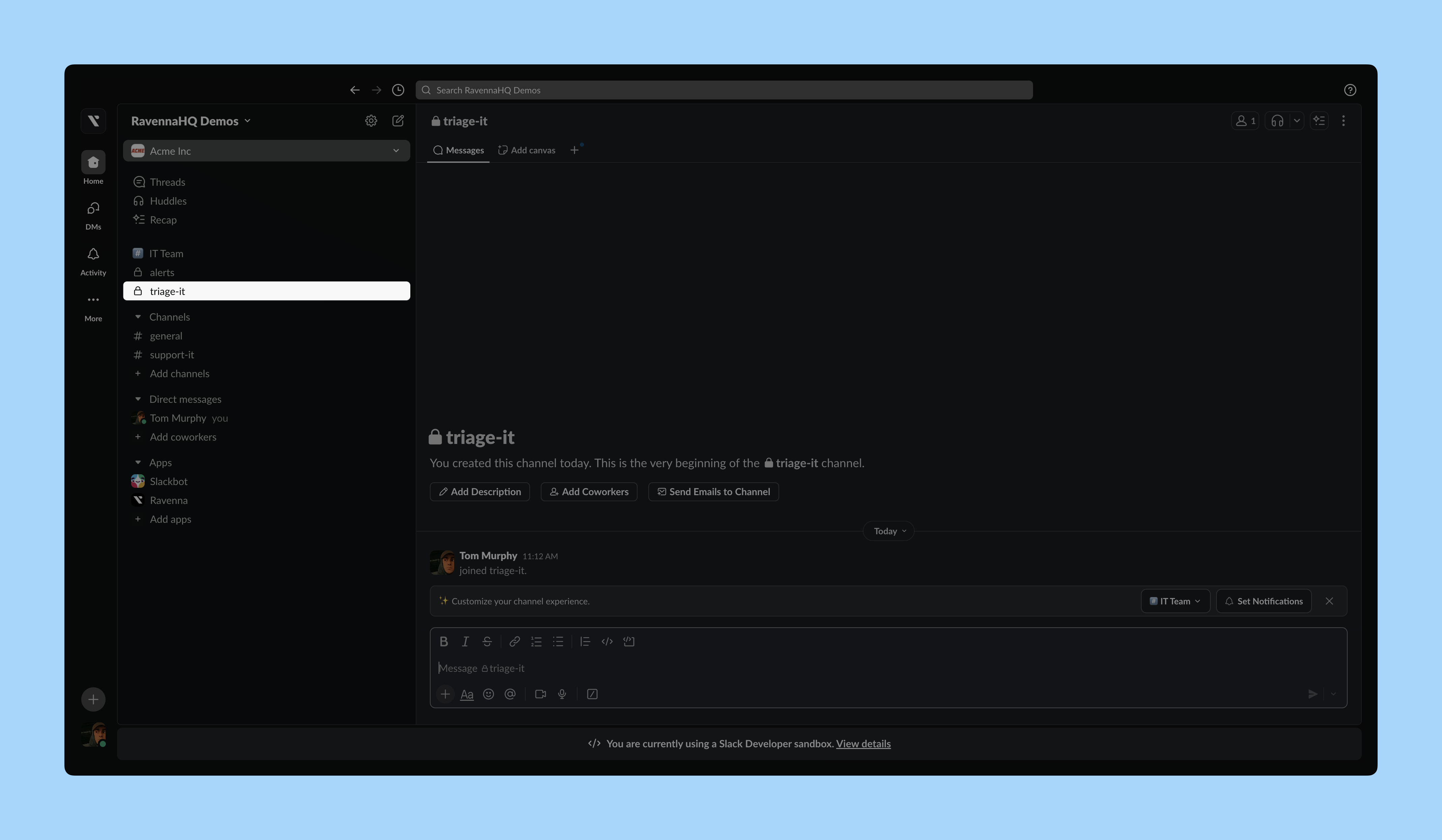
      <Step title="Setup your Slack">
        Create a <strong>private</strong> Slack channel for your Triage channel if you haven't done so already. In this example, we set up the Triage channel for the IT Operations team. This Slack channel will be the main place agents are alerted to new tickets in the workspace.
        <Frame>
          ![Slack Triage Channel](https://d1kzozfjh72w00.cloudfront.net/documentation/screenshots/guides/getting-started/set-up-triage-channel/1.png)
        </Frame>
      </Step>

      <Step title="Invite Ravenna to your channel">
        Send <code>/invite @Ravenna</code> in your Slack channel to invite Ravenna to the Slack channel.
      </Step>

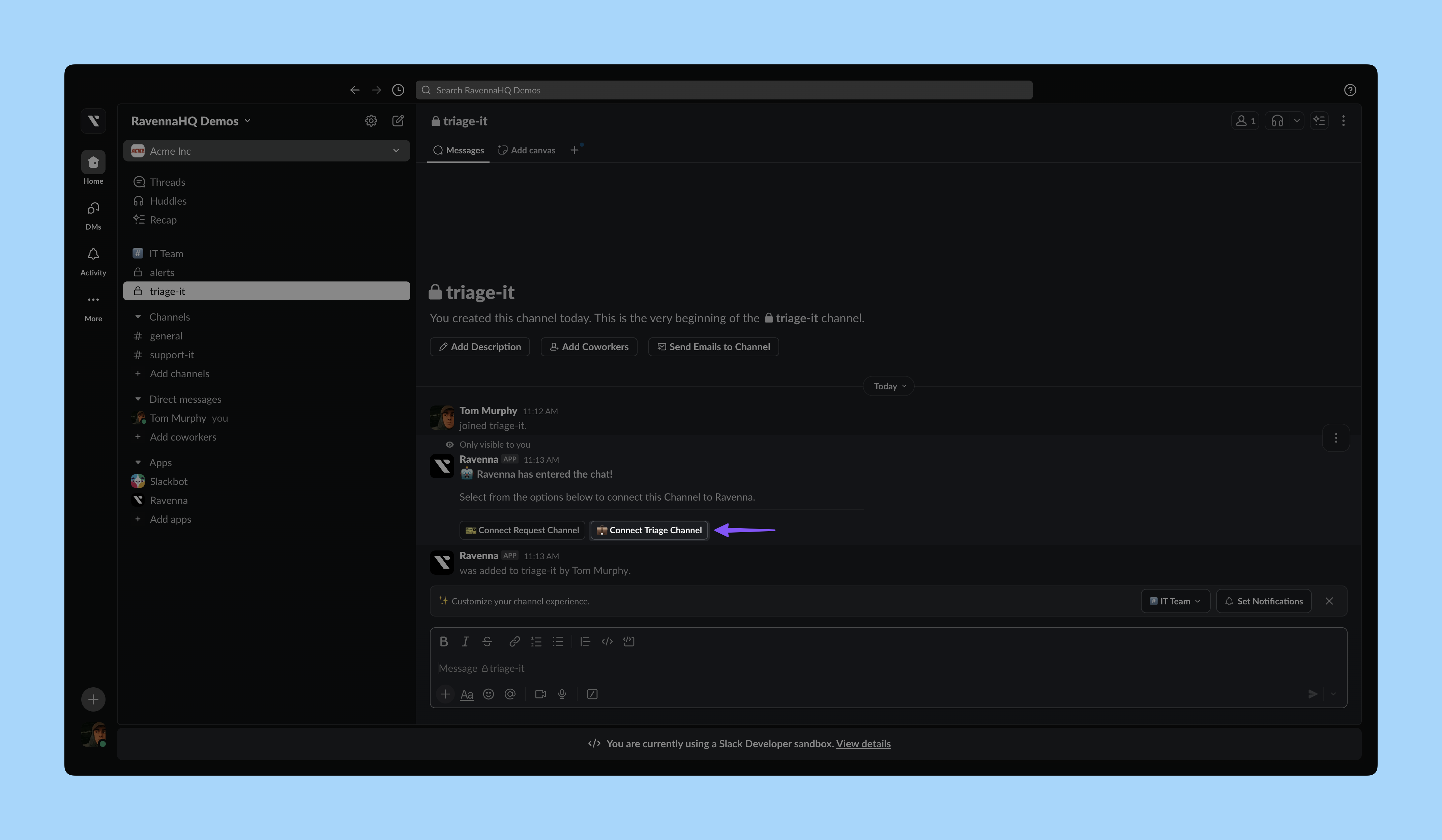
      <Step title="Connect the Agent Channel">
        After inviting Ravenna, you will see a confirmation message visible only to you. Click <strong>Connect Agent Channel</strong>.

        <Frame>
          ![Connect Agent Channel](https://d1kzozfjh72w00.cloudfront.net/documentation/screenshots/guides/getting-started/set-up-triage-channel/2.png)
        </Frame>

        Select your Workspace and click <code>Save</code>. This connects your Ravenna Workspace to the Slack channel as a Triage channel. You will see a confirmation in Slack.
      </Step>

      <Step title="Confirm in Workspace Settings">
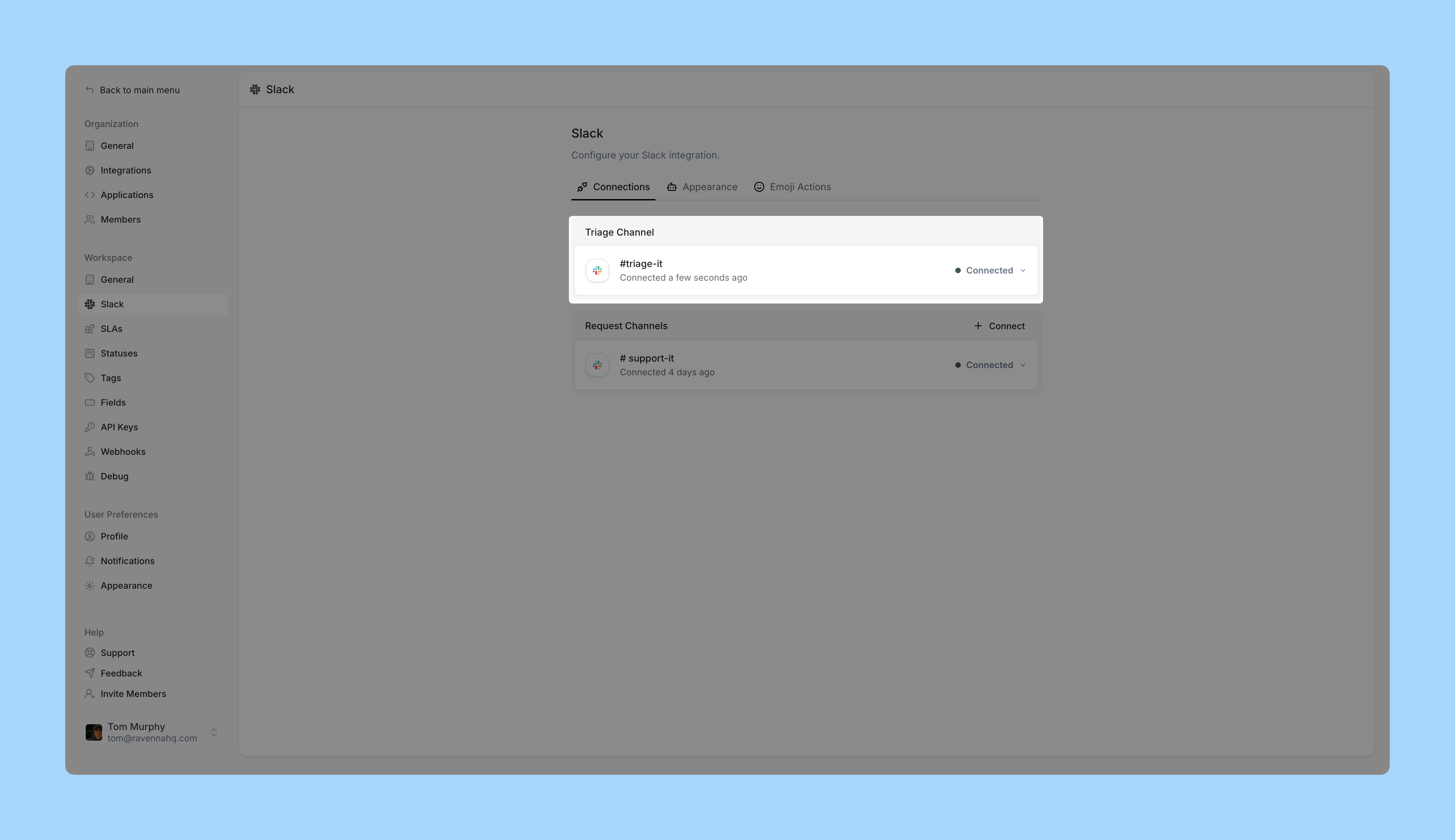
        In Ravenna, go to <Tooltip text="Select Workspace name > Settings">Workspace Settings</Tooltip> and click <strong>Slack</strong> in the left sidebar.

        You should see your Workspace connected to the Triage channel.
        <Frame>
          ![Workspace Settings](https://d1kzozfjh72w00.cloudfront.net/documentation/screenshots/guides/getting-started/set-up-triage-channel/3.png)
        </Frame>
      </Step>

      <Step title="Send a test ticket">
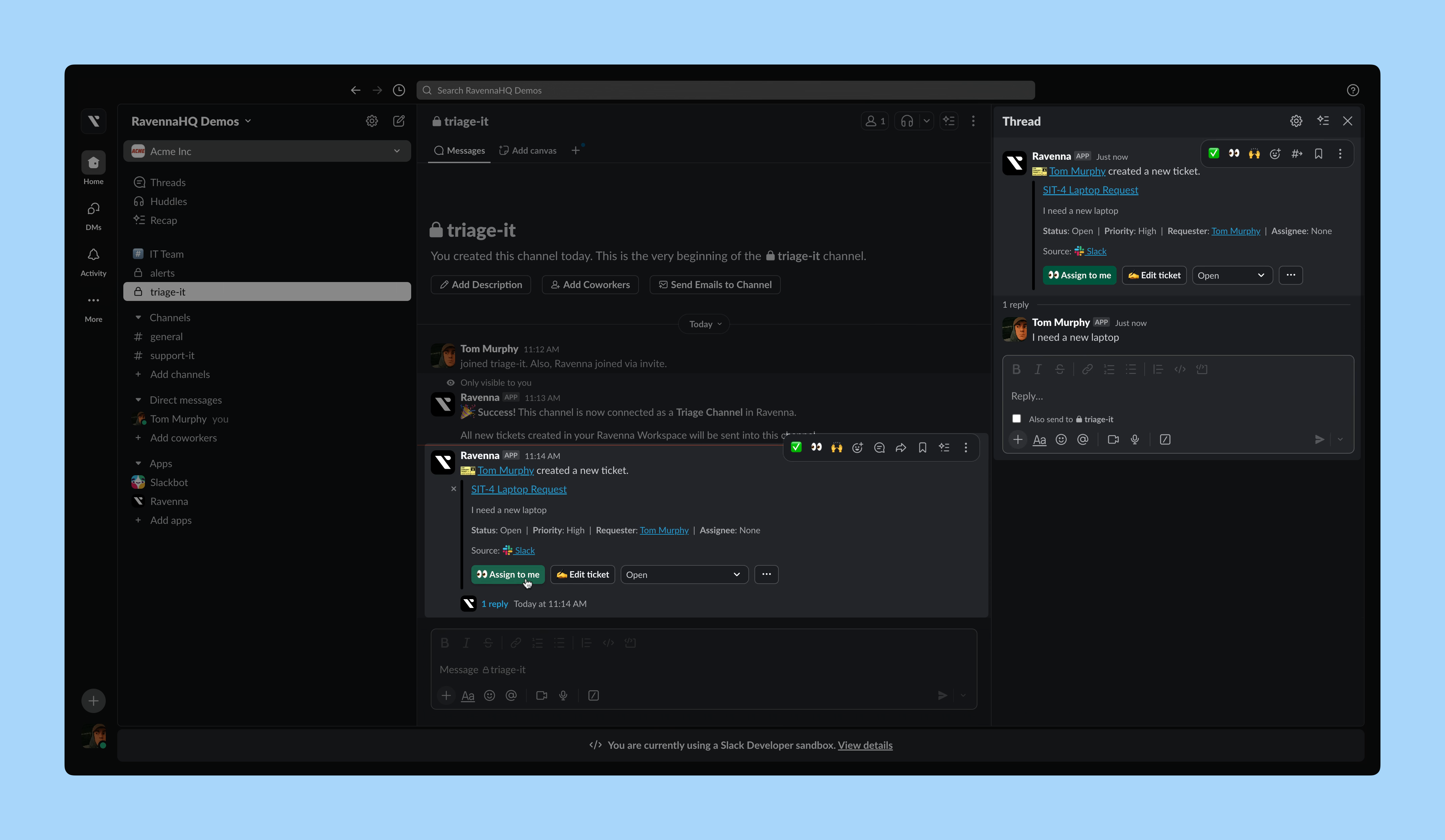
        In your request Slack channel (for example, <code>#it-support</code>), send a message to trigger a test ticket.

        You will see a notification in the Triage channel. Check it out!
        <Frame>
          ![Triage Ticket Mirror](https://d1kzozfjh72w00.cloudfront.net/documentation/screenshots/guides/getting-started/set-up-triage-channel/4.png)
        </Frame>

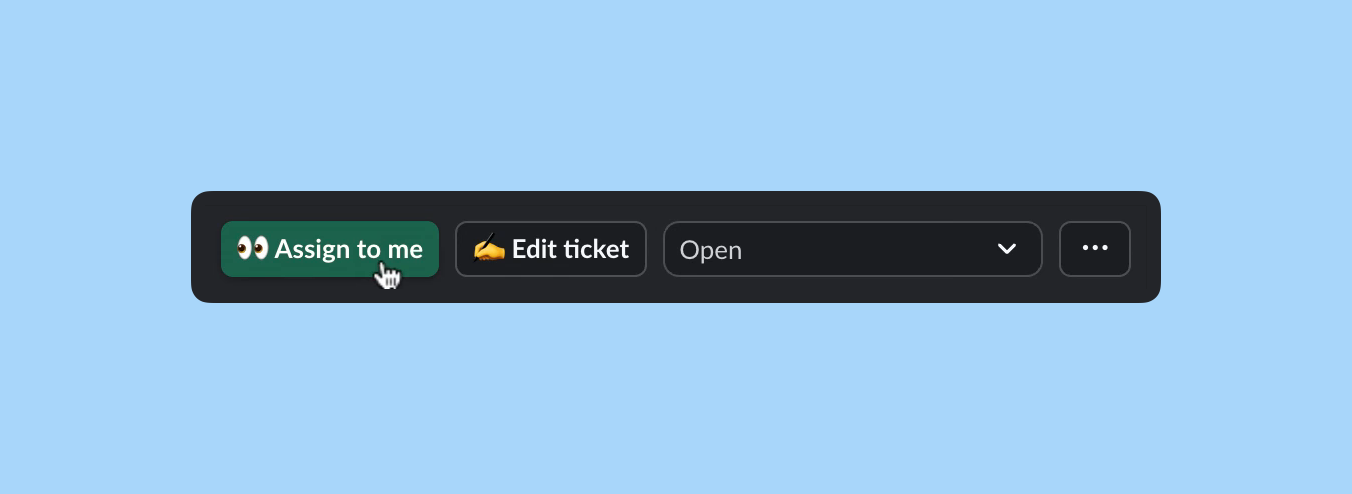
        This Ticket Mirror looks similar to the one in the request channel but has extra action buttons for agents.
        <Frame>
          ![Action Buttons](https://d1kzozfjh72w00.cloudfront.net/documentation/screenshots/guides/getting-started/set-up-triage-channel/5.png)
        </Frame>

        Agents can manage and respond to tickets directly here without using the Admin.
      </Step>

      <Step title="Test it out">
        Try the following to get familiar:

        <Checkbox
          items={[
      "Send a message as an Agent in the Triage channel",
      "Click ‘Assign to me’ to claim the ticket",
      "Add a ✅ emoji to the Ticket Mirror"
    ]}
        />
      </Step>
    </Steps>
  </Tab>
</Tabs>