> ## Documentation Index
> Fetch the complete documentation index at: https://docs.ravenna.ai/llms.txt
> Use this file to discover all available pages before exploring further.
# Client secret setup
> Connect Okta to Ravenna using the OIN marketplace API Service Integration with client secret authentication for fast setup in most workspaces.
Easy setup through Okta OIN API Integration Service marketplace
The Client Secret integration method allows you to quickly connect to your Okta organization through the OIN (Okta Integration Network) marketplace. This is the easiest way to set up the integration, though it's less secure than the Private Key method.
## Prerequisites
Before you begin, ensure you have:
* Okta Super Admin or Application Administrator access
* Your Okta organization domain
* Permissions to create API Service Integrations
## Setup guide
### Install integration from Okta API Integration Store
Log in to your Okta Admin Console and navigate to the API Service Catalog
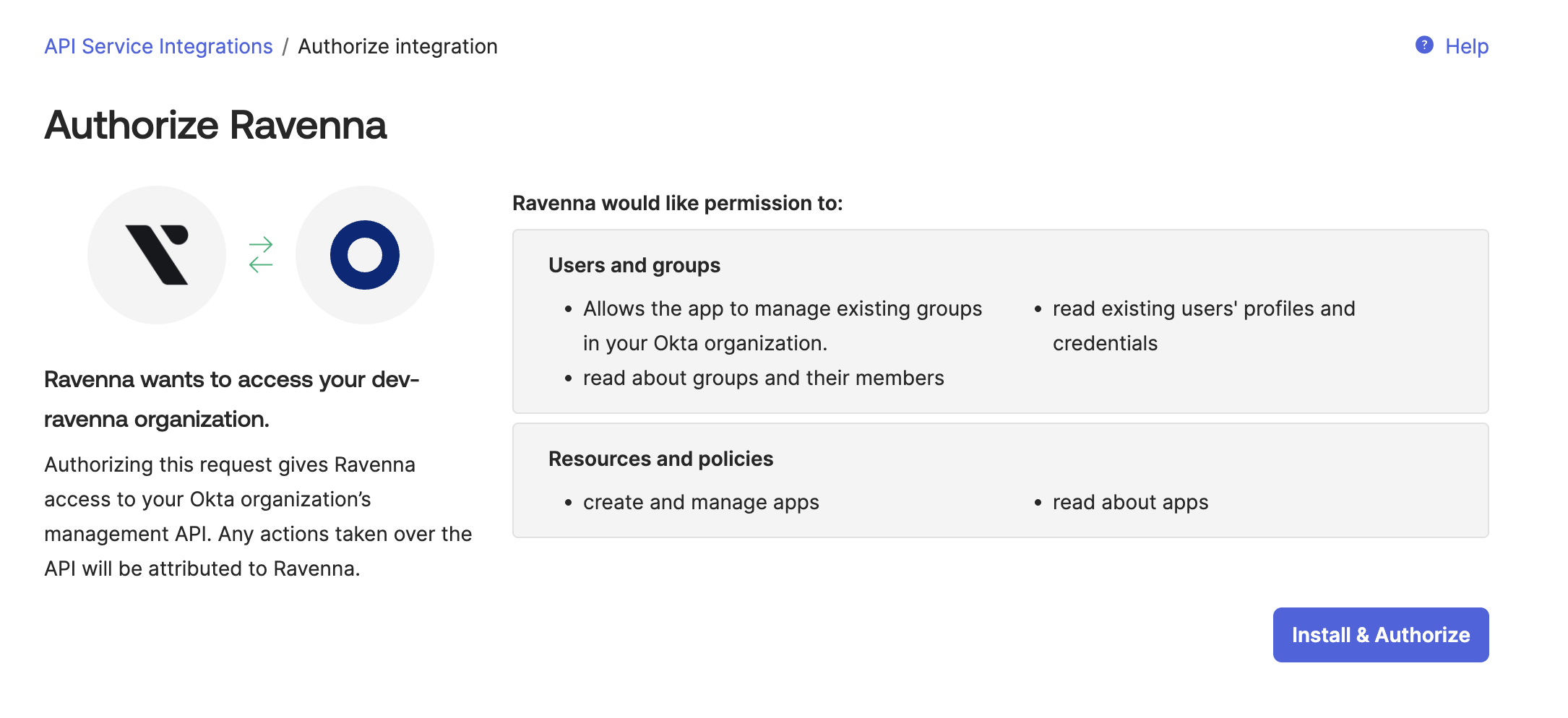
Search for "Ravenna" in the API Service Catalog and select it
Configure your Okta domain and note the Client ID that will be generated
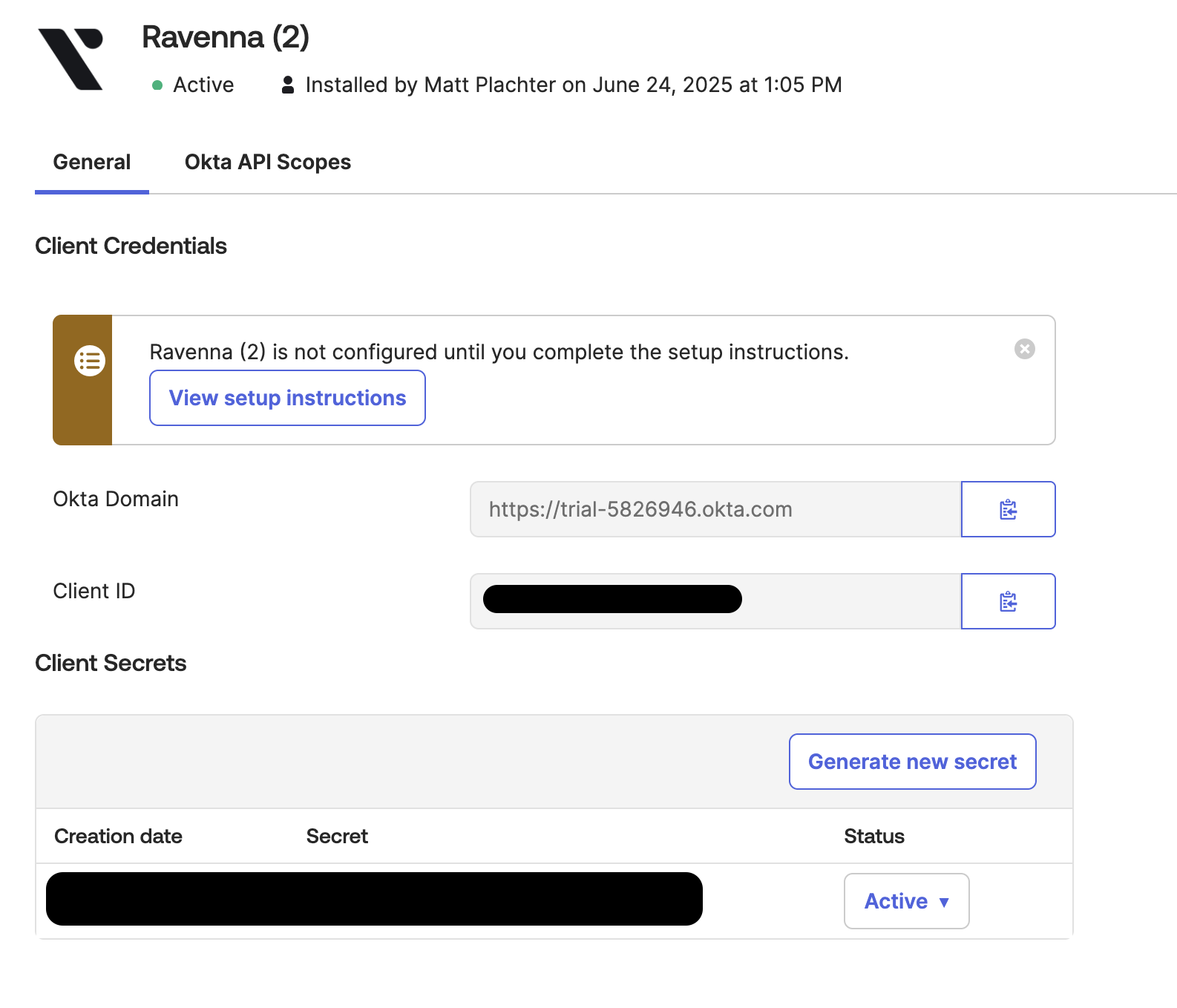
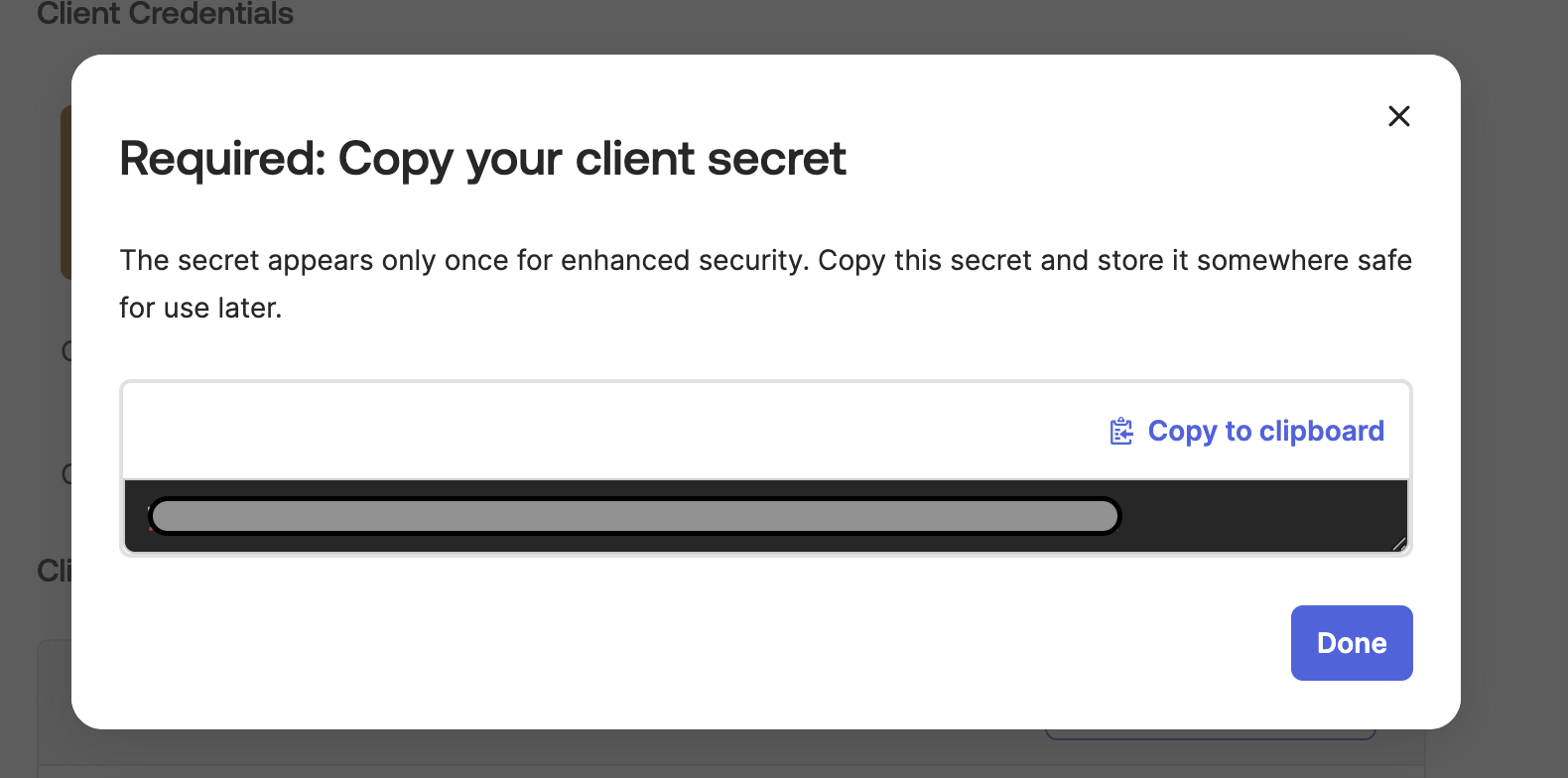
Copy the Client Secret that is generated for your integration
Ensure the integration has the following Okta API scopes:
* `okta.users.read`
* `okta.users.manage`
* `okta.groups.read`
* `okta.groups.manage`
* `okta.apps.read`
* `okta.apps.manage`
* `okta.factors.read`
* `okta.factors.manage`
Grant the following admin roles to the integration:
* `Application Administrator`
* `Group Administrator`
* `Help Desk Administrator` or `Super Administrator` (required for password and MFA reset)
### Add integration
Go to **Settings > Integrations**
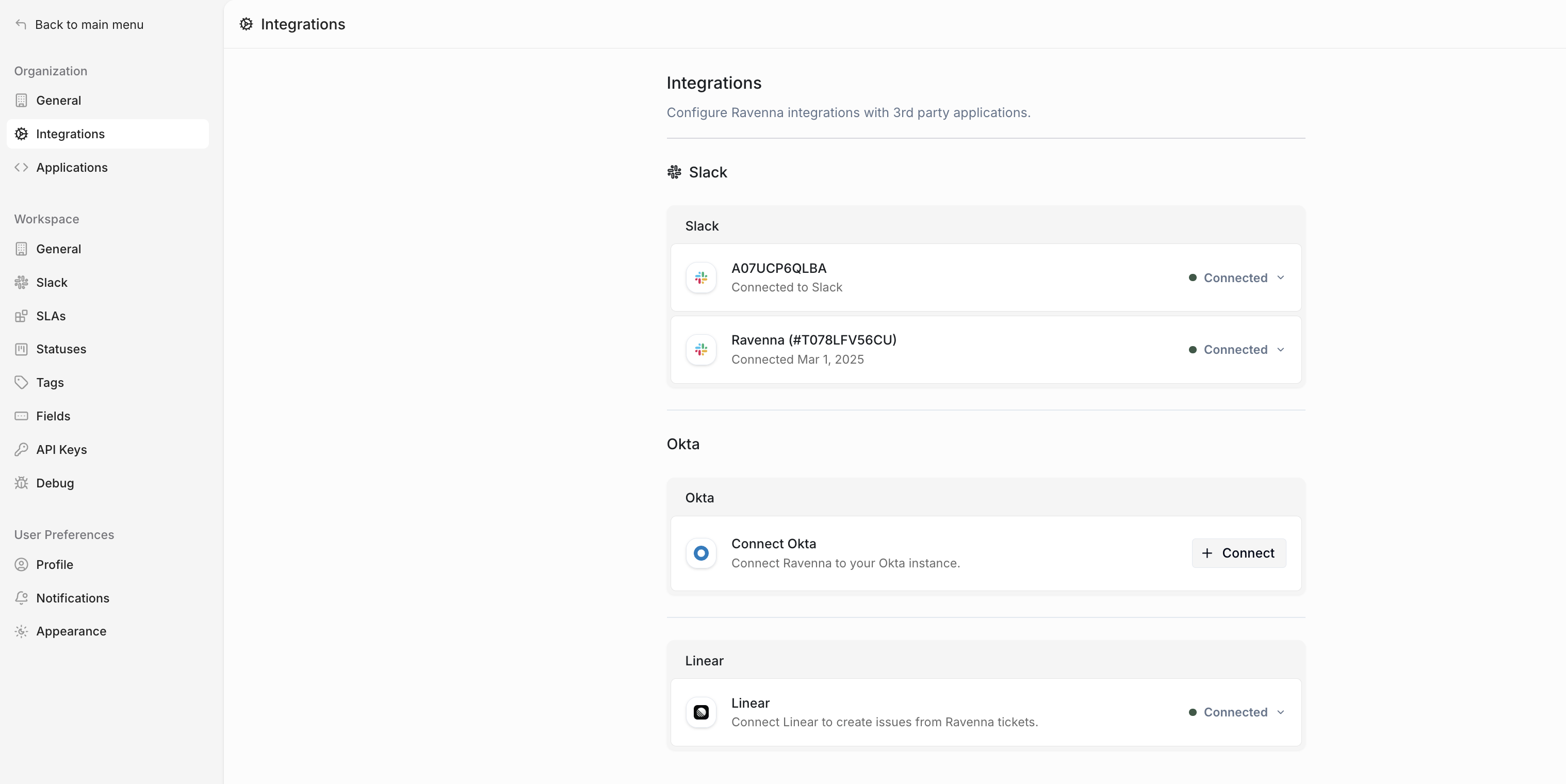
Select **Okta** from the available integrations
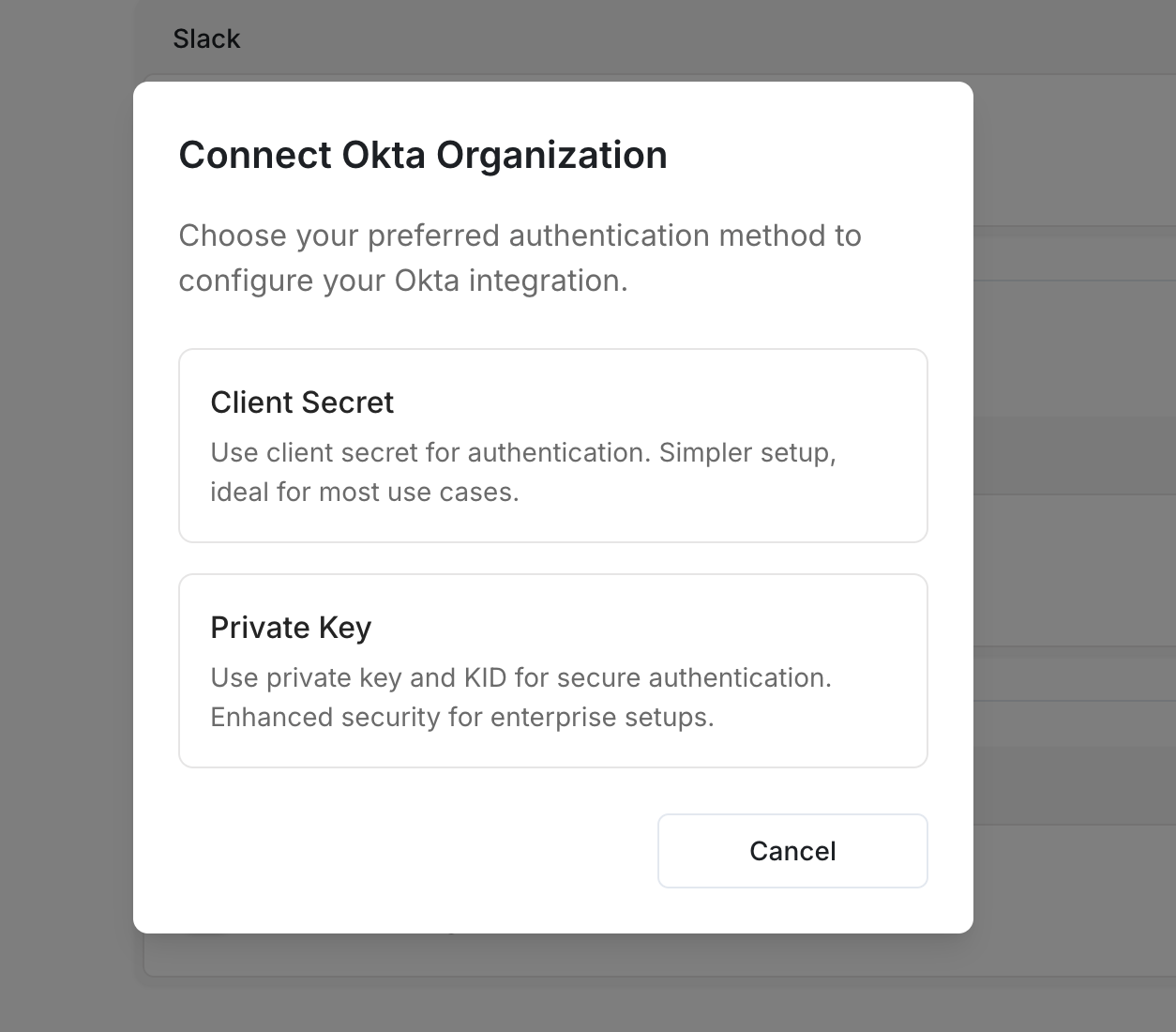
Select **Client Secret** as your authentication method
Provide the following information:
1. **Okta Domain**: Your Okta domain (e.g., `https://your-org.okta.com`)
2. **Client ID**: The Client ID from your Okta integration
3. **Client Secret**: The Client Secret from your Okta integration
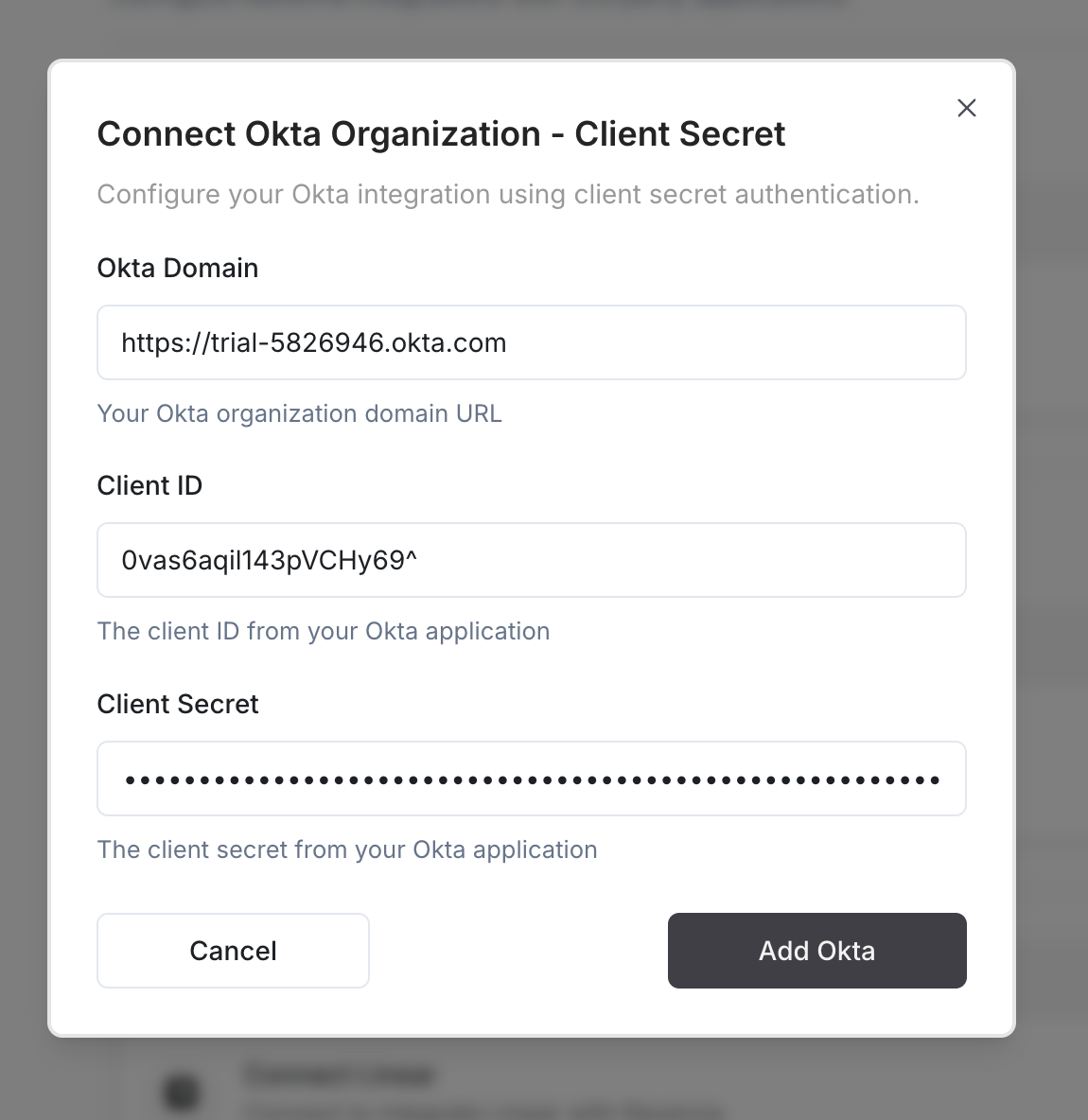
Click **Add Okta** to complete the integration setup
## Troubleshooting
**Cause**: Client ID or Client Secret is incorrect
**Solution**:
* Verify the Client ID and Client Secret are copied correctly
* Ensure there are no extra spaces or characters
* Check that the integration still exists in Okta
* Try creating a new integration if credentials are lost
**Cause**: The integration was created with a subset of the required Okta API scopes.
**Behavior**: Ravenna no longer blocks integration setup when some scopes are missing. The integration is created with the scopes you granted, and any resource Ravenna can't read (users, groups, or applications) syncs as empty until the missing scope is added.
**Solution**:
* Verify all required scopes are granted in Okta
* Check that the integration has Application Administrator role
* Ensure Group Administrator role is assigned
* For password and MFA reset, assign `Help Desk Administrator` or `Super Administrator`
* After granting the missing scopes, trigger a resync from the integration page (no need to disconnect and reconnect)
**Cause**: Okta enforces credential reset through admin roles, separately from API scopes, so the integration can have every scope and still be blocked. `Application Administrator` and `Group Administrator` cannot reset credentials.
**Solution**:
* Assign `Help Desk Administrator` or `Super Administrator` to the integration
* Retry the action; no resync or reconnect is needed
**Cause**: Incorrect Okta domain
**Solution**:
* Verify the domain matches your Okta organization (e.g., `https://your-org.okta.com`)
* Ensure the domain is active and accessible
* Check for typos in the domain name
## Features
Once connected, you can use Okta actions in workflows:
Manage user group memberships, assign applications, and check group membership for access management