> ## Documentation Index
> Fetch the complete documentation index at: https://docs.ravenna.ai/llms.txt
> Use this file to discover all available pages before exploring further.
# AI Assistant
> Configure Ravenna's AI Assistant in Slack to deliver agent-powered answers through direct messages and the Slack Assistant panel for instant support.
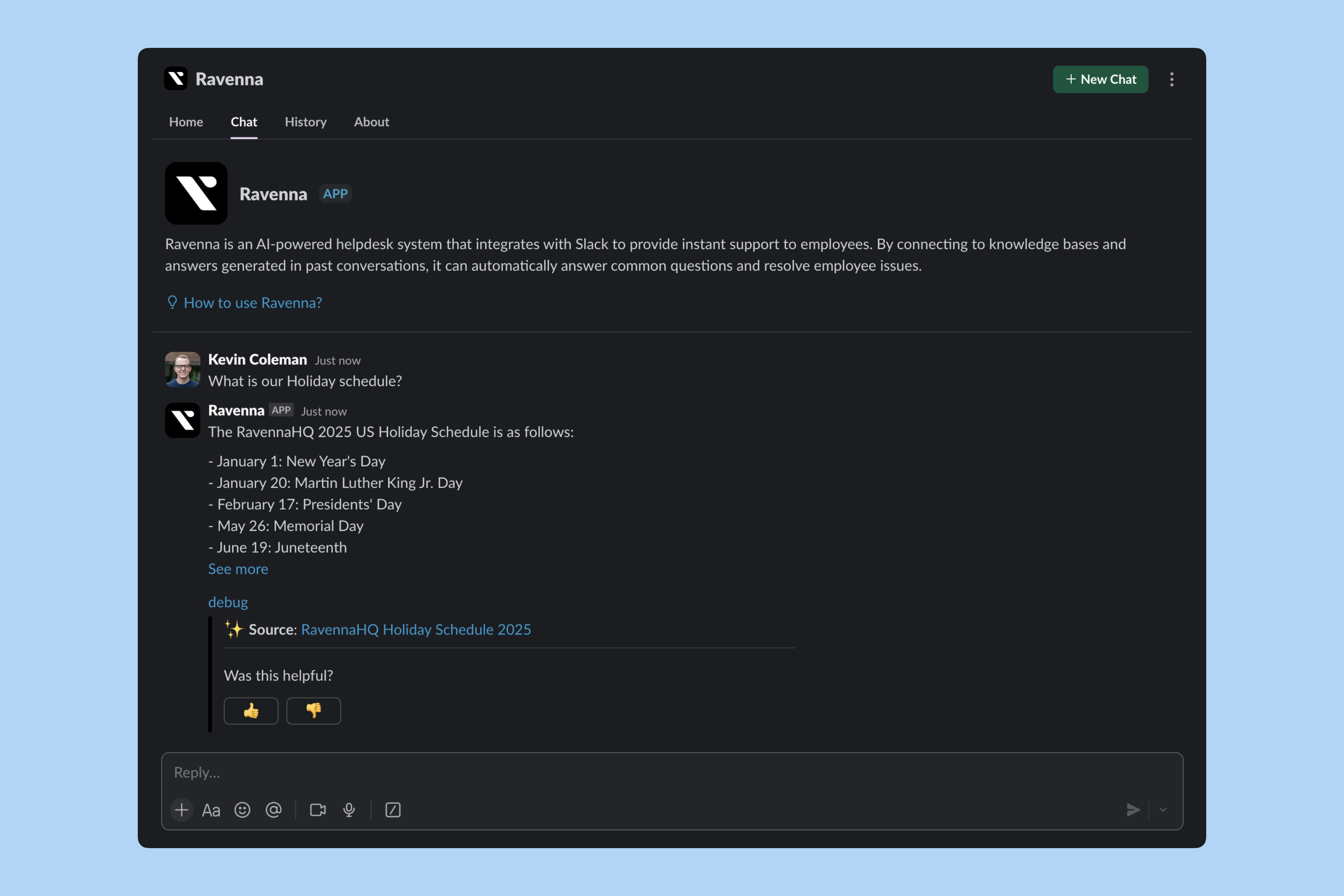
The Ravenna AI Assistant brings Agent-powered support into Slack. Chat with Ravenna via direct messages or the Slack Assistant panel to get instant answers, create tickets, and get help without leaving Slack.
 ***
## Set up the AI Assistant
The AI Assistant requires two configurations: a default channel with an assigned Agent, and workspace visibility settings.
The AI Assistant uses the Agent assigned to your workspace's default channel.
Go to **Workspace Settings > General** and click **Select** in the **Default Channel** card to choose your default channel.
***
## Set up the AI Assistant
The AI Assistant requires two configurations: a default channel with an assigned Agent, and workspace visibility settings.
The AI Assistant uses the Agent assigned to your workspace's default channel.
Go to **Workspace Settings > General** and click **Select** in the **Default Channel** card to choose your default channel.
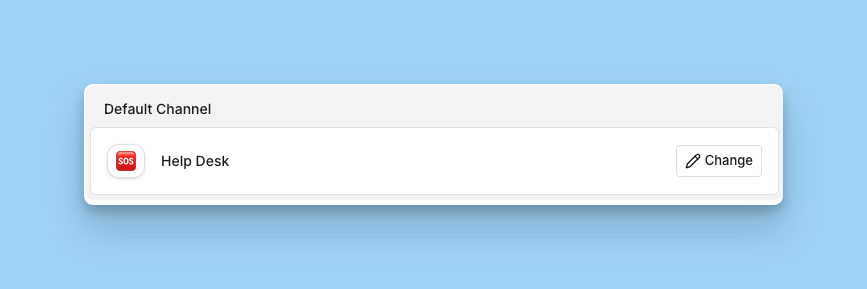 Then ensure an Agent is assigned to that channel in **Channel Settings > Agent**.
The AI Assistant will not function without both a default channel selected and an Agent assigned to that channel.
Choose which workspaces users can access when chatting with the AI Assistant.
Go to **Workspace Settings > Slack** and toggle **Visibility → Show in Slack Assistant**.
Then ensure an Agent is assigned to that channel in **Channel Settings > Agent**.
The AI Assistant will not function without both a default channel selected and an Agent assigned to that channel.
Choose which workspaces users can access when chatting with the AI Assistant.
Go to **Workspace Settings > Slack** and toggle **Visibility → Show in Slack Assistant**.
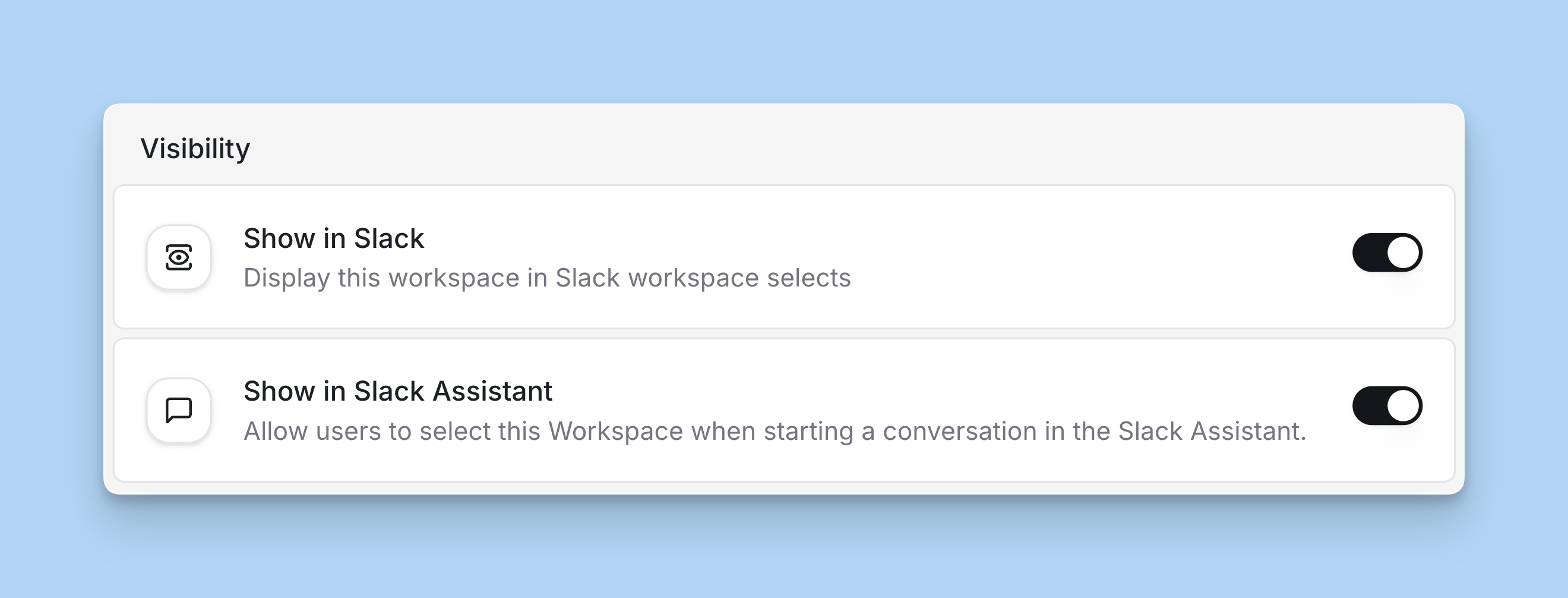 Any workspace with this toggle enabled appears as an option when users start a conversation with the AI Assistant.
Learn more about [Agent configuration](/documentation/automate/agents/overview) to customize behavior, rules, and knowledge sources
***
## Access the AI Assistant
You can access the AI Assistant in two ways.
Access through the Ravenna app interface with full conversation history.
Click the Ravenna app in the **Apps** section in Slack.
Any workspace with this toggle enabled appears as an option when users start a conversation with the AI Assistant.
Learn more about [Agent configuration](/documentation/automate/agents/overview) to customize behavior, rules, and knowledge sources
***
## Access the AI Assistant
You can access the AI Assistant in two ways.
Access through the Ravenna app interface with full conversation history.
Click the Ravenna app in the **Apps** section in Slack.
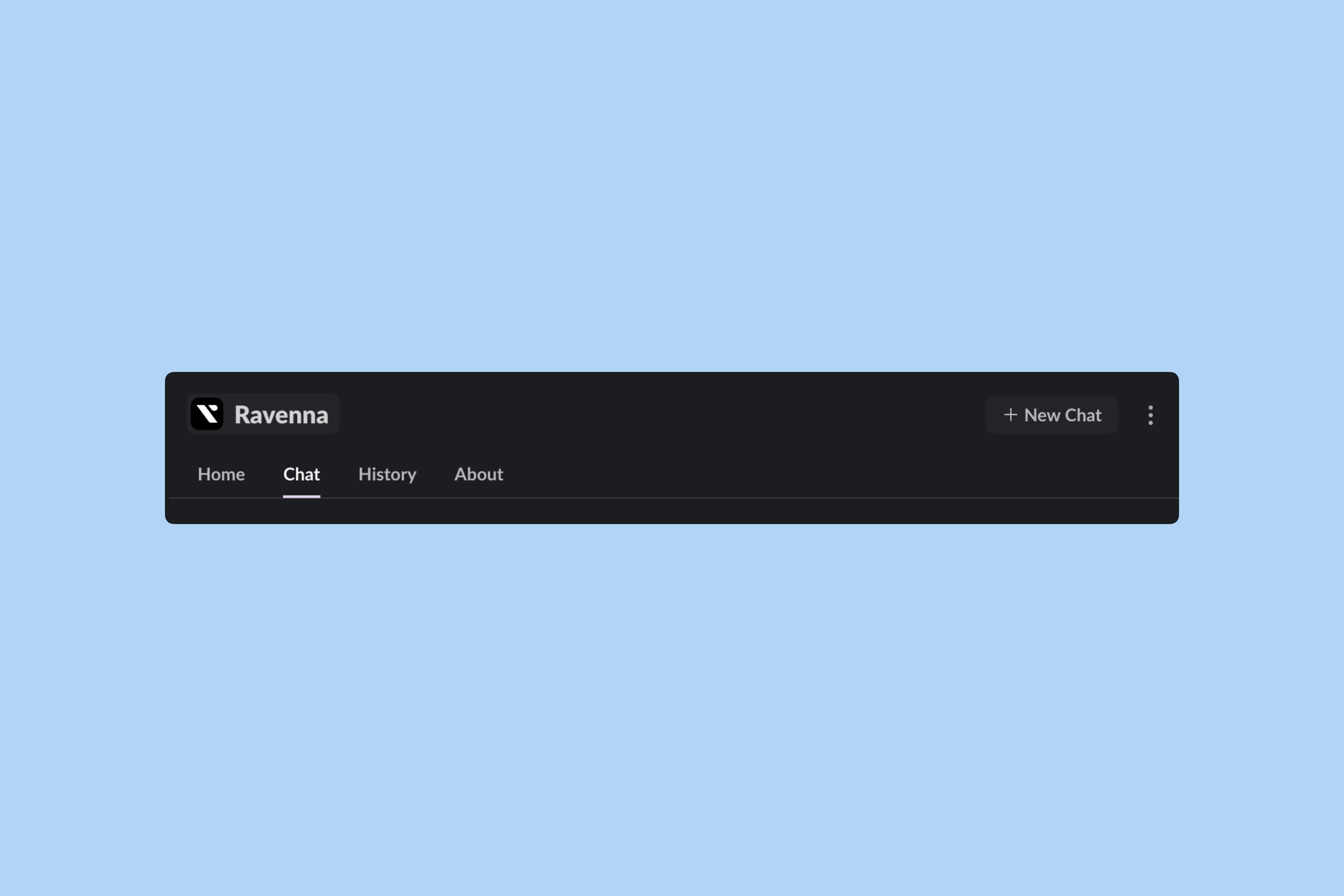
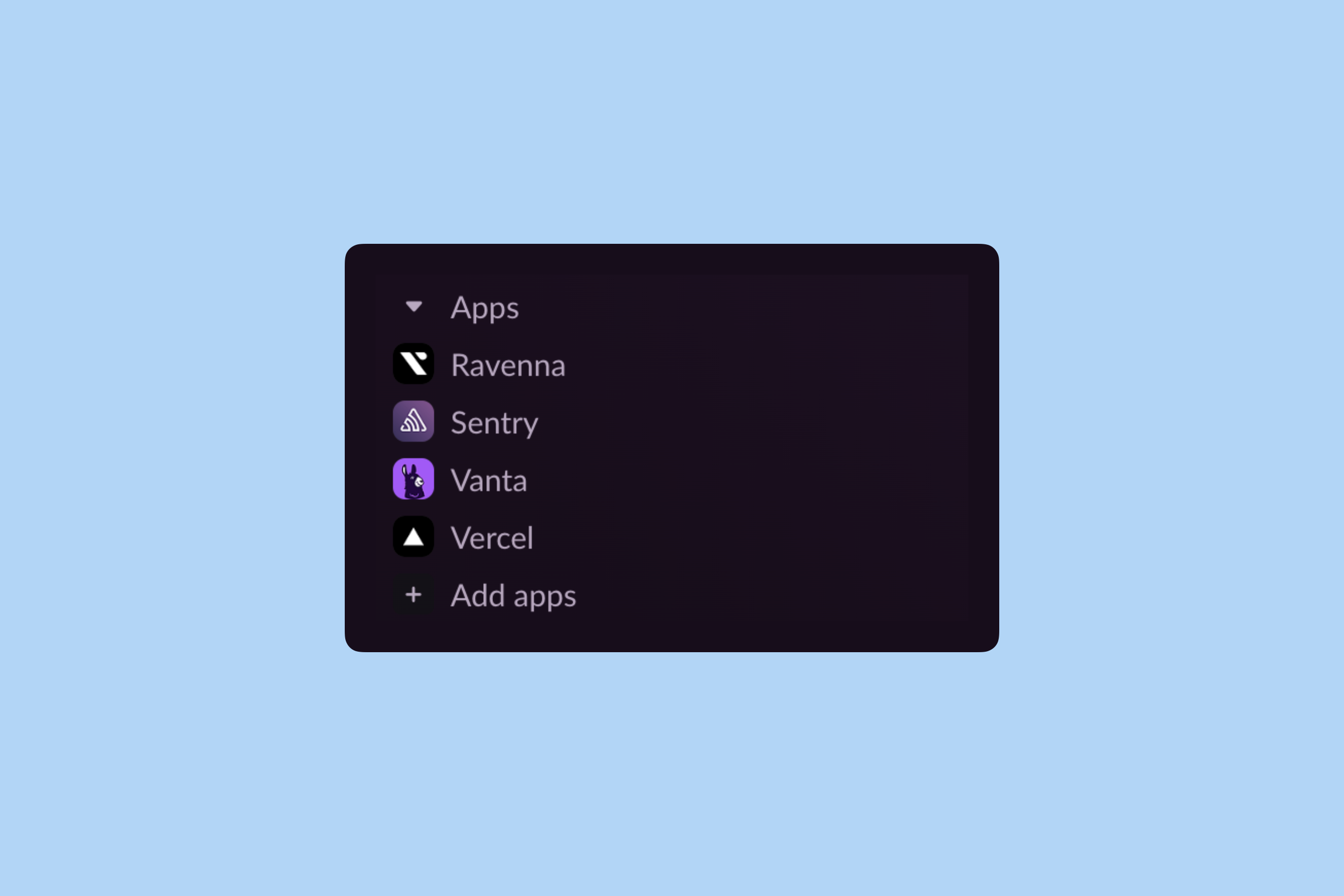 Click the **Chat** tab to open a new conversation with Ravenna.
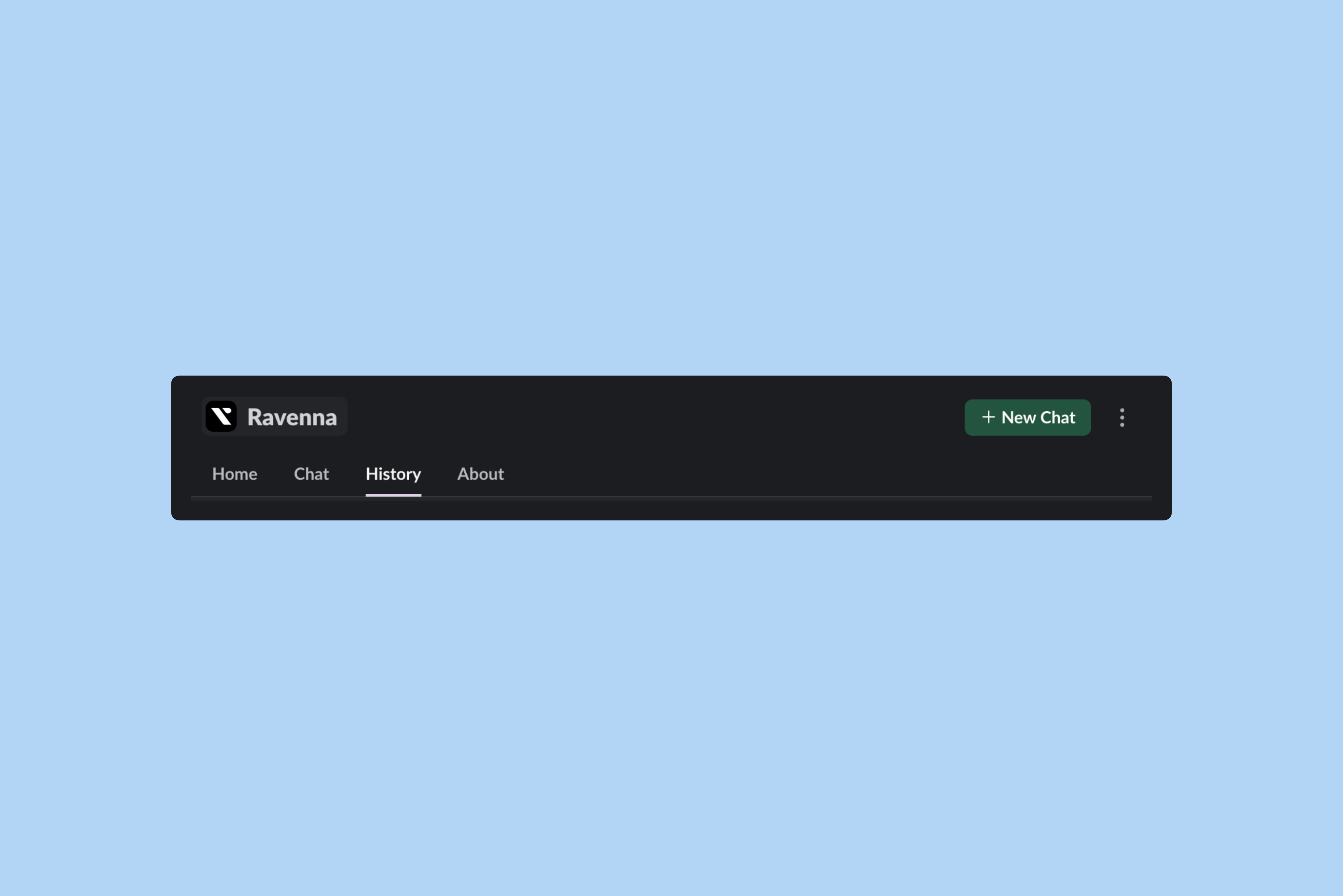
 Access previous conversations in the **History** tab.
 Quick-access panel available from anywhere in Slack.
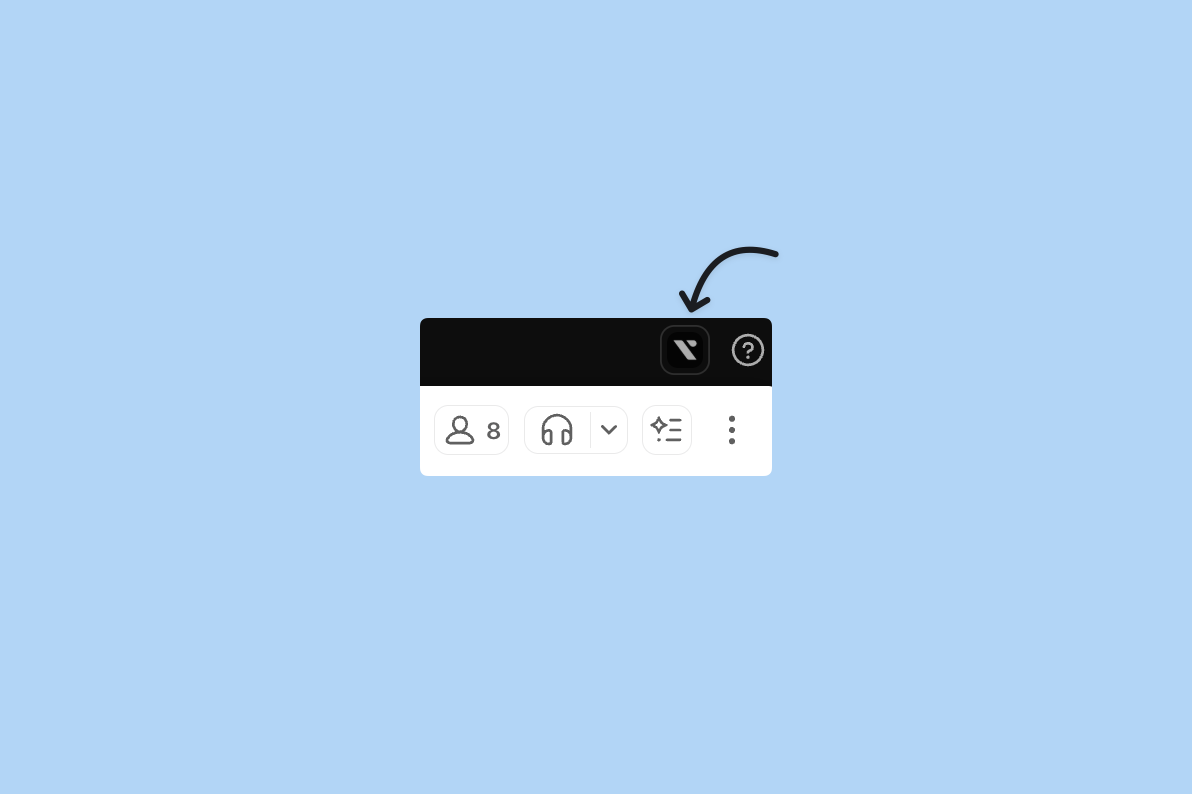
Click the Ravenna Assistant icon in Slack's toolbar (top right corner).
Quick-access panel available from anywhere in Slack.
Click the Ravenna Assistant icon in Slack's toolbar (top right corner).
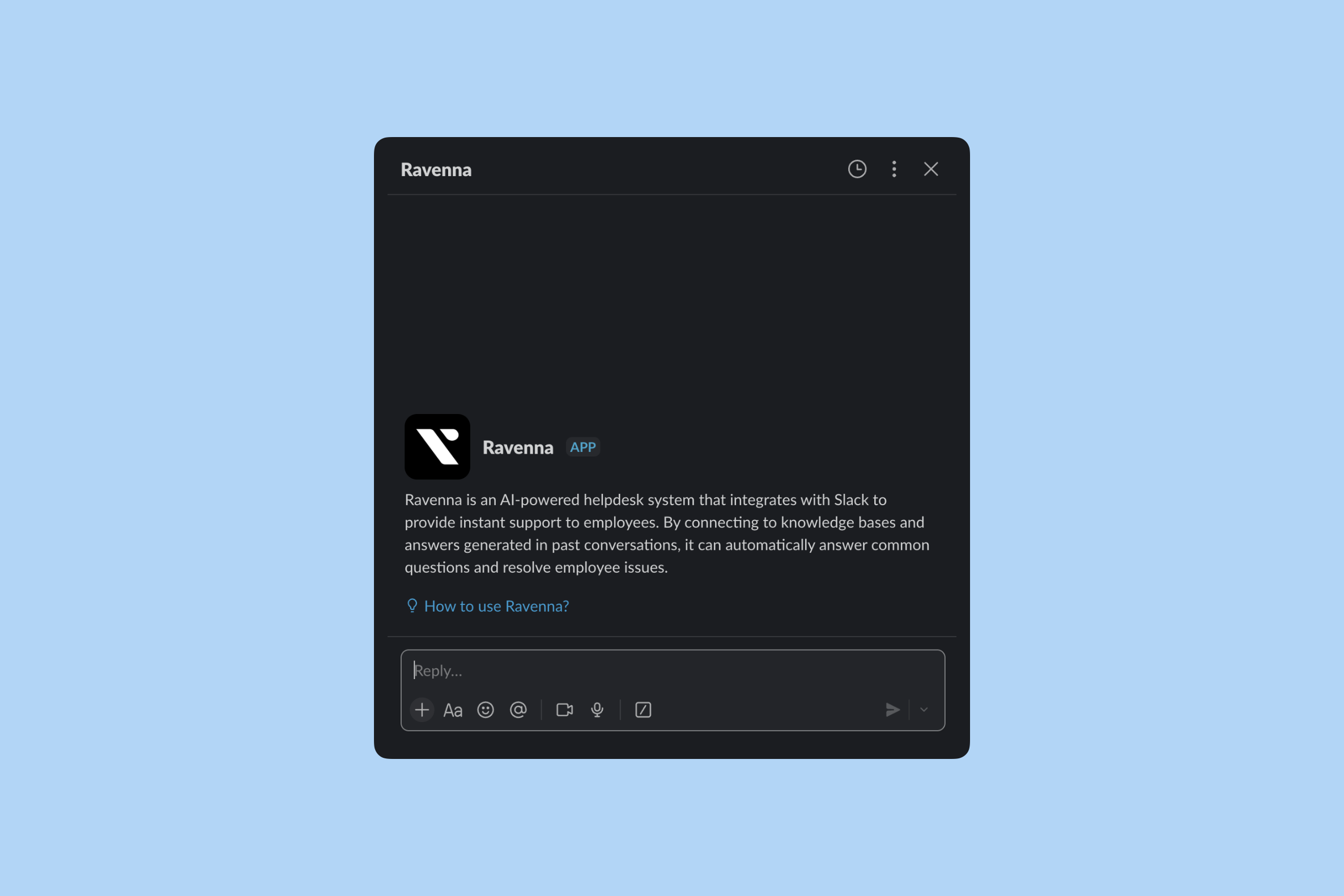
 The assistant panel opens, ready for your questions.
 ***
## How it works
The AI Assistant uses the Agent assigned to your workspace's default channel. The Agent follows all its configured settings when responding, just as it would in a public channel.
The Agent responds according to its configuration, including:
* Rules and escalation instructions
* Knowledge sources and tools
* Personality, tone, and response length
* Auto-submit and response delay settings
***
## How it works
The AI Assistant uses the Agent assigned to your workspace's default channel. The Agent follows all its configured settings when responding, just as it would in a public channel.
The Agent responds according to its configuration, including:
* Rules and escalation instructions
* Knowledge sources and tools
* Personality, tone, and response length
* Auto-submit and response delay settings
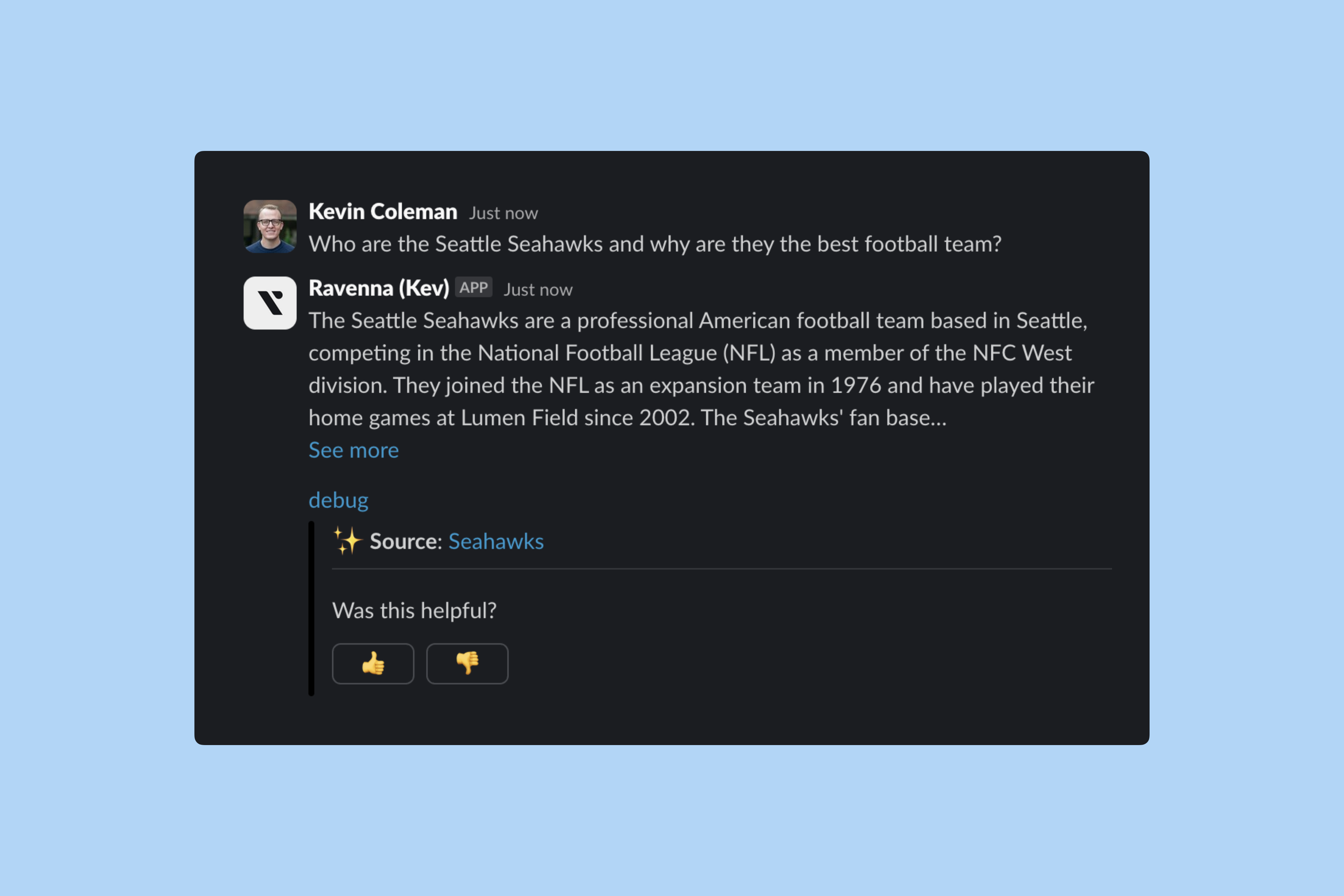 When starting a conversation, users select which workspace context to use. This determines:
* Which Agent responds (the one assigned to that workspace's default channel)
* Which knowledge sources the Agent can access
* Which default channel receives tickets if created
* Which workspace settings apply to the conversation
When the Agent cannot answer a question, conversations automatically convert to tickets for human support. The ticket is created in the workspace's default channel and includes the full conversation history.
All conversations are saved and accessible from the History tab in the Ravenna app. Users can review past conversations and continue where they left off.
Share files directly in a conversation with the AI Assistant. The Agent reads PDFs, images, and other supported documents, then uses their contents to answer questions or prefill ticket forms. The Agent briefly waits for the upload to finish before responding so the file contents are available when it replies.
Learn more about [file handling in agents](/documentation/automate/agents/customize#slack-behavior).
When starting a conversation, users select which workspace context to use. This determines:
* Which Agent responds (the one assigned to that workspace's default channel)
* Which knowledge sources the Agent can access
* Which default channel receives tickets if created
* Which workspace settings apply to the conversation
When the Agent cannot answer a question, conversations automatically convert to tickets for human support. The ticket is created in the workspace's default channel and includes the full conversation history.
All conversations are saved and accessible from the History tab in the Ravenna app. Users can review past conversations and continue where they left off.
Share files directly in a conversation with the AI Assistant. The Agent reads PDFs, images, and other supported documents, then uses their contents to answer questions or prefill ticket forms. The Agent briefly waits for the upload to finish before responding so the file contents are available when it replies.
Learn more about [file handling in agents](/documentation/automate/agents/customize#slack-behavior).