> ## Documentation Index
> Fetch the complete documentation index at: https://docs.ravenna.ai/llms.txt
> Use this file to discover all available pages before exploring further.
# App Home
> Use the Ravenna App Home tab in Slack to view your tickets, create requests, and manage support work without switching between Slack and the Admin.
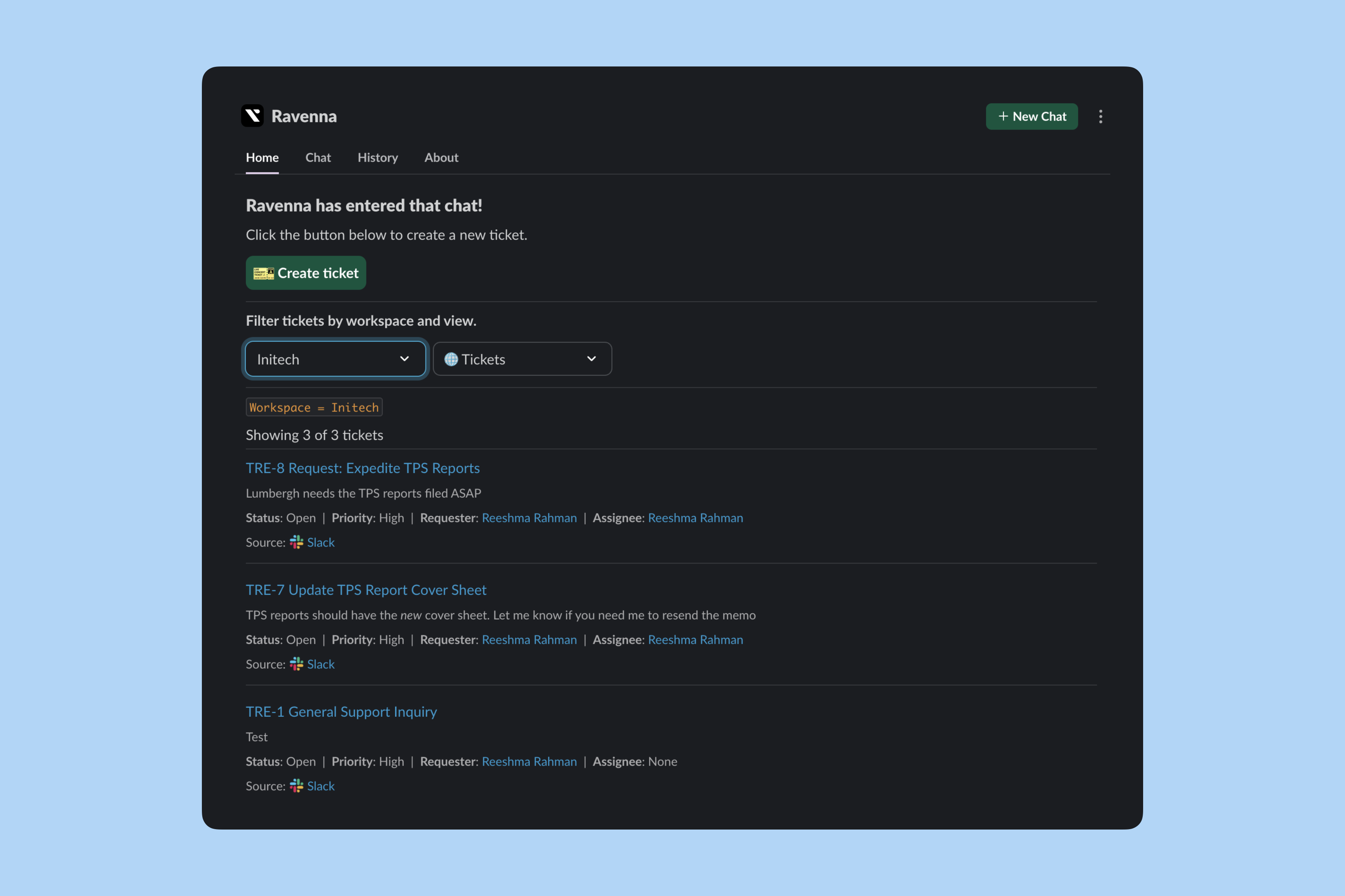
Access your Ravenna dashboard directly in Slack through the App Home tab. View tickets, create requests, and manage work without switching between tools.
 ***
## Access App Home
Click the Ravenna app in your Slack sidebar. The Home tab opens by default with your personalized ticket dashboard.
***
## Create tickets
Anyone can submit tickets from the App Home tab. Click **Create Ticket** to open the submission modal.
***
## Access App Home
Click the Ravenna app in your Slack sidebar. The Home tab opens by default with your personalized ticket dashboard.
***
## Create tickets
Anyone can submit tickets from the App Home tab. Click **Create Ticket** to open the submission modal.
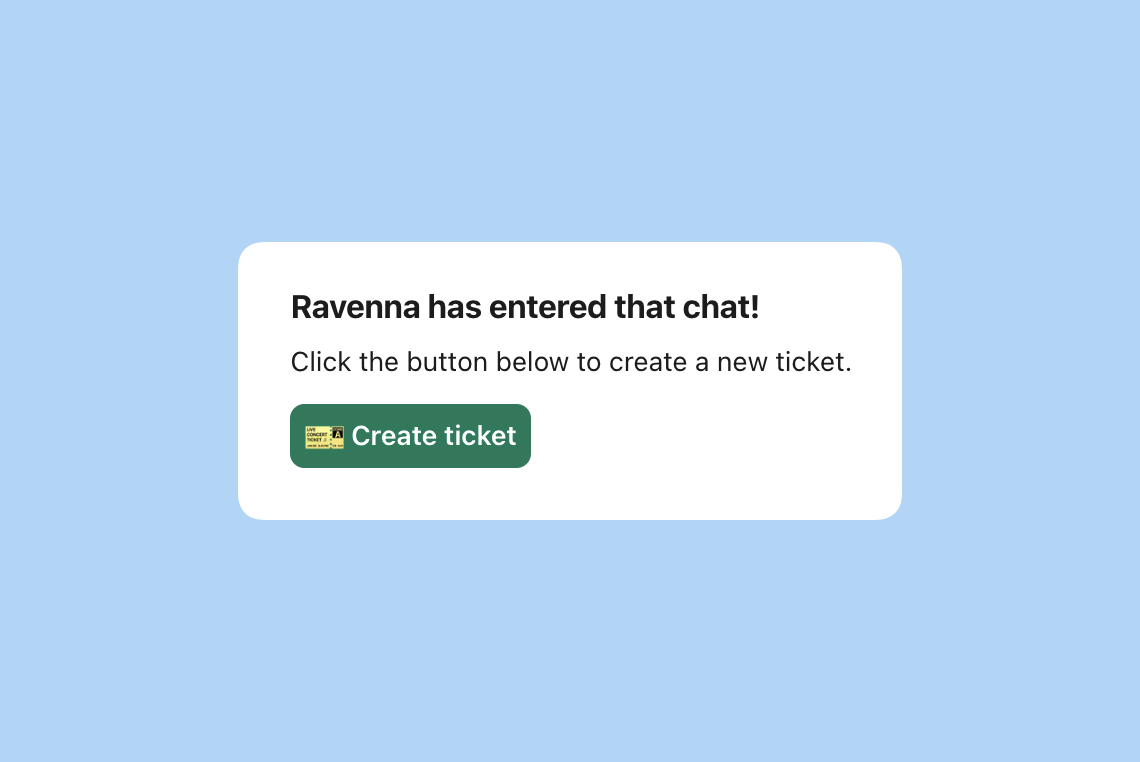 The create ticket modal uses your workspace's configured forms and custom fields.
***
## View modes
Your App Home experience depends on your role and selected mode.
### Member mode
Workspace admins and members see member mode by default with full workspace capabilities.
**Filter tickets**
The create ticket modal uses your workspace's configured forms and custom fields.
***
## View modes
Your App Home experience depends on your role and selected mode.
### Member mode
Workspace admins and members see member mode by default with full workspace capabilities.
**Filter tickets**
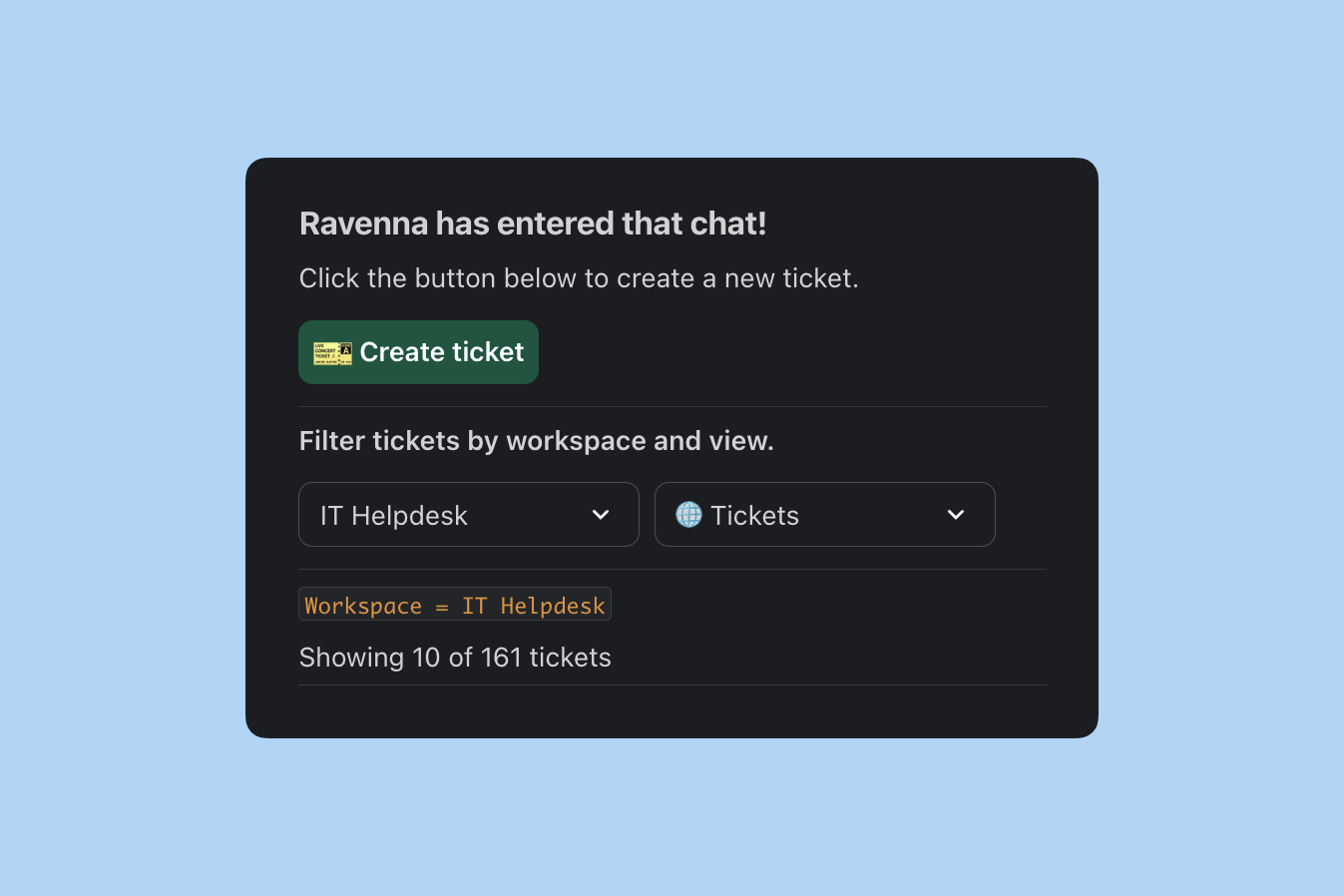 Filter tickets by:
* **Workspace**: Choose which workspace's tickets to view (shows only workspaces where you're a workspace admin or member)
* **Custom views**: Access all table views configured for that workspace
Filter tickets by:
* **Workspace**: Choose which workspace's tickets to view (shows only workspaces where you're a workspace admin or member)
* **Custom views**: Access all table views configured for that workspace
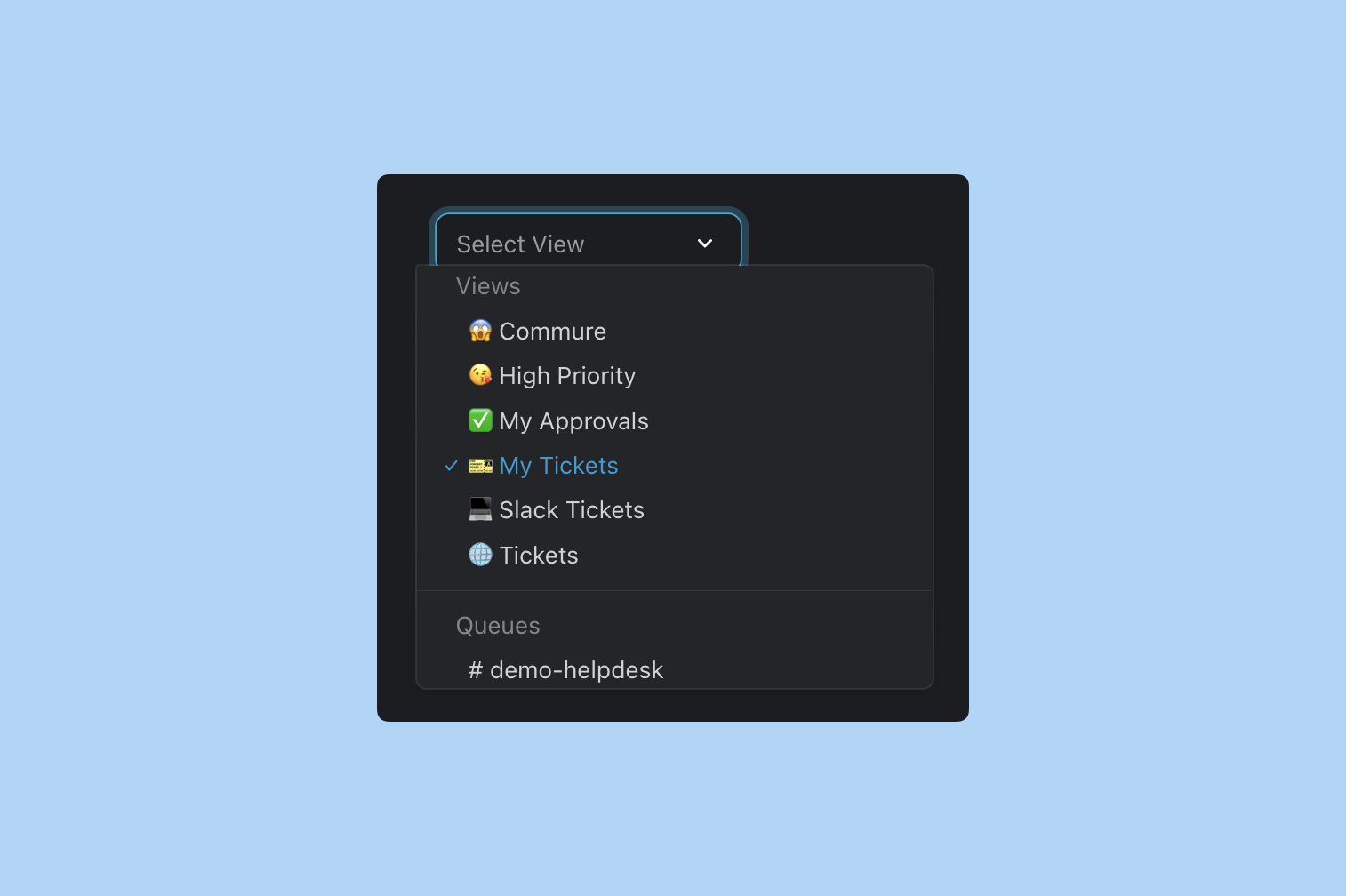 Custom views you create in Ravenna sync automatically to your Slack App Home.
**Available views**
Custom views you create in Ravenna sync automatically to your Slack App Home.
**Available views**
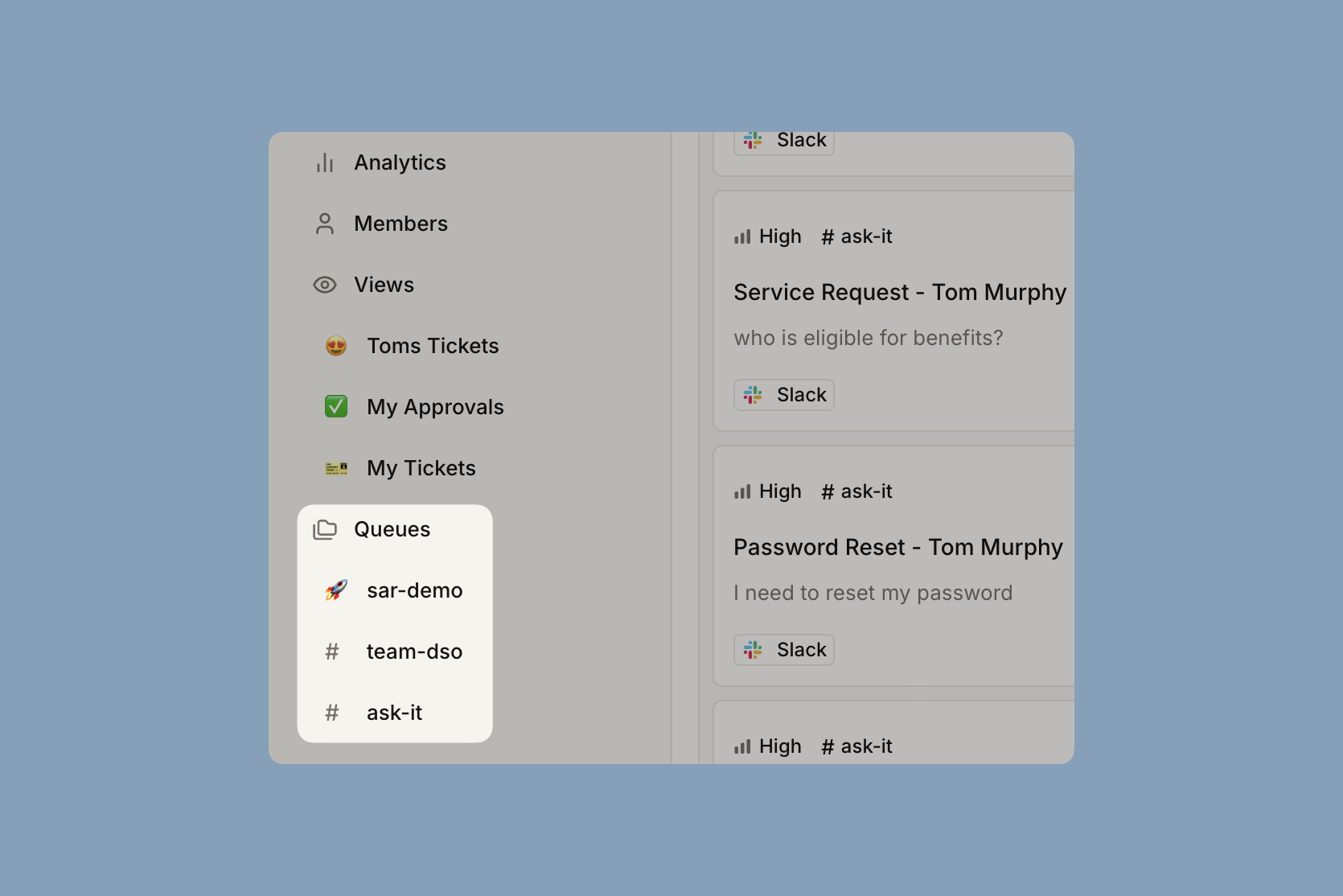 View tickets from specific channels with full filtering.
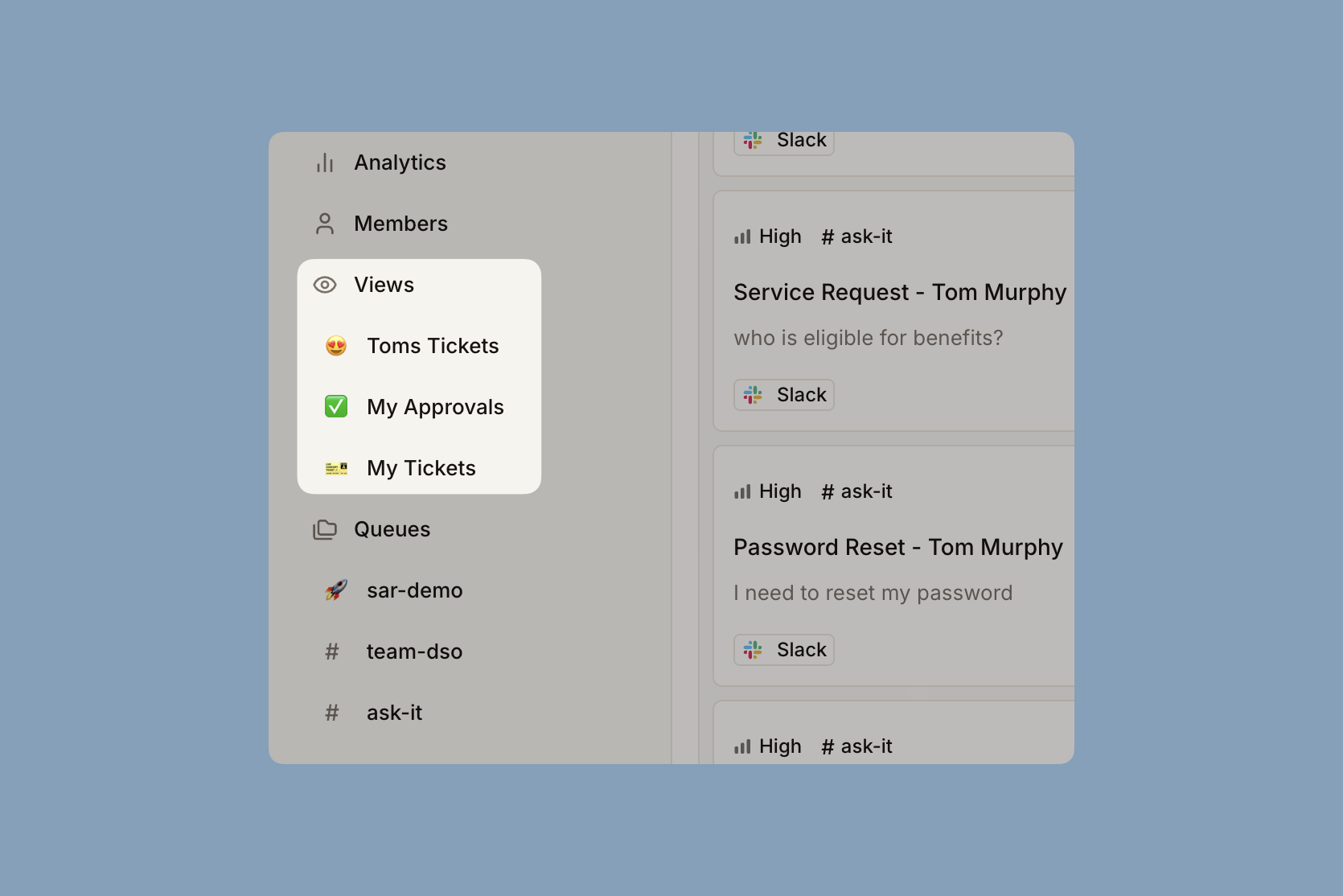 Access personal views while viewing workspace data:
* **My Tickets**: All tickets you created
* **Assigned to Me**: Tickets assigned to you
* **My Approvals**: Tickets awaiting your approval
* **Resolved Tickets**: Your completed tickets
**Switch to requester mode**
Click **View as Requester** to switch to the simplified requester experience. The button changes to **View as Member** so you can switch back.
### Requester mode
Requester mode provides a simplified experience focused on personal views. Workspace admins and members can switch to this mode, and guests see this experience by default.
**How it works**
Requester mode removes workspace-level complexity:
* No workspace selector
* Personal views only (My Tickets, Assigned to Me, My Approvals, Resolved Tickets)
* Tickets load from all workspaces in your organization
* Experience matches what guests see
Access personal views while viewing workspace data:
* **My Tickets**: All tickets you created
* **Assigned to Me**: Tickets assigned to you
* **My Approvals**: Tickets awaiting your approval
* **Resolved Tickets**: Your completed tickets
**Switch to requester mode**
Click **View as Requester** to switch to the simplified requester experience. The button changes to **View as Member** so you can switch back.
### Requester mode
Requester mode provides a simplified experience focused on personal views. Workspace admins and members can switch to this mode, and guests see this experience by default.
**How it works**
Requester mode removes workspace-level complexity:
* No workspace selector
* Personal views only (My Tickets, Assigned to Me, My Approvals, Resolved Tickets)
* Tickets load from all workspaces in your organization
* Experience matches what guests see
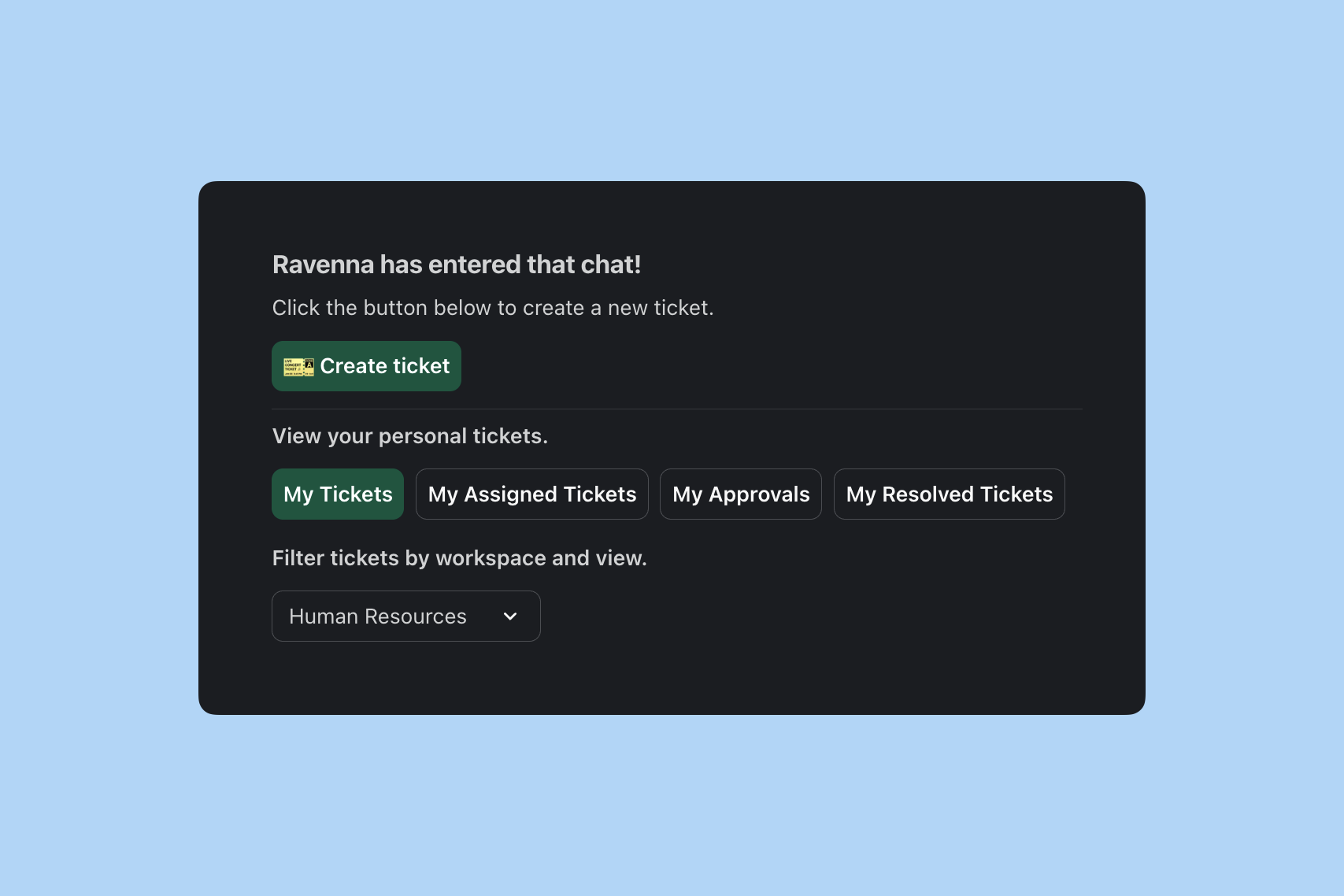 **Available views**
All tickets you created across all workspaces.
Tickets assigned to you for action.
Tickets awaiting your approval.
Your completed tickets.
**Access control**
* Guests see only tickets they created
* Cannot access workspace-level views or channel filters
* Cannot see tickets created by other users
**Switch to member mode**
If you're a workspace admin or member, click **View as Member** to switch back to member mode with full workspace access.
Learn more about member roles and permissions.
***
## Navigate to ticket source
Each ticket includes a link to its original source.
**Available views**
All tickets you created across all workspaces.
Tickets assigned to you for action.
Tickets awaiting your approval.
Your completed tickets.
**Access control**
* Guests see only tickets they created
* Cannot access workspace-level views or channel filters
* Cannot see tickets created by other users
**Switch to member mode**
If you're a workspace admin or member, click **View as Member** to switch back to member mode with full workspace access.
Learn more about member roles and permissions.
***
## Navigate to ticket source
Each ticket includes a link to its original source.
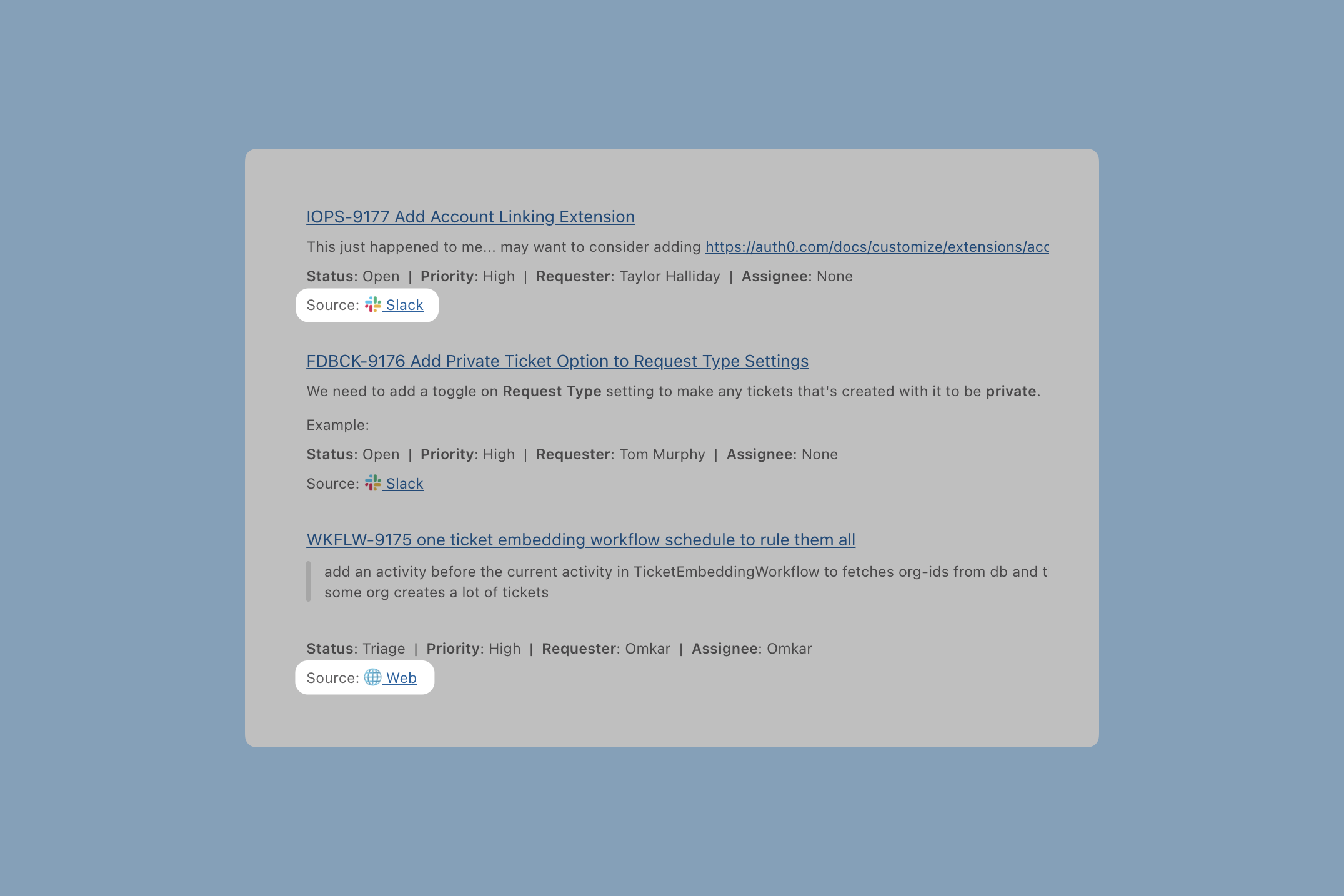 Click the link to open the original Slack thread or the ticket in the Admin.