> ## Documentation Index
> Fetch the complete documentation index at: https://docs.ravenna.ai/llms.txt
> Use this file to discover all available pages before exploring further.
# Slack Direct Message
> Chat with Ravenna in a Slack direct message to get agent-powered answers, create tickets, and get help without leaving Slack.
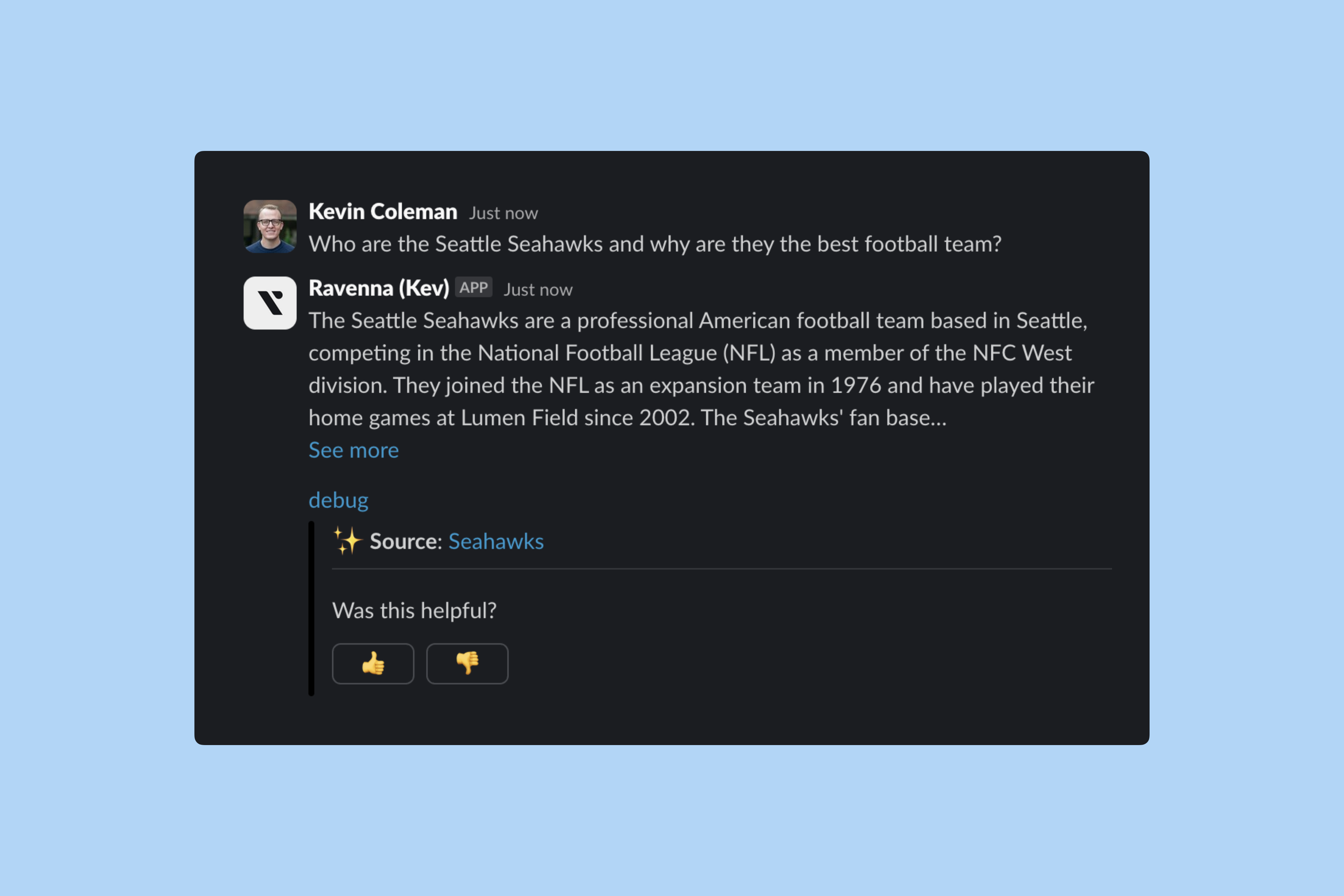
Ravenna brings Agent-powered support into Slack direct messages. Chat with Ravenna to get instant answers, create tickets, and get help without leaving Slack. Conversations look and feel like a regular Slack direct message, and the agent replies in-thread so every request keeps its own context.
***
## Set up direct messages
Direct messages require one configuration: an Agent connected to your workspace's **Slack** channel, the system channel that handles direct message conversations.
Go to **Agents** and open the Agent you want answering direct messages.
Open the **Connections** tab, then connect the workspace's **Slack** channel from the **Channels** card.
Agent presence is what makes a workspace available in direct messages. Any workspace with an Agent connected to its **Slack** channel appears as an option when users start a conversation. Visibility settings do not affect this. The **Available in Slack** toggle in **Workspace Settings > General** only controls whether the workspace appears when filing tickets from the Slack home tab.
### How many Agents a channel holds
**Slack** and **Portal** are system channels, and both hold as many Agents as you connect. Every other channel holds a single Agent.
| Channel | Agents |
| --------------------------- | -------- |
| **Slack** (direct messages) | Multiple |
| **Portal** | Multiple |
| Every other channel | One |
Connect several Agents to the **Slack** channel when different Agents should answer different kinds of request. Routing then chooses between them per conversation, as described in [How it works](#how-it-works).
Learn more about [Agent configuration](/documentation/automate/agents/overview) to customize behavior, rules, and knowledge sources
***
## Start a conversation
Chat with Ravenna the same way you message a coworker.
Slack groups AI apps under **Agents** in the sidebar. Click **Ravenna** there to open a conversation.
You can also add Ravenna to the agent picker in the top right of Slack, which puts it within reach from anywhere in the app.
Send a message in the **Messages** tab to start a conversation.
The agent replies in-thread, so each request keeps its own context. Reply in a thread to continue that conversation, or send a new message to start another one.
**Agents** in the Slack sidebar is Slack's own label for AI apps. It is not the same thing as a Ravenna Agent, which is the assistant you configure in Ravenna and connect to a channel.
***
## How it works
Direct messages are answered by an Agent connected to a **Slack** channel. The Agent follows all its configured settings when responding, just as it would in a public channel.
The Agent responds according to its configuration, including:
* Rules and escalation instructions
* Knowledge sources and tools
* Personality, tone, and response length
* Auto-submit and response delay settings
 Every Agent connected to a **Slack** channel anywhere in your organization is a candidate, across all workspaces. How one is chosen depends on your organization's **Slack Direct Message Routing** setting in [organization settings](/documentation/platform/organizations/settings):
* **Routing on**: your first message is classified and the best-fit Agent answers. Because a **Slack** channel can hold several Agents, this picks between Agents, not just between workspaces.
* **Routing off**: you are asked to select a workspace before the conversation starts.
Either way, when only one Agent is a candidate it answers immediately with no classification step and no prompt.
The Agent that answers determines:
* Which knowledge sources are available
* Which channel receives tickets if created
* Which workspace settings apply to the conversation
When the Agent cannot answer a question, conversations automatically convert to tickets for human support. The ticket is created in the workspace's **Slack** channel and includes the full conversation history.
All conversations live in the standard **Messages** tab of the Ravenna app, each in its own thread. Scroll back to review past conversations and reply in a thread to continue where you left off.
Share files directly in a direct message. The Agent reads PDFs, images, and other supported documents, then uses their contents to answer questions or prefill ticket forms. The Agent briefly waits for the upload to finish before responding so the file contents are available when it replies.
Learn more about [file handling in agents](/documentation/automate/agents/customize#slack-behavior).
## Related topics
- [Private tickets](/documentation/tickets/private-tickets.md)
- [Organization settings](/documentation/platform/organizations/settings.md)
- [Customize](/documentation/automate/agents/customize.md)
- [Creating tickets](/integrations/slack/creating-tickets.md)
- [Links](/documentation/tickets/links.md)
Every Agent connected to a **Slack** channel anywhere in your organization is a candidate, across all workspaces. How one is chosen depends on your organization's **Slack Direct Message Routing** setting in [organization settings](/documentation/platform/organizations/settings):
* **Routing on**: your first message is classified and the best-fit Agent answers. Because a **Slack** channel can hold several Agents, this picks between Agents, not just between workspaces.
* **Routing off**: you are asked to select a workspace before the conversation starts.
Either way, when only one Agent is a candidate it answers immediately with no classification step and no prompt.
The Agent that answers determines:
* Which knowledge sources are available
* Which channel receives tickets if created
* Which workspace settings apply to the conversation
When the Agent cannot answer a question, conversations automatically convert to tickets for human support. The ticket is created in the workspace's **Slack** channel and includes the full conversation history.
All conversations live in the standard **Messages** tab of the Ravenna app, each in its own thread. Scroll back to review past conversations and reply in a thread to continue where you left off.
Share files directly in a direct message. The Agent reads PDFs, images, and other supported documents, then uses their contents to answer questions or prefill ticket forms. The Agent briefly waits for the upload to finish before responding so the file contents are available when it replies.
Learn more about [file handling in agents](/documentation/automate/agents/customize#slack-behavior).
## Related topics
- [Private tickets](/documentation/tickets/private-tickets.md)
- [Organization settings](/documentation/platform/organizations/settings.md)
- [Customize](/documentation/automate/agents/customize.md)
- [Creating tickets](/integrations/slack/creating-tickets.md)
- [Links](/documentation/tickets/links.md)