

- Interactive Walkthrough
- Step-by-step
Create your first folder
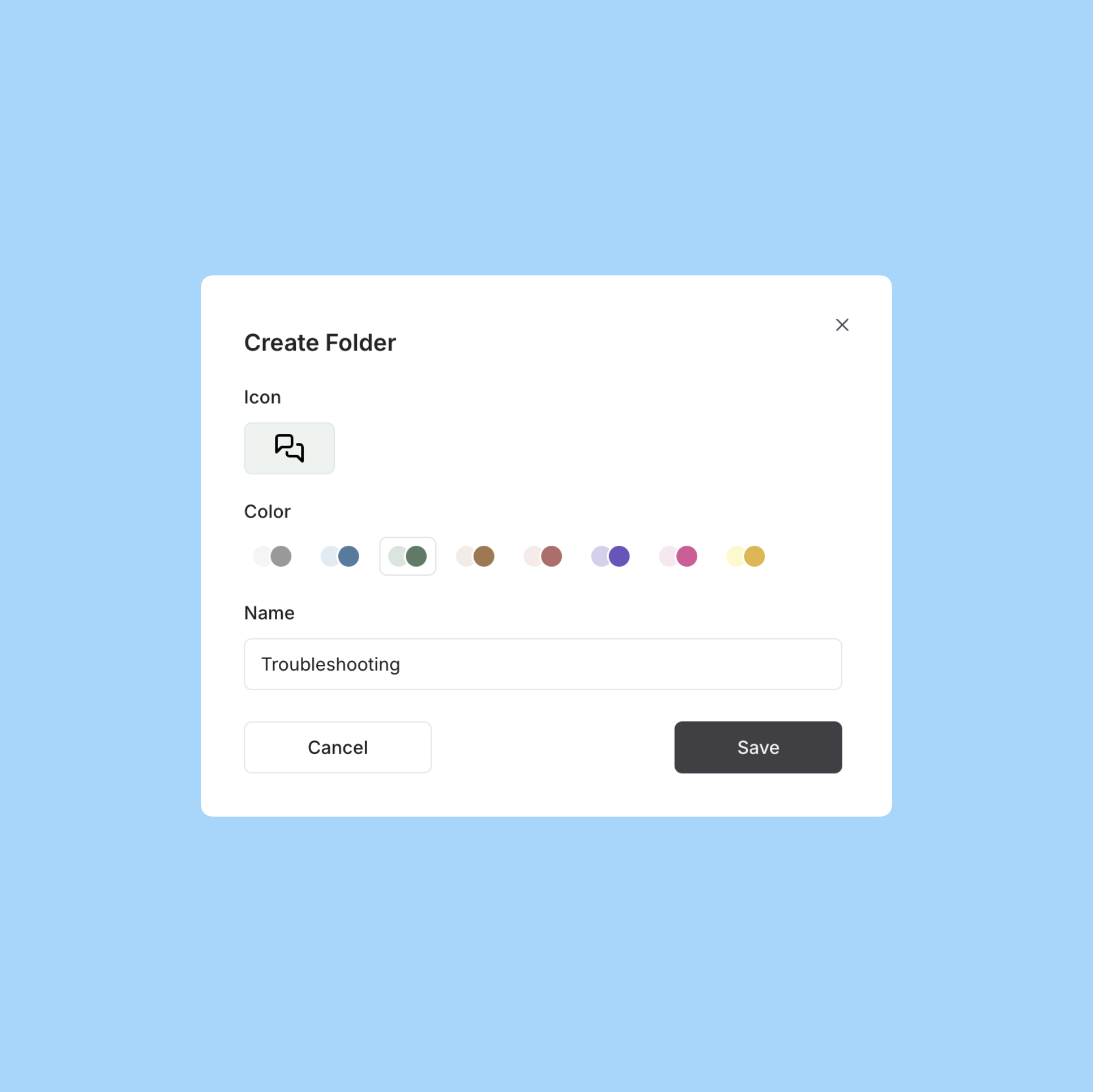
Click New Folder.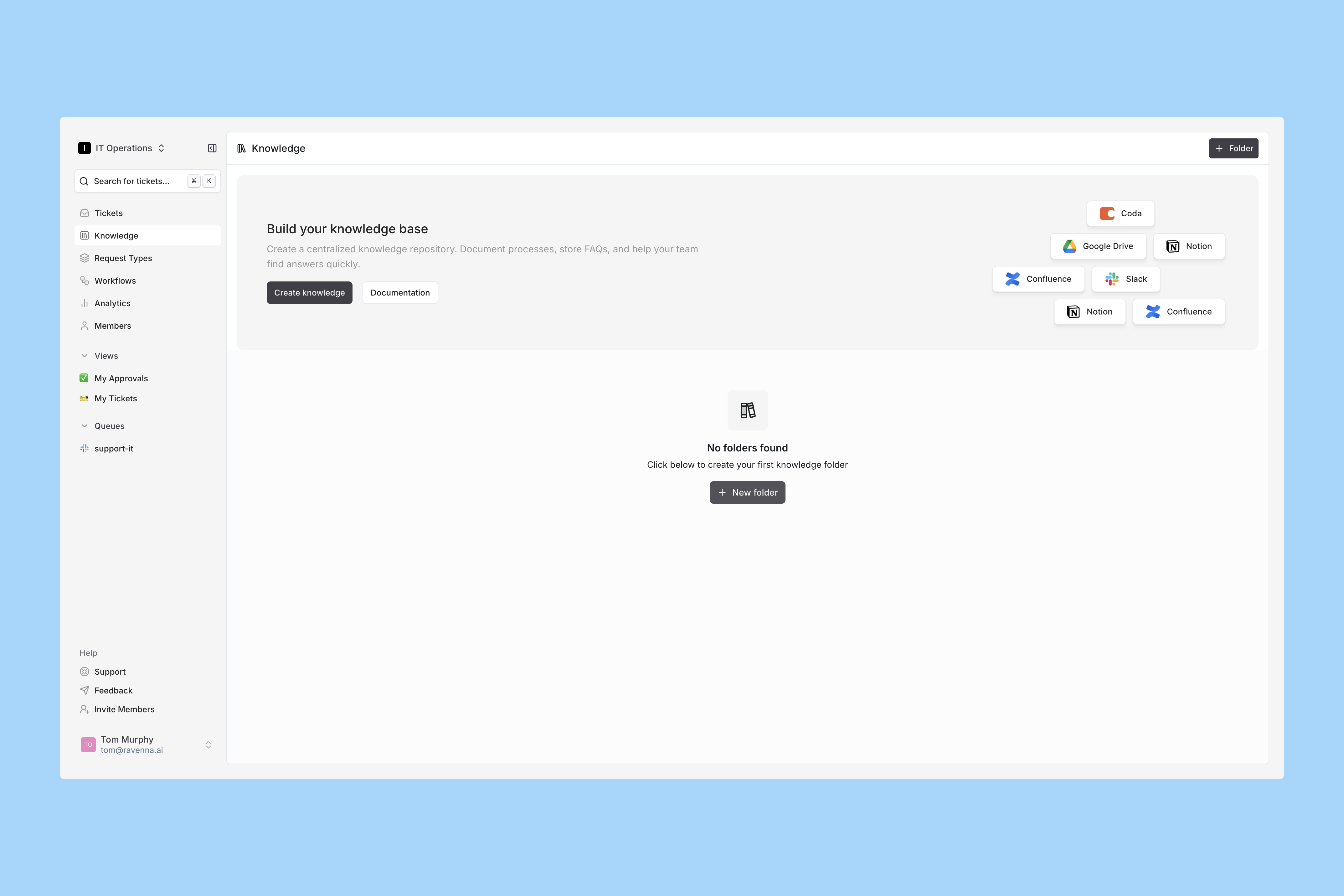 Name your folder, pick a color, and choose an emoji. Then click Save.
 Open your new folder to continue.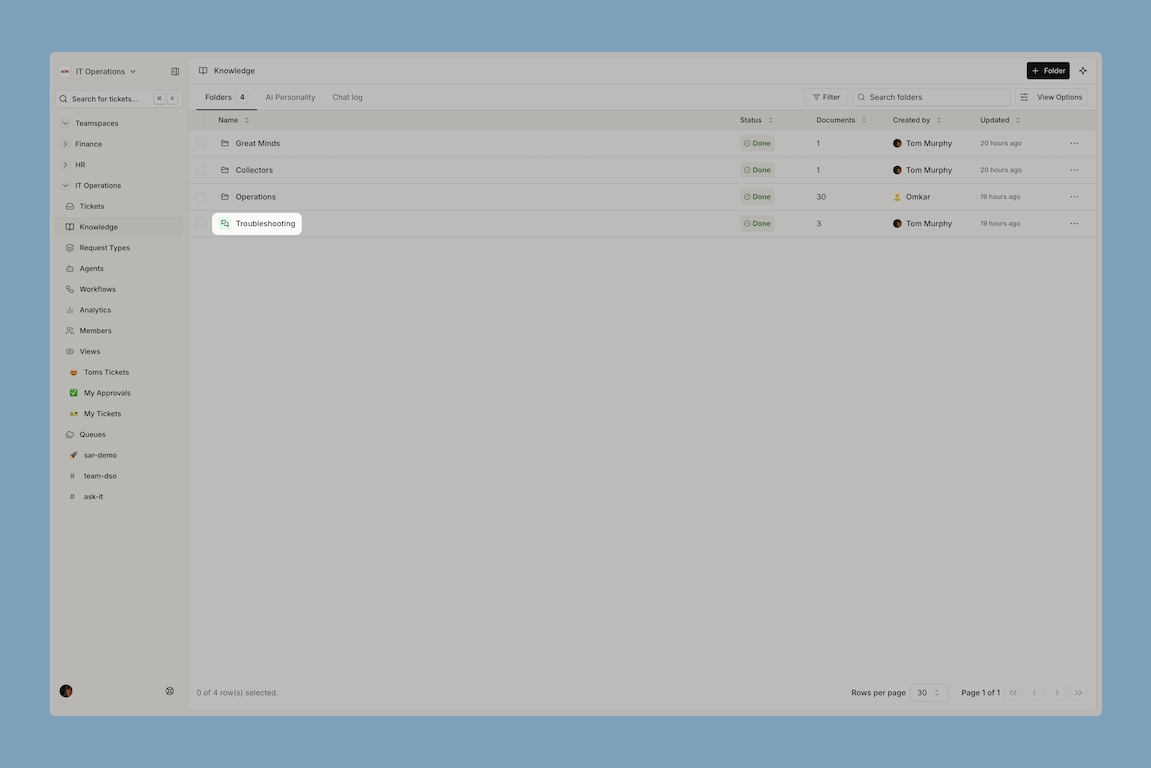
Add a document
Inside your folder, click Add Document to open the integrations modal.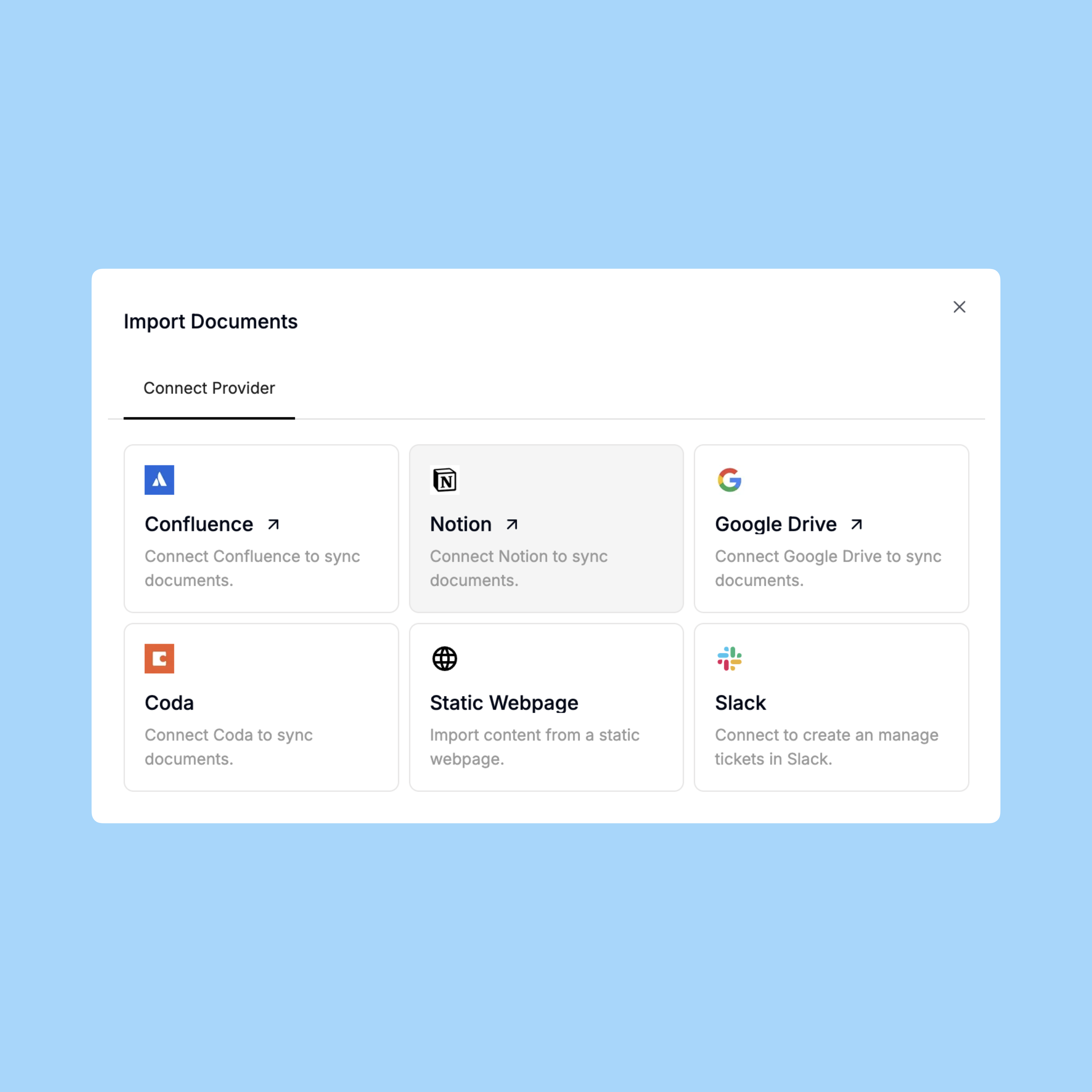
In this example, we use the Notion integration. You can choose any available integration.
Select Notion pages
When Notion opens, confirm you are in the correct workspace (top-right corner).Review permissions and click Select pages.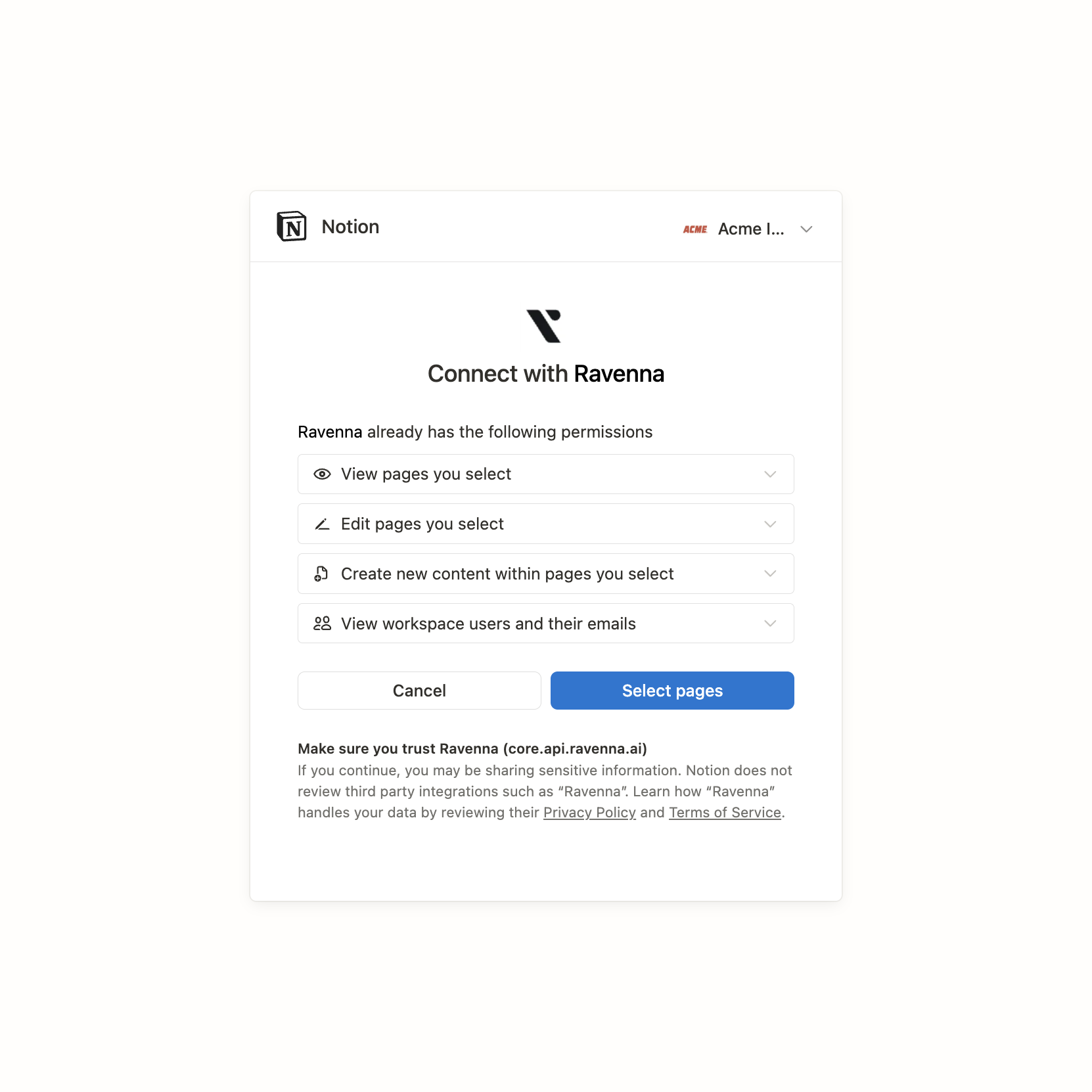 In the page picker, you can:
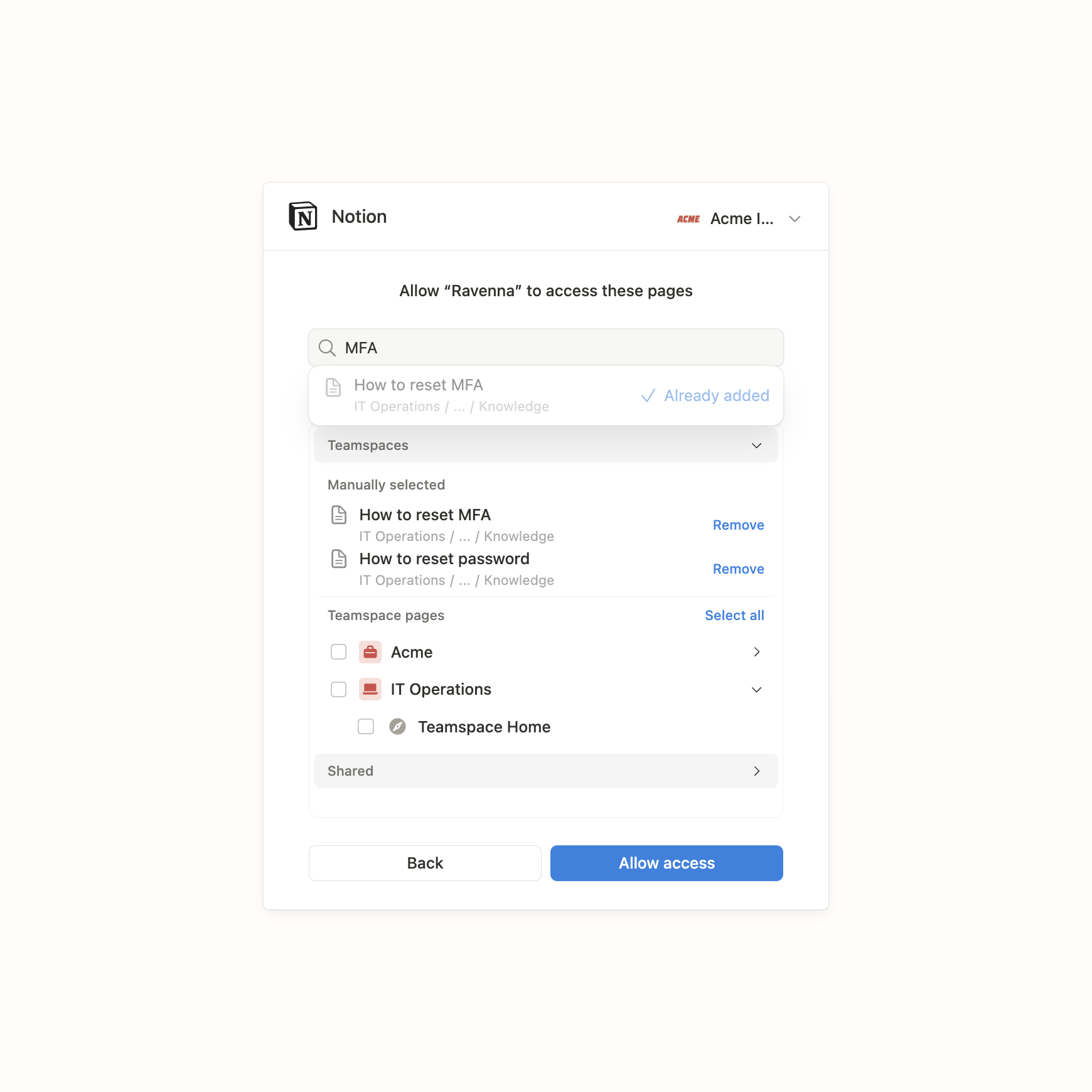 After selecting pages, click Allow access.
- Grant full access at the Workspace level to index all pages.
- Limit access to specific parent pages like a single database (e.g., Knowledge inside your IT Workspace).
- Search for individual pages.
Review ingested documents
Return to your Knowledge folder in Ravenna. Documents start ingesting. Track progress in the Status column.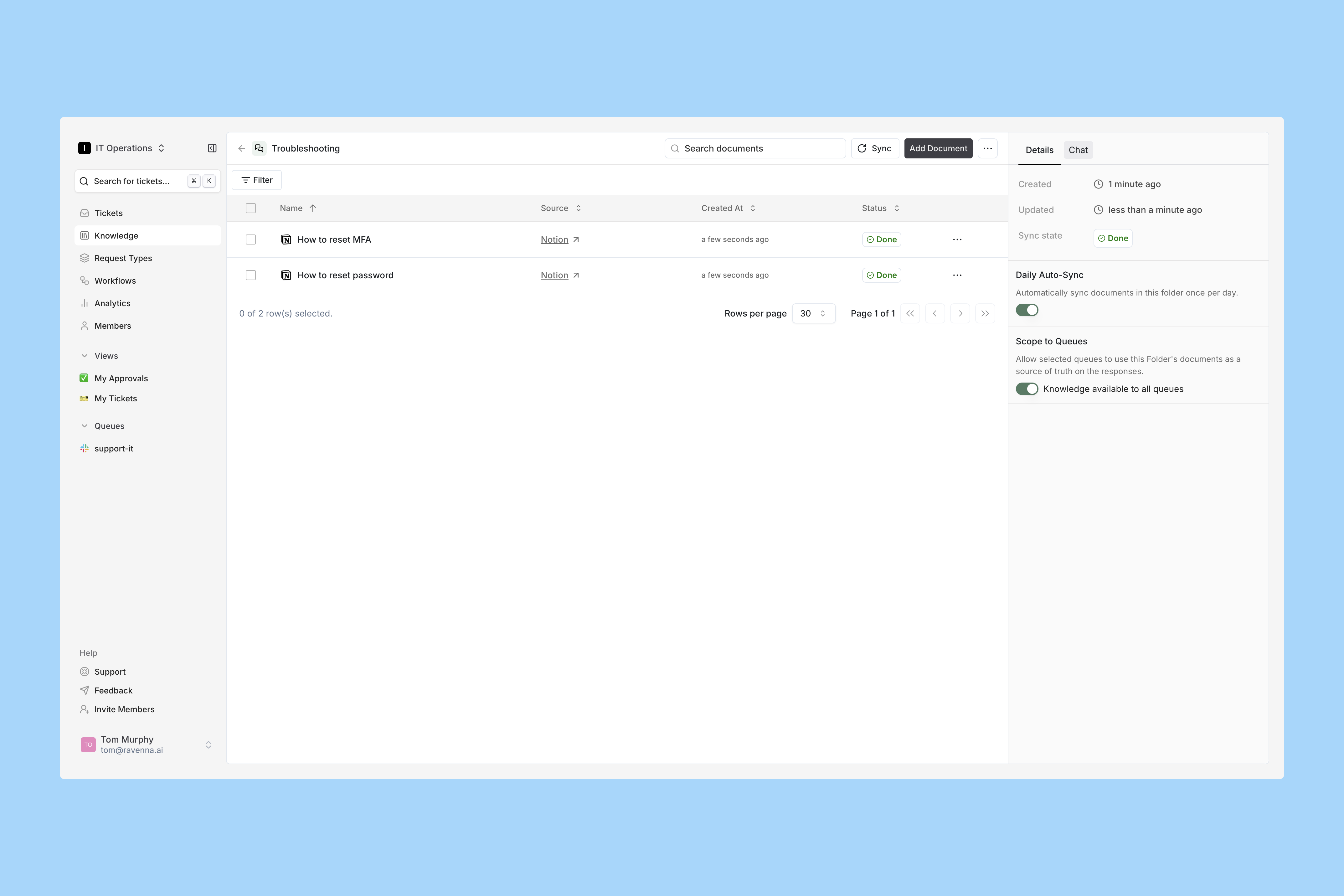
Chat with your knowledge
When the Status changes to Done, test the AI.Open the Chat tab in the right sidebar. Ask a question to get answers from your documents.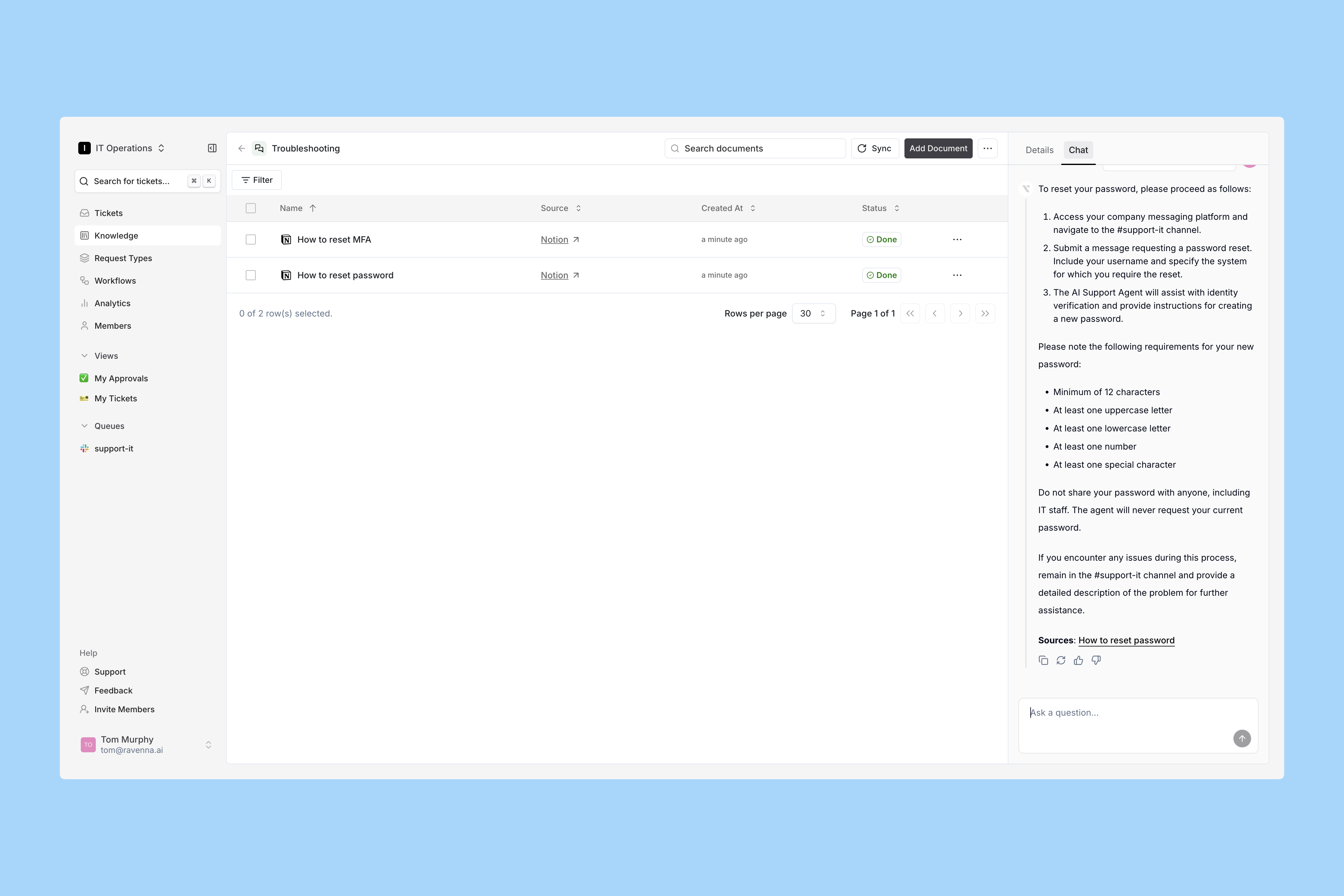 For each answer you can:
- Upvote or downvote to improve results.
- Copy the response.
- Refresh to try again.
Chatting with your knowledge helps spot missing info or improve documentation formatting for better AI responses.
Scoping and Syncing
Go to the Details tab in the right sidebar.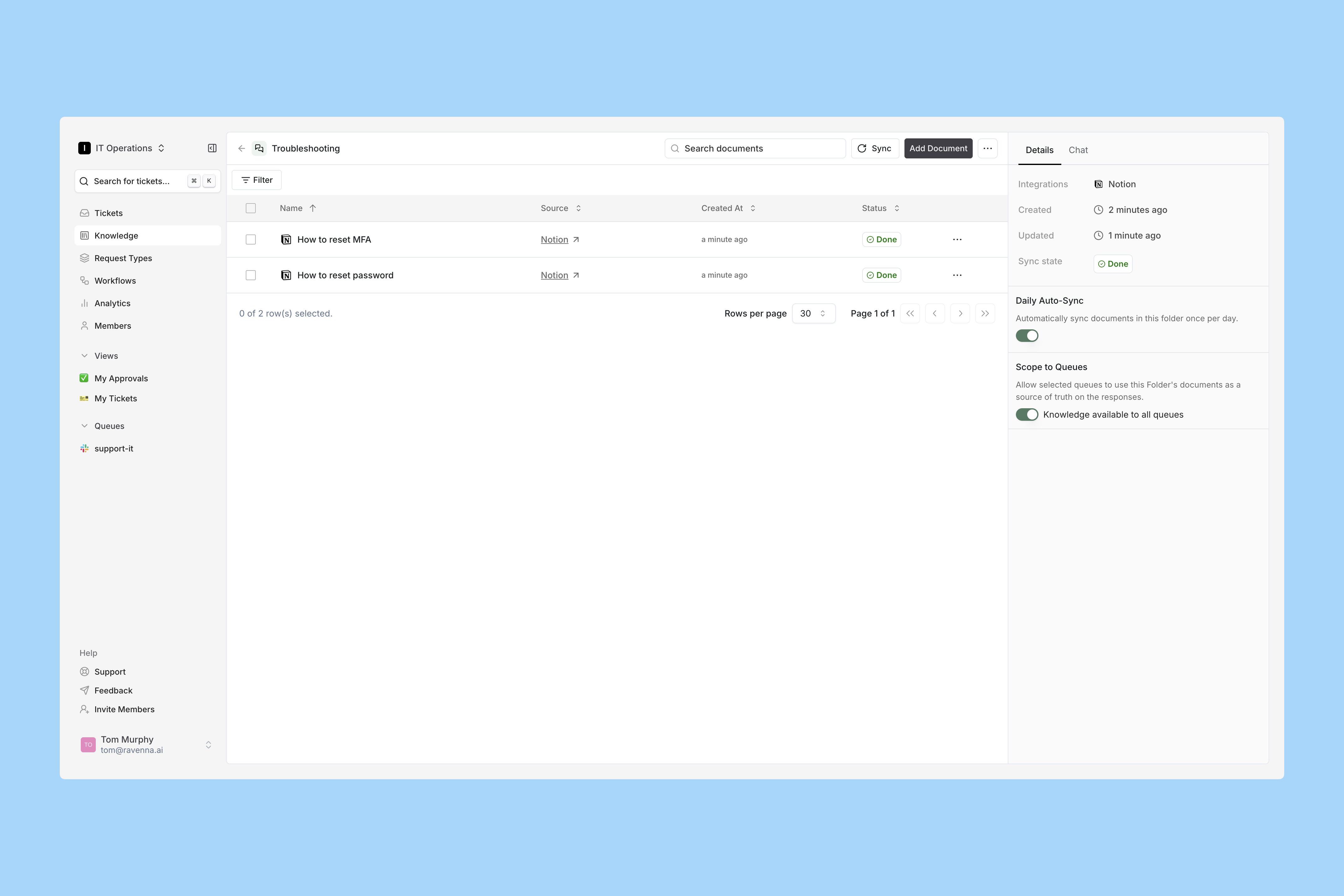
Daily Auto-Sync
Enable to refresh documents in this folder automatically once per day.Scope to Channels
- Enabled: All channels with AI enabled can use this knowledge.
- Disabled: Restrict knowledge to specific channels only.
Use this for private channels or sensitive material to keep information contained.