Tasks help you break down complex tickets into smaller, actionable items. Use them to organize work, assign team members, and track progress on multi-step issues. Task templates let you standardize common workflows and ensure consistency across your team.
Interactive walkthrough
Step-by-step
Creating task templates
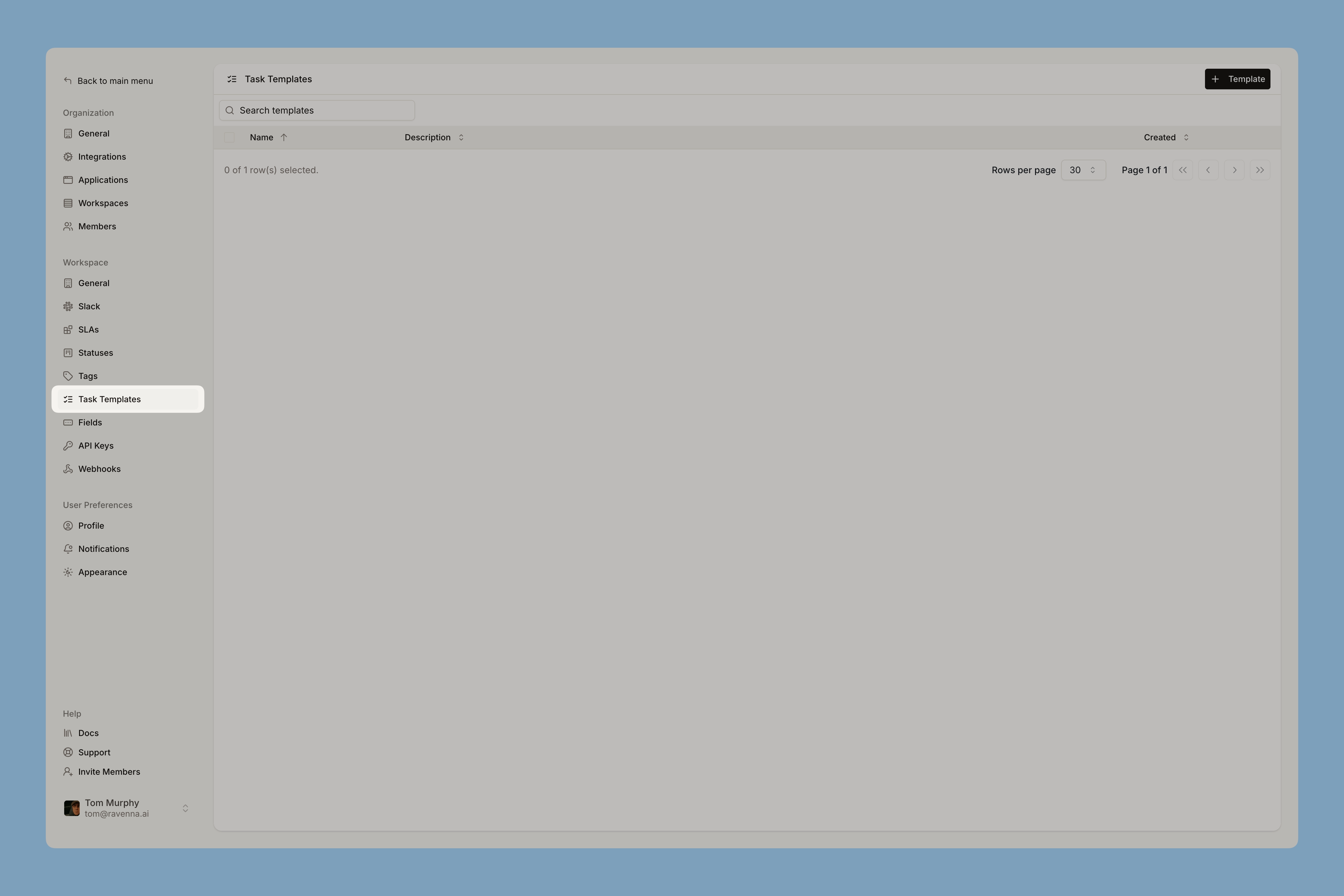
Task templates let you create reusable sets of tasks for common workflows:Navigate to Workspace settings
Go to Settings > Task Templates in your workspace. Create a new template
Click the + Template button in the top-right corner.
Configure template details
Fill in the template information:
- Icon and color: Choose an icon and color to visually identify your template
- Name: Give your template a clear, descriptive name
- Description: Add details about when to use this template
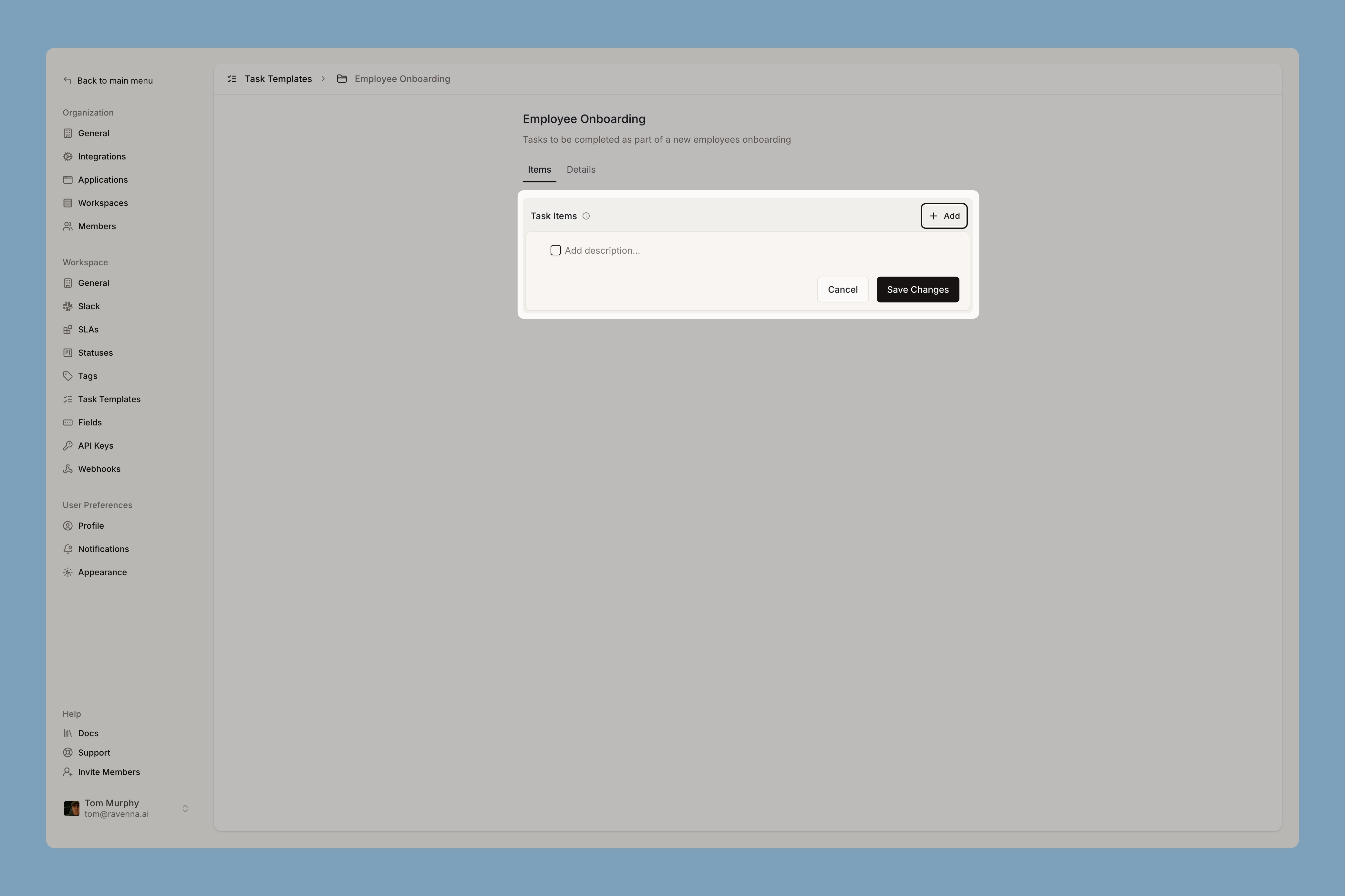
Add task items
After saving, click your template to open it. Add the tasks that should be included when this template is imported.The template’s name, description, and icon are editable inline from the template page header. Changes save automatically as you edit, so there’s no separate save step.
Using a template in a ticket
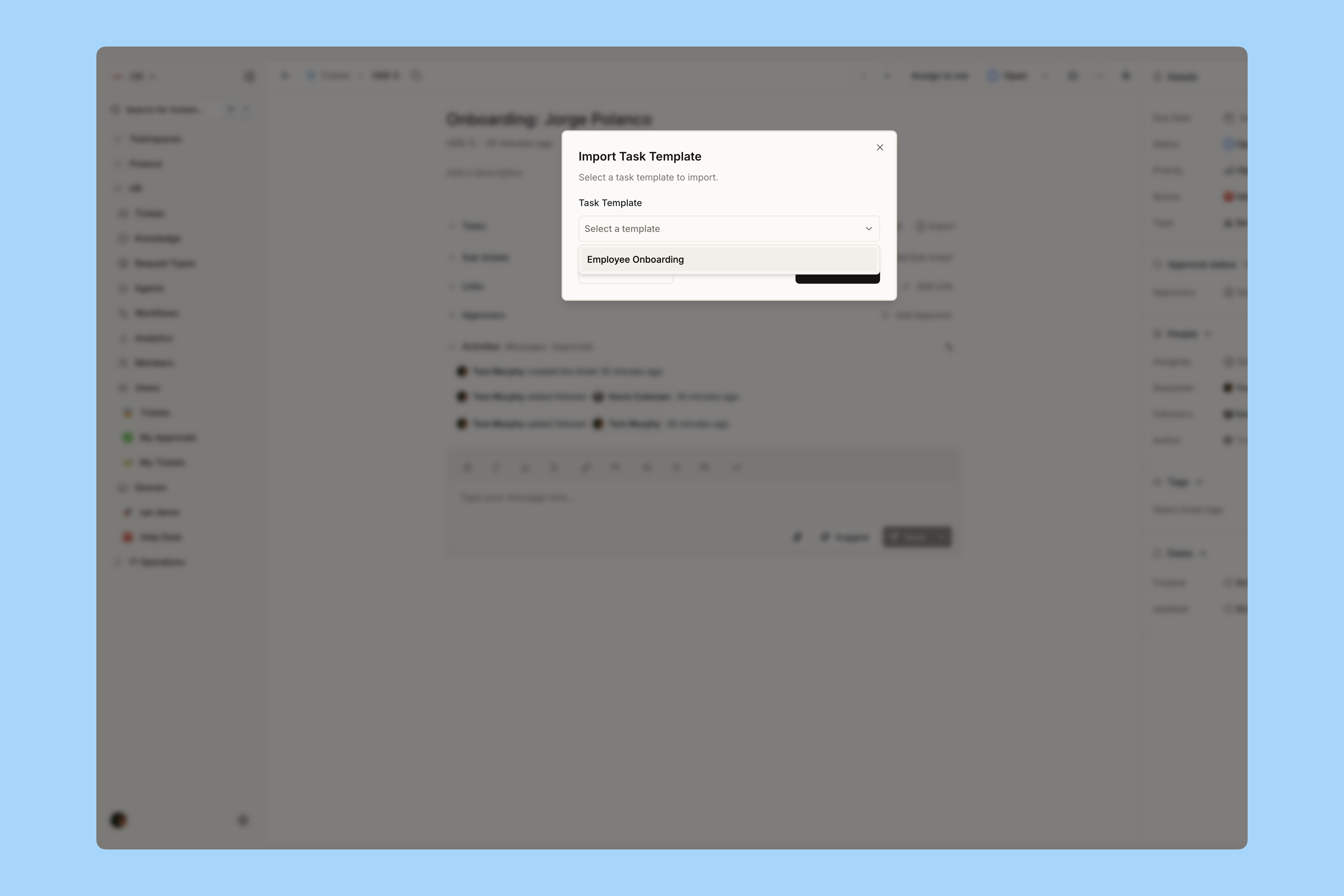
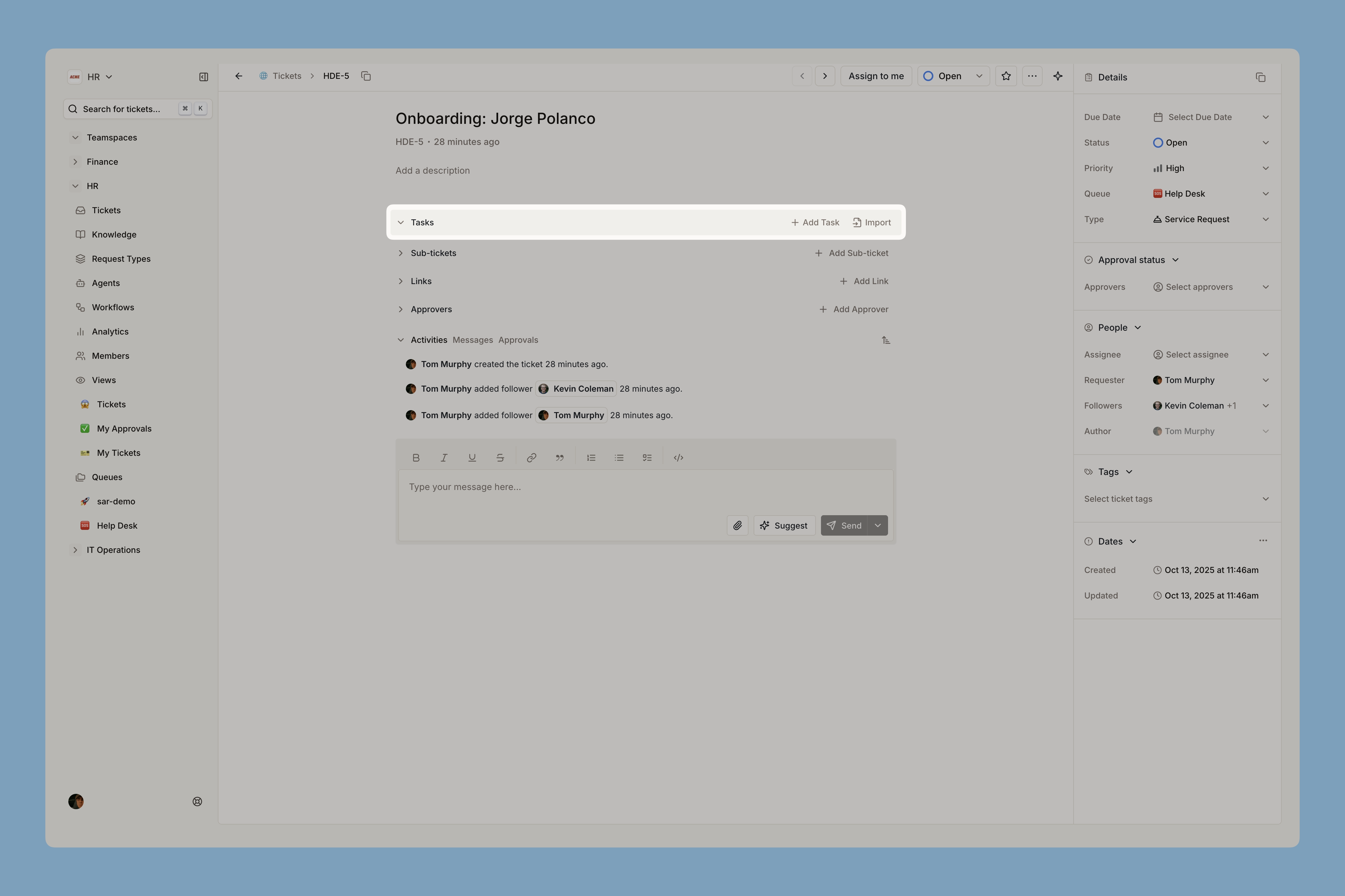
Open any ticket and scroll to the Tasks section. Click Import and select your template to import its tasks. Adhoc Tasks
You can also add tasks directly to any ticket without using a template:Open a ticket
Navigate to any ticket in your workspace.
Find the Tasks section
Scroll to the Tasks accordion section in the ticket details. Add a task
Click the Add Task button to create a new task item. Fill in details
Enter a description for your task. You can also assign team members and mark it as complete when done.Assigned users automatically become followers of the ticket, keeping them in the loop on updates.
Create subtasks (optional)
Click the + button on any task to add subtasks. You can nest tasks up to 3 levels deep to organize complex workflows.
Last modified on May 25, 2026