

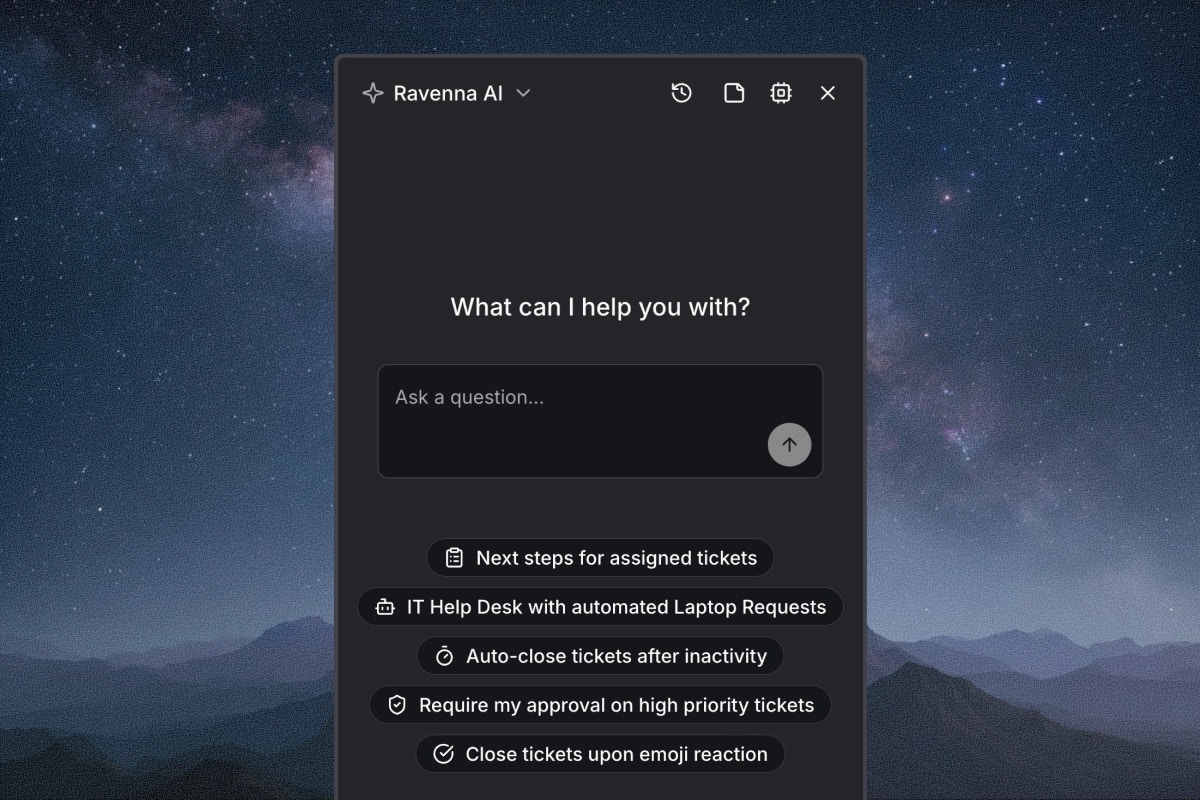
Copilot is an AI assistant built into the Ravenna web app. You can type requests in plain language and Copilot handles them for you, whether that means finding a ticket, drafting a reply, building an automation, or looking up a company policy. When Copilot takes an action or finds information, it shows interactive cards in the conversation (like tickets, workflows, or agents) that you can click to navigate directly to them.Documentation Index
Fetch the complete documentation index at: https://docs.ravenna.ai/llms.txt
Use this file to discover all available pages before exploring further.
What you can do
Using Copilot
Open the panel, understand page context, and manage your conversation history.
Everyday tasks
Search tickets, look up knowledge, summarize conversations, draft replies, and find users.
Build automations
Create workflows with conditions, approval gates, and multi-step logic using plain language.
Configure workspace
Set up AI agents, create channels and forms, write rules, and manage agent personality.
If Copilot gets it wrong
Copilot does its best to understand your requests, but it may occasionally misinterpret what you meant or take an action you did not expect. Here is how to handle it:- Correct and retry. If Copilot misunderstands, rephrase your request with more detail. For example, if “show me recent tickets” returns results from the wrong channel, try “show me tickets created this week in the IT Support channel.”
- Undo changes. If Copilot updates a ticket or workflow incorrectly, you can manually revert the change in the Ravenna web app. Copilot does not make changes that cannot be undone through the interface.
- Start a new conversation. If the conversation gets off track, start a fresh session from the Copilot panel. Your previous conversations are saved in session history if you need to reference them.
Tips
- Be specific in your requests. “Create a workflow that sends a Slack message to #it-ops when a high priority ticket is created in the IT Support channel” works better than “make an automation for tickets.”
- Use Copilot from the relevant page. Opening Copilot from a ticket or workflow page gives it automatic context, so you do not need to explain what you are working on.
- Describe the full end state for complex setups. When building workflows or configuring agents, describe the complete behavior you want rather than adding pieces one at a time.
- Reference existing resources by name. When updating a workflow, agent, or channel, mention it by name so Copilot can find it directly.