

Notification center
View and manage all your Ravenna notifications in one place. Approvals, assignments, comments, and team activity surface in a single view, helping you stay focused without jumping between and individual .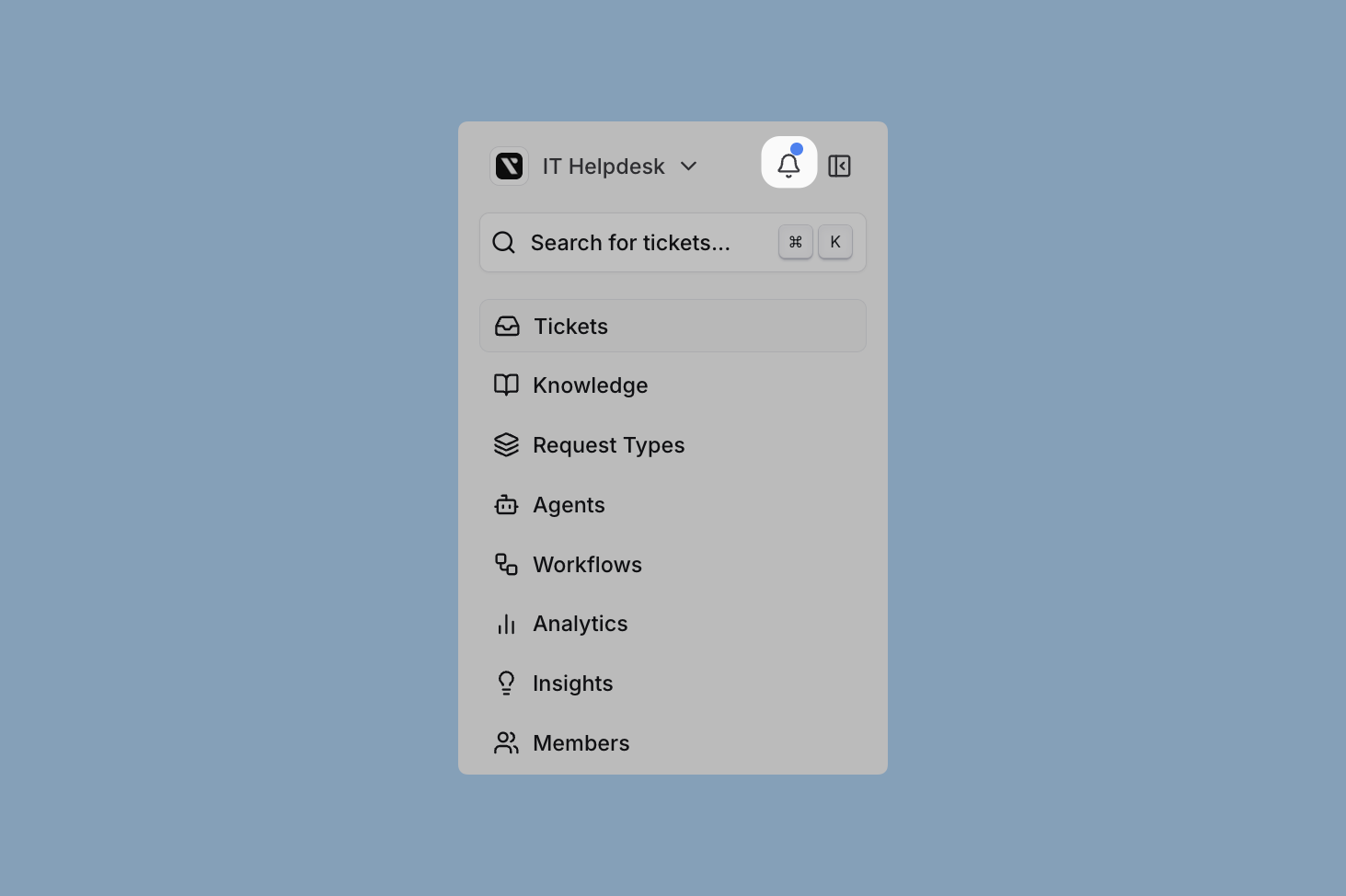
Notification events
Control which types of updates generate notifications. Each event type can be enabled or disabled for Slack and email delivery independently.Assignments
Assignments
Notifications when or are assigned or unassigned to users.
- New ticket assignments
- Ticket reassignments between users
- Removal from ticket assignments
- Task assignments and unassignments on tickets you work on
- Assignment reminders sent while a ticket is still assigned to you
Enabled by default for both Slack and email notifications. Rapid assign/unassign changes on the same task are consolidated into a single notification to reduce noise. Assignment reminders are delivered privately to the current assignee and are gated by this group’s Slack and email preferences.
Ticket created
Ticket created
Notifications when you become the on a ticket.
- Tickets you create yourself
- Tickets created on your behalf (for example, by an agent or a )
- Tickets where you are later set as the requester
Enabled by default for both Slack and email notifications. Use this preference to control whether you receive a confirmation when a ticket lands in your name.
Approvals
Approvals
Approval-related notifications for sign-off workflows.
- Approval requests for tickets requiring sign-off
- Approval decisions (approved/declined)
- Changes to approval requirements
- Approval reminders sent while your approval is still pending on a round
Slack: Approval notifications are always delivered and cannot be toggled off by users or organization admins. This ensures approvers never miss time-sensitive requests. Approval reminders inherit this gating and are delivered privately to each pending approver.Email: Approval notifications are configurable and enabled by default. Approval reminder emails follow the same email preference.
Messages and collaboration
Messages and collaboration
Communication and collaboration updates.
- New messages on tickets you’re
- additions and removals
- @ mentions in ticket conversations
- File attachments and updates
Enabled by default for both Slack and email notifications.
Status updates
Status updates
Ticket lifecycle notifications.
- changes (open, in progress, resolved, closed)
- Ticket resolutions and closures
- Reopened tickets
- Archive and unarchive actions
Enabled by default for both Slack and email notifications.
SLA alerts
SLA alerts
notifications.
- SLA breach warnings
- SLA violation alerts
- Time-based escalations
- SLA reminders sent while a ticket assigned to you is at risk of breaching an SLA
Enabled by default for both Slack and email notifications. SLA reminders are delivered privately to the current assignee and are gated by this group’s Slack and email preferences.
Learn more about configuring SLAs
Ticket properties
Ticket properties
Granular property change notifications.
- changes
- additions and removals
- transfers
- updates
- changes
Delivery channels
Notifications deliver through Slack and email. Configure delivery preferences for each notification event type independently.The current Microsoft Teams beta does not yet expose a dedicated notification-channel selector. Approvals are delivered as Adaptive Cards in the approver’s chat (see Microsoft Teams approvals); thread-level events post into the ticket’s connected Teams channel. See the Microsoft Teams integration overview for beta scope.
- Slack
- Email
DM notifications
DM notifications
Direct messages provide private, focused notifications for individual users. Configure when Ravenna sends DMs:
- For Slack-originated tickets: Select between thread notifications, DM notifications, or both
- For web and email tickets: Enable DM notifications for non-Slack originated
- Approval workflows: Approval requests always generate Slack notifications regardless of user preferences or origin. This cannot be disabled
Learn more about Slack integration
Channel notifications
Channel notifications
Public channel notifications are controlled by settings:
- Request channels: Controlled by Silent Mode and Granular Updates settings
- Triage channels: Team notifications for ticket management
- Ephemeral messages: Contextual notifications visible only to specific users
Silent Mode: When enabled in channel settings, silent mode prevents ticket mirrors from appearing in request channels and automatically excludes requesters from email notifications. This reduces notification noise while keeping followers, assignees, and other stakeholders informed.
Learn more about Slack channels and triage channels
Configuring notifications
Configure notification preferences at the organization level to set defaults for all users, or at the individual user level to customize personal notification settings.Organization admin configuration
Organization admins set default notification preferences for all members. These defaults provide a baseline experience while allowing individual users to customize their own settings.1
Navigate to organization settings
Go to Settings → Organization → Notification Policies.
2
Configure default preferences
Set organization-wide defaults for Slack and email notifications for each event type.
3
Save changes
Changes apply immediately to users who haven’t customized those specific settings.
- User customizations persist: If a user has customized a specific setting, changing the organization default won’t affect them
- Per-setting granularity: Customization is tracked individually for each notification type (for example, “Assignments” for Slack)
- No bulk reset: You cannot force all users back to organization defaults. Users must individually reset their customized settings
User configuration
Individual users customize notification preferences to control when and how they receive updates.1
Navigate to settings
Go to Settings → Notifications in your user profile.
2
Review organization defaults
Settings marked with “Using default” follow your organization’s policies.
3
Customize individual settings
Toggle any setting to customize it. Your preference persists even if organization defaults change.
4
Reset to defaults
Click the reset icon next to any customized setting to revert to your organization’s default.
Once you customize a notification setting, your preference takes precedence over organization defaults until you manually reset it.
Troubleshooting
Missing notifications
Missing notifications
If you’re not receiving expected notifications:
1
Check your preferences
Verify your individual notification settings in Settings → Notifications.
2
Confirm ticket assignment
Check that you are properly assigned or relevant .
3
Check notification types
Ensure the specific notification type is enabled for your preferred delivery channel (Slack or email).
4
Review organization defaults
Check with your admin if organization-level defaults have changed recently.
Too many notifications
Too many notifications
If you’re receiving too many notifications:
1
Disable property notifications
Turn off “Ticket properties” notifications to reduce volume significantly.
2
Customize event types
Disable notification types that aren’t relevant to your role or responsibilities.
3
Adjust delivery channels
Consider using email digest notifications instead of real-time Slack notifications for less urgent updates.
4
Review ticket following
Unfollow that no longer require your attention.
Approval notifications
Approval notifications
Slack approval notifications have special handling that differs from other notification types:
- Always delivered via Slack regardless of user or organization preferences
- Cannot be toggled off in Slack notification settings (not shown as a configurable option)
- Include action buttons for quick responses
- Update automatically when decisions are made
Slack approval notifications always deliver because they require timely action. If you’re receiving approval notifications inappropriately, review your role assignments and approval workflows.