

Tickets
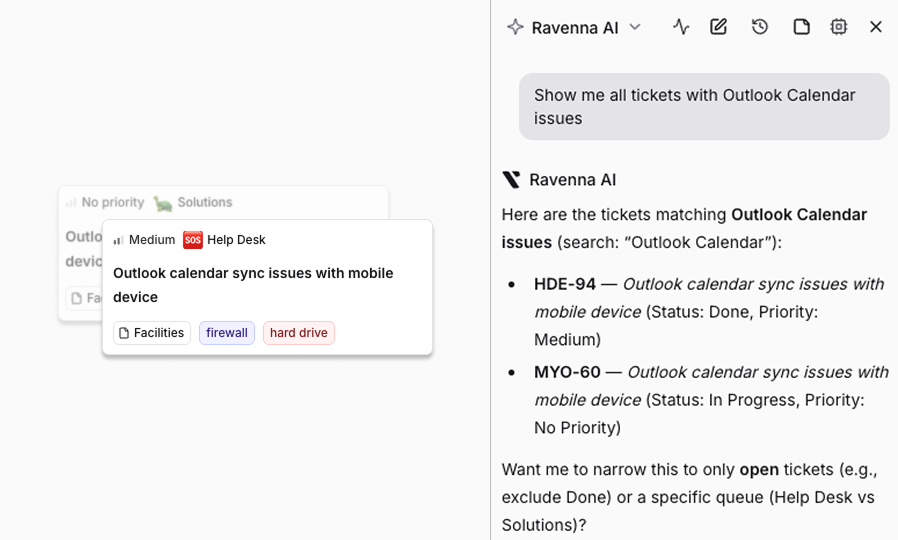
Search and filter tickets
Find using natural language. Copilot understands what you mean even when your wording does not exactly match the ticket content, so you can describe what you are looking for in your own words. To detect duplicates of a specific ticket, use Find duplicate tickets instead. It is scoped to the same requester and ranks matches by similarity. Supported filters:- Priority, status, assignee, or requester
- Channel or form
- Tags and source (Slack, email, web)
- Date ranges (created, updated, resolved, due date)
Show me open tickets in the IT Support channel assigned to me
Find high priority HR tickets created in the last 7 days
What tickets did the Benefits team resolve this week?
View ticket details
Get complete ticket information, including the conversation history, current status, priority, who it is assigned to, custom field values, and tags. Reference tickets by their ID, likeIT-4892 or HR-2041.
Example prompts:
Show me the details on IT-4892
What's the latest on HR-2041?
Summarize the conversation on HOPS-1157
Find duplicate tickets
Ask Copilot whether the same requester has already filed a ticket like this one. Copilot runs a same-requester similarity check on a source ticket and returns their other tickets that look like near-duplicates, ranked most similar first. Use it while triaging incoming work or before creating a new ticket for someone. Reference the source ticket by its display ID (likeIT-4892) or open Copilot from the ticket page. You can ask Copilot to be stricter (return only near-identical matches) or looser (cast a wider net).
Example prompts:
Does IT-4892's requester have any other similar open tickets?
Find likely duplicates of this ticket
Show near-identical duplicates of HR-2041 from the same requester
Summarize and draft responses
When you open Copilot from a ticket page, it can read the full conversation and help you work through it. Summarize: Ask Copilot to summarize a ticket’s conversation to quickly understand what has happened, what decisions were made, and what still needs to be done. Draft responses: Ask Copilot to write a reply based on the conversation and your knowledge base. Copilot shows the draft as an interactive suggestion you can review, edit, and insert into the ticket. Example prompts:Summarize this ticket conversation
What are the open action items on this ticket?
Draft a reply explaining the next steps for this employee's laptop replacement
Draft a response using what the knowledge base says about our VPN setup process
Post replies as the ticket’s agent
By default, replies that Copilot posts on a ticket appear as you. To have them appear as the ticket’s agent instead, turn on Post ticket replies as the ticket’s agent in Settings > Preferences > Copilot. The setting is off by default and applies only to you. When the setting is on, Copilot picks the display author for each reply in this order:- The agent assigned to the ticket.
- If the ticket has no assigned agent, the agent behind the most recent AI reply on the ticket.
- If neither exists, your organization’s Ravenna bot.
- SLA first response, inactivity reminders, and resolution metrics count it as a staff reply.
- You can still edit or delete the reply.
- It does not count as agent participation, and it is not included in AI outcome or deflection metrics.
Add private notes
Ask Copilot to leave a private note on a ticket. Private notes are visible only to workspace members and admins; the requester never sees them. The note is posted as you, and you can reference any ticket by its ID, not just the one you have open. Use private notes to record internal context, observations, or next steps without sending anything to the requester. To @mention a teammate in the note, name them and Copilot resolves the mention; mentioned members get a Slack DM about the note. Example prompts:Add a private note to IT-4892 summarizing what we've found so far
Leave an internal note on this ticket flagging that the requester is a VIP, and mention Jamie Lee
Create and update tickets
Create tickets by describing what you need. Set the channel, form, priority, and assignee. If the form has custom fields (like dropdowns or multi-select options), Copilot fills them in based on your description. Before creating a ticket, Copilot discovers the workspace’s forms and ticket attributes and picks the Published form that matches the request, then fills its fields and the workspace attributes from what you said. Copilot tells you which form it attached and, in one line, which values it inferred rather than heard directly, so you can correct anything that looks wrong. If a required field cannot be inferred and Copilot picked the form itself, it files the ticket without the form rather than guessing; if you named the form yourself, Copilot asks for the missing value instead of filing without it. Fields the ticket landed with no value for are surfaced so you can fill them in a follow-up. Example prompts:Create a ticket for a password reset in the IT Support channel and assign it to Jamie Lee
File a high priority ticket about the VPN being down for the Austin office and tag it outage
Escalate IT-4892 to high priority
Assign HR-2041 to Jamie Lee and set the due date to next Friday
- Title and description
- Priority, status, and category
- Assignee, requester, and followers
- Tags and custom field values
- Due date
- Channel (move to a different channel) and form (change the ticket’s form)
- Parent ticket
- Privacy settings
Work a ticket’s checklist
Copilot reads and edits the on a ticket, so you can run through an onboarding or offboarding list without switching to the Tasks panel. What Copilot can do:- Read the checklist, including headers, nested subtasks, assignees, and which template each item came from
- Mark tasks complete or reopen them, one at a time or several in one request
- Rename a task, reassign it, switch it between a task and a header, indent or outdent it, or reorder it
- Find a by name and read its items before applying it
- Apply a template to the ticket
What's left on this ticket's checklist?
Mark the laptop shipped and accounts created tasks as done
Apply the Engineering Onboarding template to this ticket
Assign the hardware tasks on this ticket to Jamie Lee
Add a task to collect the badge and nest it under Offboarding
Check SLA status
When you ask about a ticket, Copilot also reports the targets attached to it: the policy name, which clock each target measures (time to first response, resolution, or close), the configured threshold, the deadline, the at-risk alert time, whether the target is breached right now, and, for a running target, how long is left until it breaches (or how long it is overdue). Use it to answer “how long before this breaches?” or “which target did we miss?” without opening the ticket. A ticket with no SLA policy attached returns an empty list. Example prompts:What SLAs are on IT-4892?
How long before HR-2041 breaches its first response SLA?
Did HOPS-1157 miss its resolution target, and if so by how long?
Check approval status
When you ask about a ticket, Copilot also reports its state: the overall status, each round and its policy, who has approved or declined, any decline reason they gave, and who is still pending. Use it to answer “who is holding this up” without opening the ticket. Example prompts:Who still needs to approve IT-4892?
Why was HR-2041 declined?
Save a ticket view
Describe a filtered slice of the ticket table and Copilot saves it as a in the workspace sidebar. Copilot shows the created view as an interactive card you can click to open it, and the sidebar’s Views section refreshes right away. What you can set on creation:- Name and emoji icon
- Visibility: shared with the workspace, or private to you
- Status filters and other filters (priority, assignee, requester, channel, form, tags, source, created/updated/due date ranges)
- Display mode: list, table, or Kanban
- Grouping and sorting
Create a shared view called Unassigned Urgent with status Open and priority Urgent
Save a private Kanban view of my open tickets grouped by status
Make a view called Overdue HR with tickets in the HR channel past their due date, sorted by due date
Knowledge base
Search your knowledge base
Search your organization’s internal for answers about company policies, processes, and procedures. Copilot understands what you mean even when your wording does not exactly match the document content, so you can ask questions in your own words. It cites the source documents so you can verify the information. Example prompts:What is our PTO policy?
How do I set up the VPN on a Mac?
What are the steps for offboarding an employee?
Walkthrough: answering a ticket using your knowledge base
When you are working on a ticket, you can ask Copilot to find relevant information from the knowledge base and use it to draft a reply.Open Copilot from the ticket
Ask about the issue
What does our knowledge base say about resetting two-factor authentication?
Draft a reply
Draft a reply to this employee explaining the 2FA reset process based on what you found
Analytics and reporting
Ask Copilot to count, chart, or trend data over , ticket messages, documents, or . Copilot renders the chart in the conversation, then offers to save it to a as a reusable widget.Chart data on demand
Describe the breakdown or trend you want. Copilot picks the right card type, a grouped metric for breakdowns and totals or a trend for time series, and renders it inline. Example prompts:Graph tickets by status
How many high priority tickets did we get this month?
Show ticket volume per day for the last 30 days
Break down workflow runs by status this week
Save a chart to a dashboard
After Copilot renders a chart, it suggests Add this to a dashboard or Create a new dashboard with this chart. Pick an existing dashboard to keep related widgets together, or start a new one. Example prompts:Add this to my Support Overview dashboard
Create a new dashboard called Weekly Ops Review with this chart
Manage dashboards
Ask Copilot to list, search, read, or update dashboards without leaving the conversation. Copilot can also create (folders that group related dashboards) and move dashboards between them. Example prompts:What dashboards do we have?
Find dashboards with SLA in the name
Show me the latest numbers from my SLA Compliance dashboard
Change the date range on the Support Overview dashboard to the last 90 days
Create a folder called Support Reporting and move Support Overview into it
Move the AI Impact dashboard back to the top level
Rename the AI Outcome widget on my AI Impact dashboard to Weekly resolution rate
Users and channels
Find information about people and Slack channels in your workspace.Users
Users
Who is Jamie Lee?
What's Priya Patel's email address?
Channels and Slack apps
Channels and Slack apps
What Slack channels do we have?
Which Slack channels can I connect to Ravenna?
Tell me about the IT Support channel
Get help with Ravenna
Copilot can also search Ravenna’s own product documentation to help you learn how features work or figure out how to do something in the platform. When Copilot finds relevant documentation, it shares links you can click to read the full article. Example prompts:How do I create a new form for time-off requests?
How do I set up a triage channel in Slack?
What workflow triggers are available?
How do I connect a new integration?
Tips
- Use Copilot from the ticket page for summarization and drafting. It automatically has the full conversation.
- Ask naturally. You do not need to use exact keywords when searching. “What’s our vacation policy?” works just as well as searching for the exact document title.
- Reference tickets by ID (like
IT-4892orHR-2041) to go straight to the ticket you need. - Check source citations. Copilot cites which knowledge base documents it pulled from, so you can verify accuracy or share the source with the requester.