

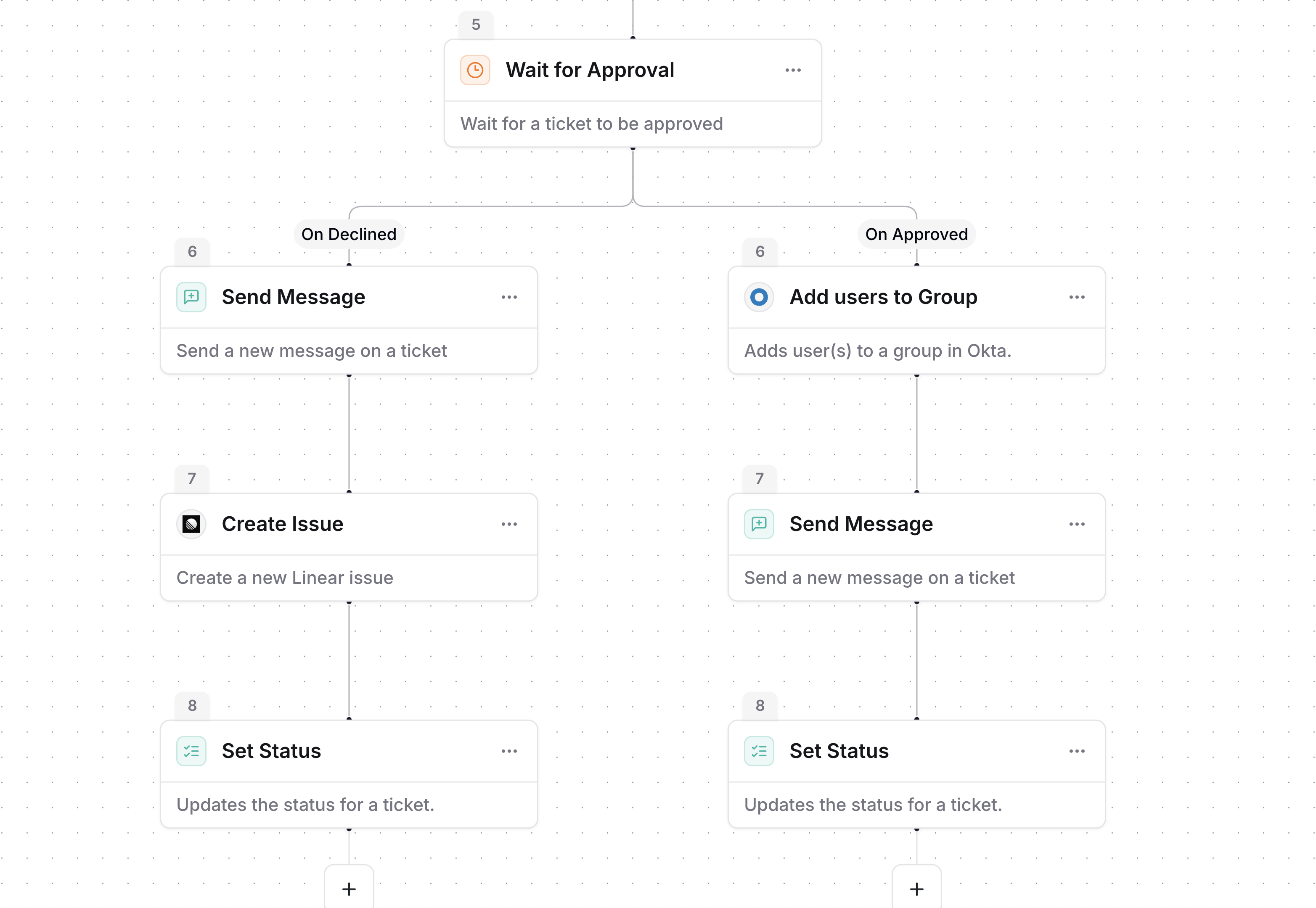
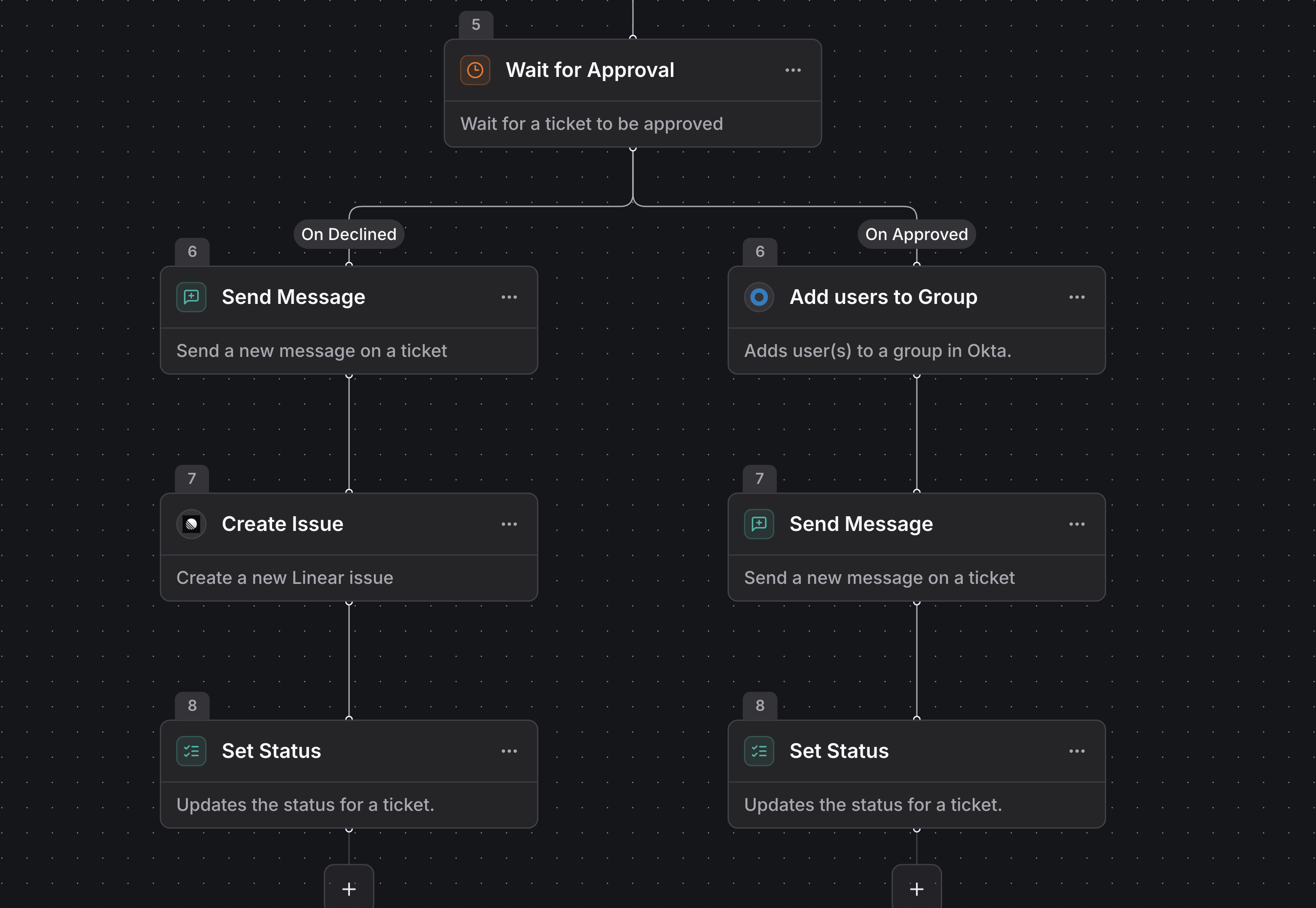
What you can do
Auto-assign tickets
Assign tickets to team members based on category, priority, or custom fields
Send notifications
Notify teams in Slack when high-priority tickets are created or status changes occur
Sync with external systems
Create or update issues in Jira, Linear, or other ticketing systems when tickets are created
Manage user access
Automate Okta user provisioning, group assignments, and password resets
Route incidents
Trigger PagerDuty or Incident.io workflows when critical issues are detected
Validate on-call
Check on-call schedules and route tickets to the appropriate responder
Workflows vs agent rules
Workflows and both automate work, but they fit different situations.Using both together
Workflows and agents both automate work, but they run independently. Agents handle conversations with users by answering questions, collecting information, categorizing requests, and creating or updating tickets. Workflows handle event-driven backend processing such as provisioning access, creating issues in external systems, or running multi-step approval flows.Agents cannot trigger workflows directly. Instead, connect the two through ticket state: have the agent create or update a ticket (set a category, apply tags, submit a form, or change status), and configure a workflow that fires on that ticket event.You can build workflows manually with the visual builder or use to generate them from a natural language description. Ravenna Assistant can also publish a workflow when you ask it to. Start with simple workflows manually and use Ravenna Assistant for more complex automation.
How workflows work
Every workflow has a trigger that starts the automation and one or more actions that perform tasks. When the trigger condition is met, the workflow executes its connected actions in sequence, in parallel, or through that rejoin into a single path.Triggers
Triggers listen for events like ticket creation, status changes, or Slack reactions. Add filters to ensure workflows only activate for relevant events.Available triggers include ticket created, ticket assigned, form submitted, category assigned, status changed, tags changed, task item completed, message sent, asset created, updated, archived, or assignment changed, SLA outcome, cron schedule, webhook, and Slack events such as reactions and channel membership.Actions
Actions perform tasks like creating tickets, sending Slack messages, or calling external APIs. Data flows between steps automatically, so information from the trigger is available in subsequent actions.Available actions include ticket management (create, update, assign, set status), asset management (create, update, assign, archive, search), messaging (Slack, email), integration actions (Jira, Linear, Okta, Google Workspace), AI steps (summarize, decision maker, custom prompt), and control flow (conditional, if/else, wait, goto).Microsoft Teams: ticket triggers (created, status changed, and so on) fire for tickets opened in Microsoft Teams just like Slack. See the Microsoft Teams integration overview.
Data flow
Information flows automatically between workflow steps. Reference data from triggers or previous actions using dynamic values in the workflow builder. Click a field input and select from available data sources. Values resolve when the workflow runs, and the builder highlights invalid references before publishing.Learn more about every trigger, every action, and dynamic values
Common use cases
Auto-triage support tickets: Categorize and assign incoming tickets based on keywords, priority, or requester information. Route high-priority issues to senior engineers and standard requests to the general support channel.Sync tickets with Jira: Create Jira issues when tickets are created in specific channels or categories. Keep status synchronized between systems and notify requesters when issues are resolved.Automate user onboarding: Automate Okta account creation, group assignments, and access provisioning based on department or role information from HR tickets.Escalate critical issues: Escalate high-priority or SLA-breaching tickets by notifying management, creating PagerDuty incidents, or triggering on-call workflows.Getting started
Build your first workflow
Follow the step-by-step guide to build, test, and publish a workflow that triages a form request
Where to go next
Build
Workflow builder
Add steps, connect them, and manage the canvas
Dynamic values
Pass data from the trigger and earlier steps into actions
Conditions and branching
Choose between If / Else, Conditional, and Optional Filters
Waits, loops, and Goto
Pause a run, repeat steps, and jump back to retry
Approvals in workflows
Request approval and branch on the decision
Templates
Start from a ready-made workflow
Reference
Triggers
Every event that can start a workflow
Actions
Every step a workflow can run
Choose triggers and actions
Pick the right trigger and action for a job
Limits
Timeouts, loop limits, and other boundaries
Run
Publish and edit
Turn a workflow on and change it safely while it runs
Test a workflow
Try a workflow on test tickets before it handles real ones
Runs and logs
Read run statuses, step logs, and failure alerts
Troubleshoot and retry
Find what went wrong and run it again
Manage
Collections
Organize, move, and duplicate workflows
Tips
- Start with one specific scenario. Build a linear workflow that handles a single case. Add branching and complexity after you confirm the basics work.
- Use Ravenna Assistant for complex workflows. Describe what you want in plain language and Ravenna Assistant builds the trigger, steps, and connections for you.
- Name steps clearly. Descriptive step names make workflows easier to understand when multiple team members work with them.
- Keep workflows focused. Create separate workflows for distinct processes rather than one workflow that handles everything.
- Publish narrowly first. Drafts can’t run, so filter the trigger to a test form, channel, or tag, check the first runs, then widen it.
Learn more about testing a workflow and Ravenna Assistant workflow building