

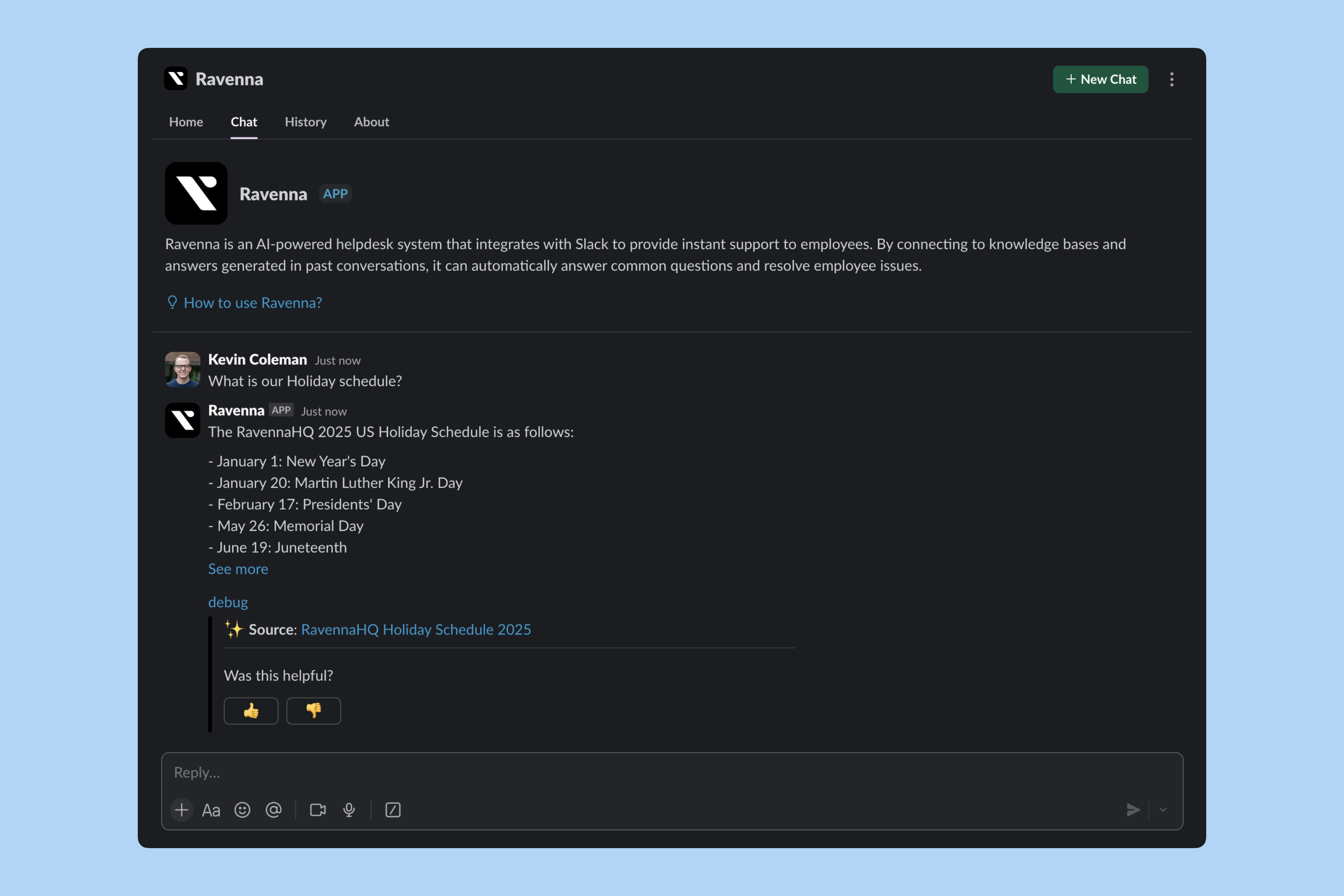
Set up the AI Assistant
The AI Assistant requires two configurations: a default channel with an assigned Agent, and workspace visibility settings.1
Assign an Agent to your default channel
The AI Assistant uses the Agent assigned to your workspace’s default .Go to Workspace Settings > General and click Select in the Default Channel card to choose your default channel.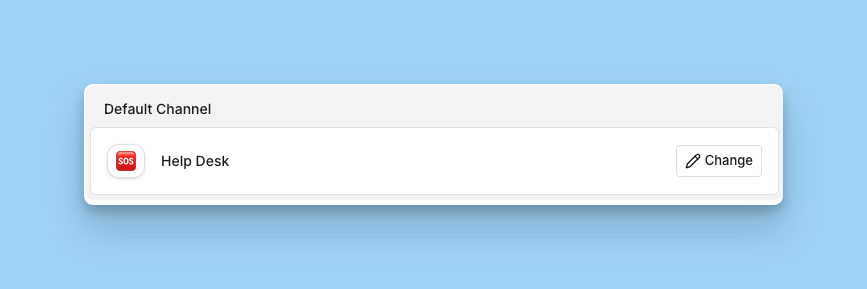 Then ensure an Agent is assigned to that channel in Channel Settings > Agent.
2
Enable workspace visibility
Choose which workspaces users can access when chatting with the AI Assistant.Go to Workspace Settings > Slack and toggle Visibility → Show in Slack Assistant.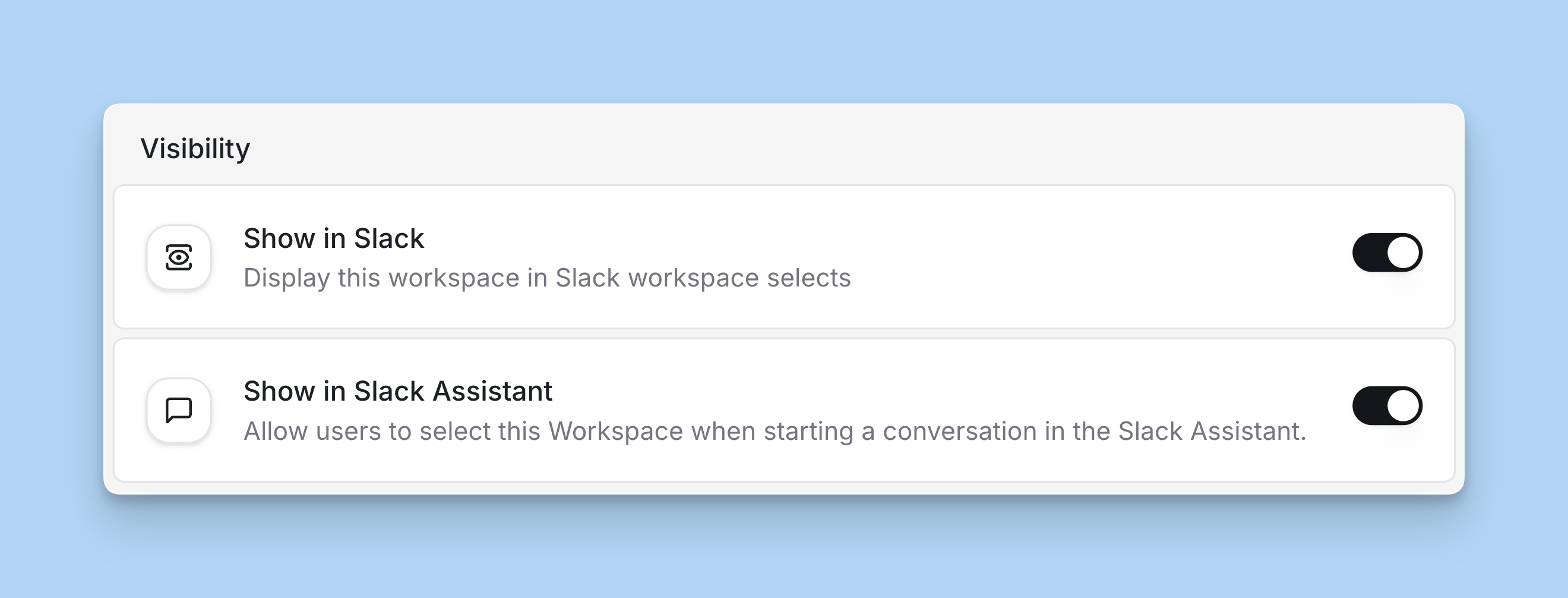 Any workspace with this toggle enabled appears as an option when users start a conversation with the AI Assistant.
Learn more about Agent configuration to customize behavior, rules, and knowledge sources
Access the AI Assistant
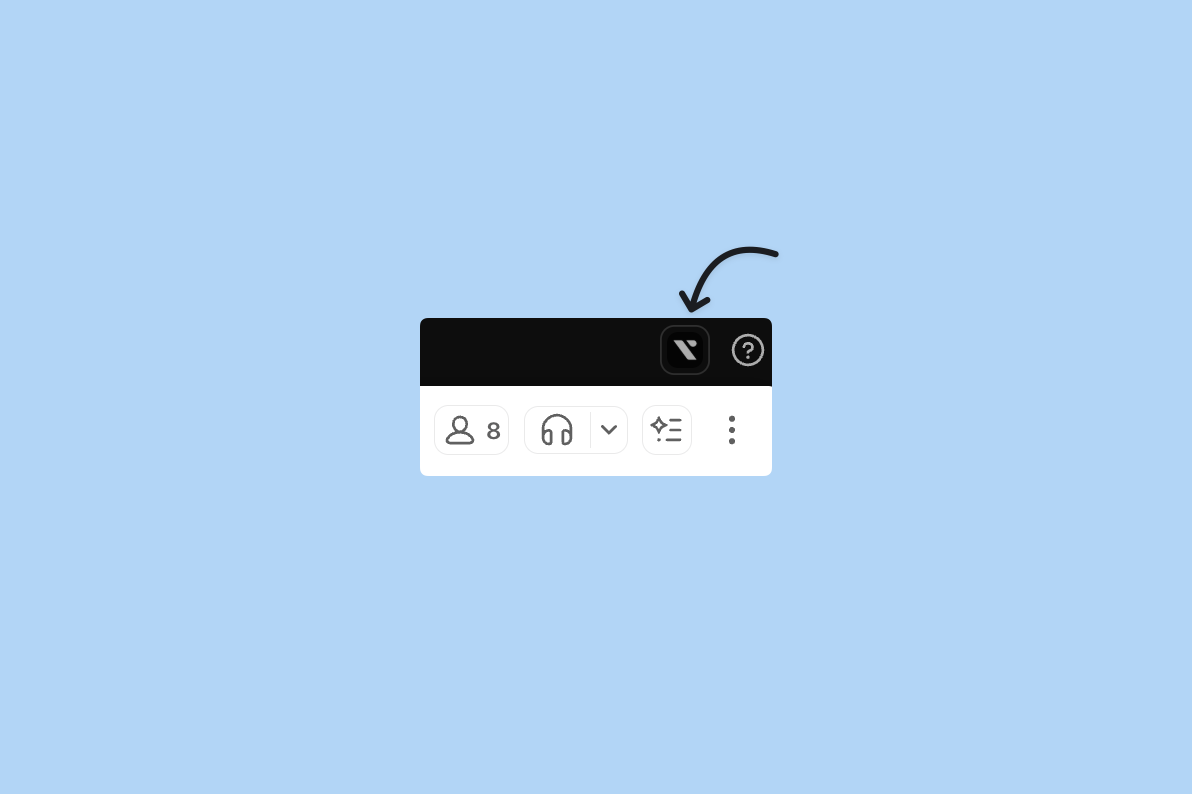
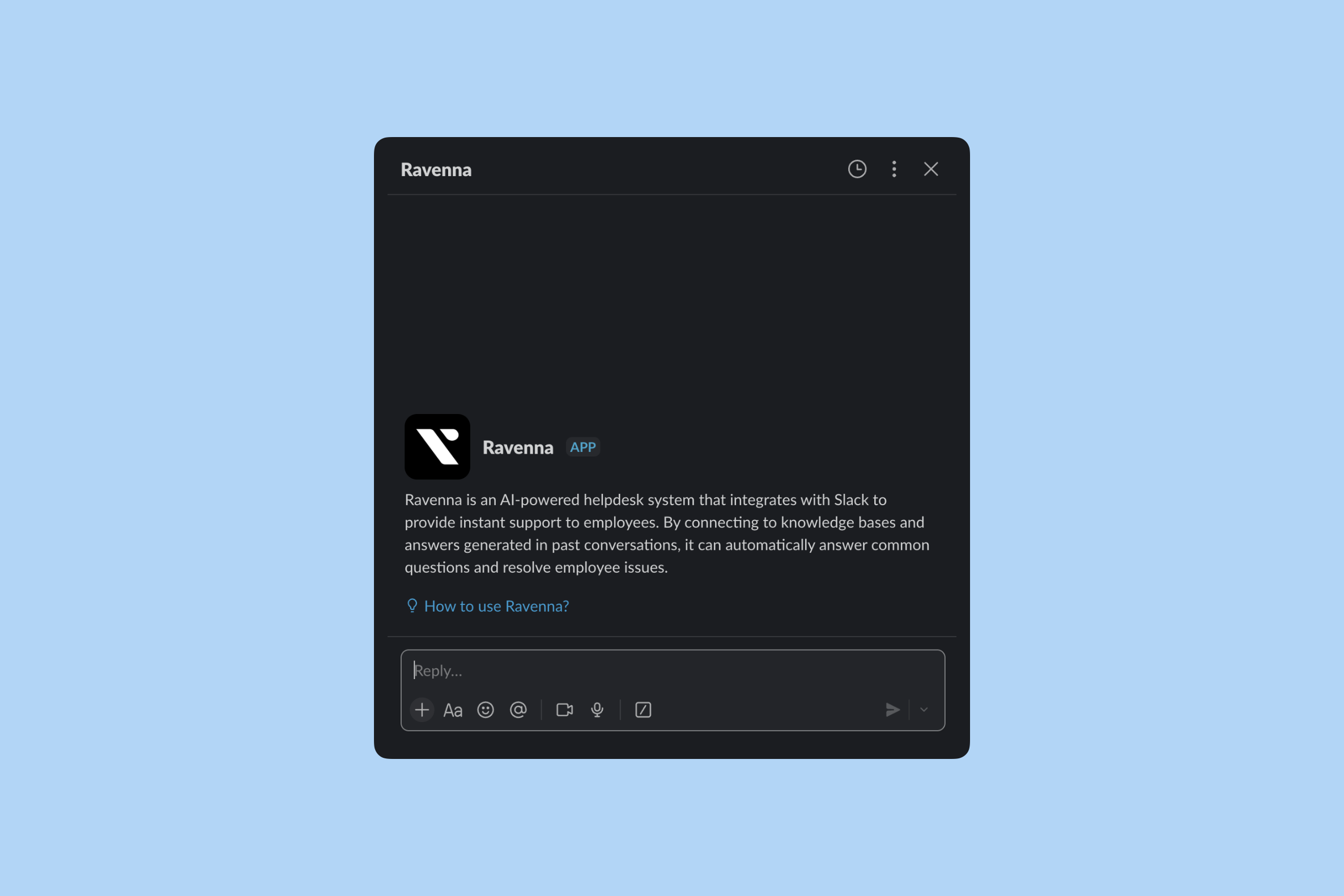
You can access the AI Assistant in two ways.- Slack app
- Assistant panel
Access through the Ravenna app interface with full conversation history.
1
Open the app
Click the Ravenna app in the Apps section in Slack.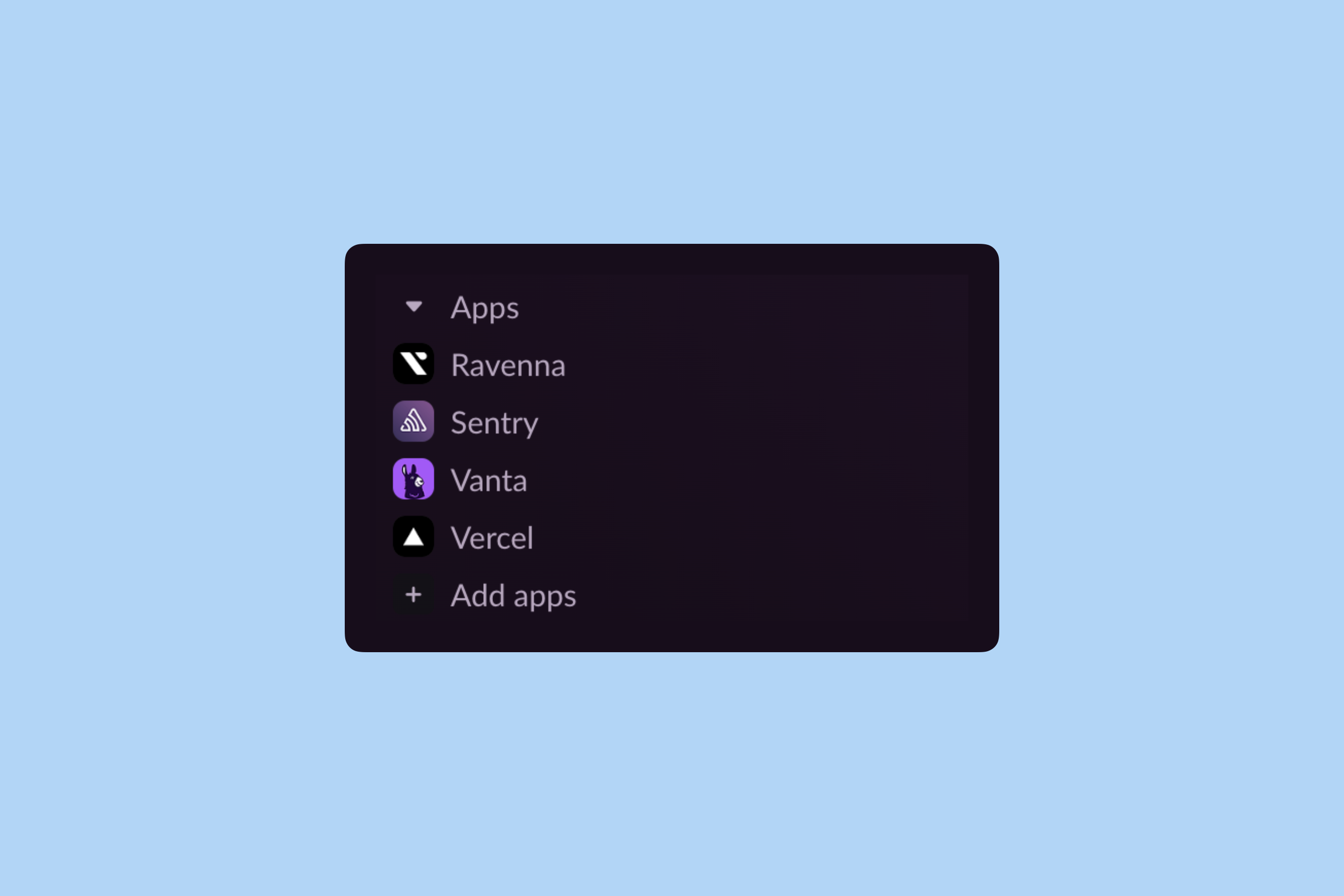
2
Start chatting
Click the Chat tab to open a new conversation with Ravenna.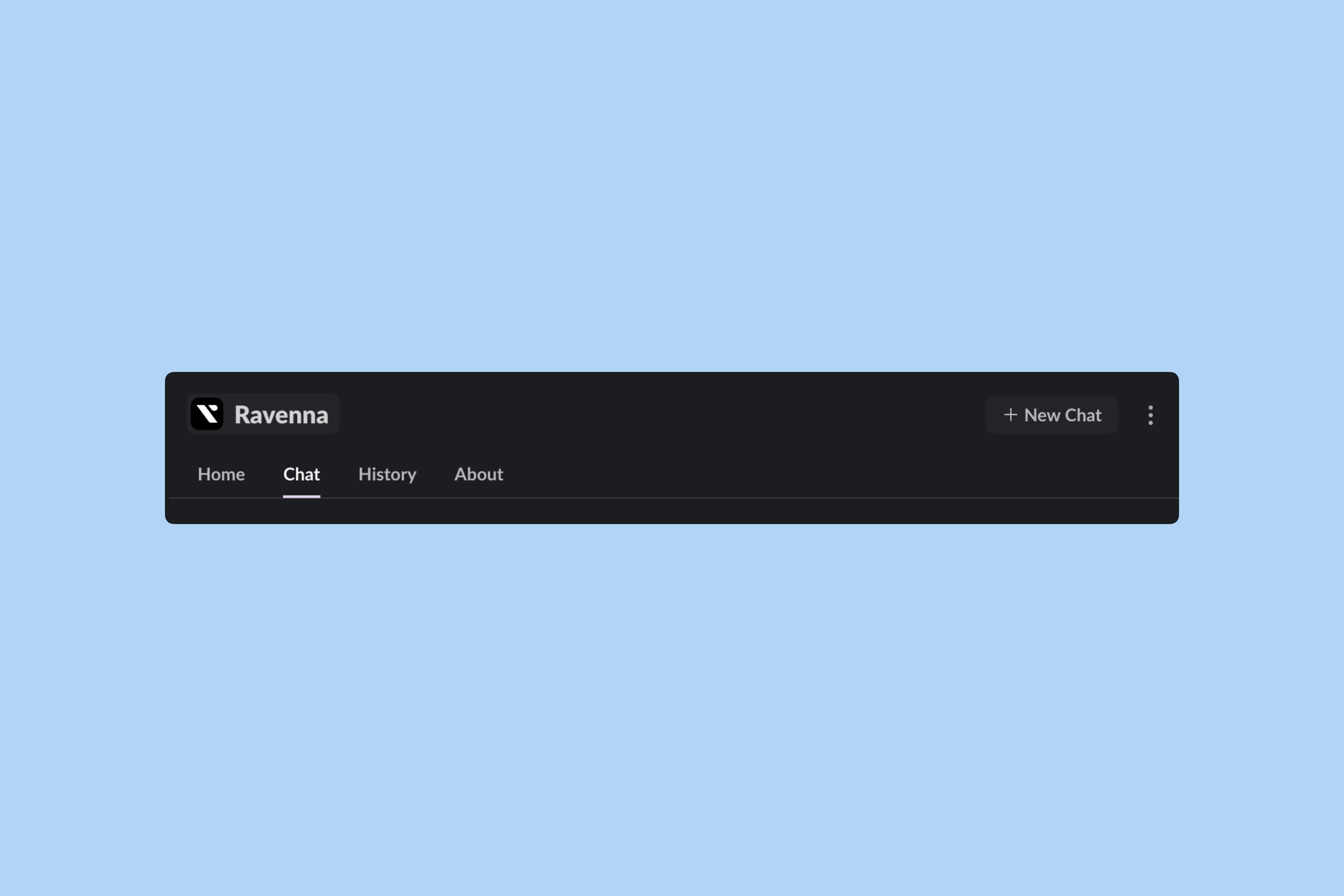
3
View history
Access previous conversations in the History tab.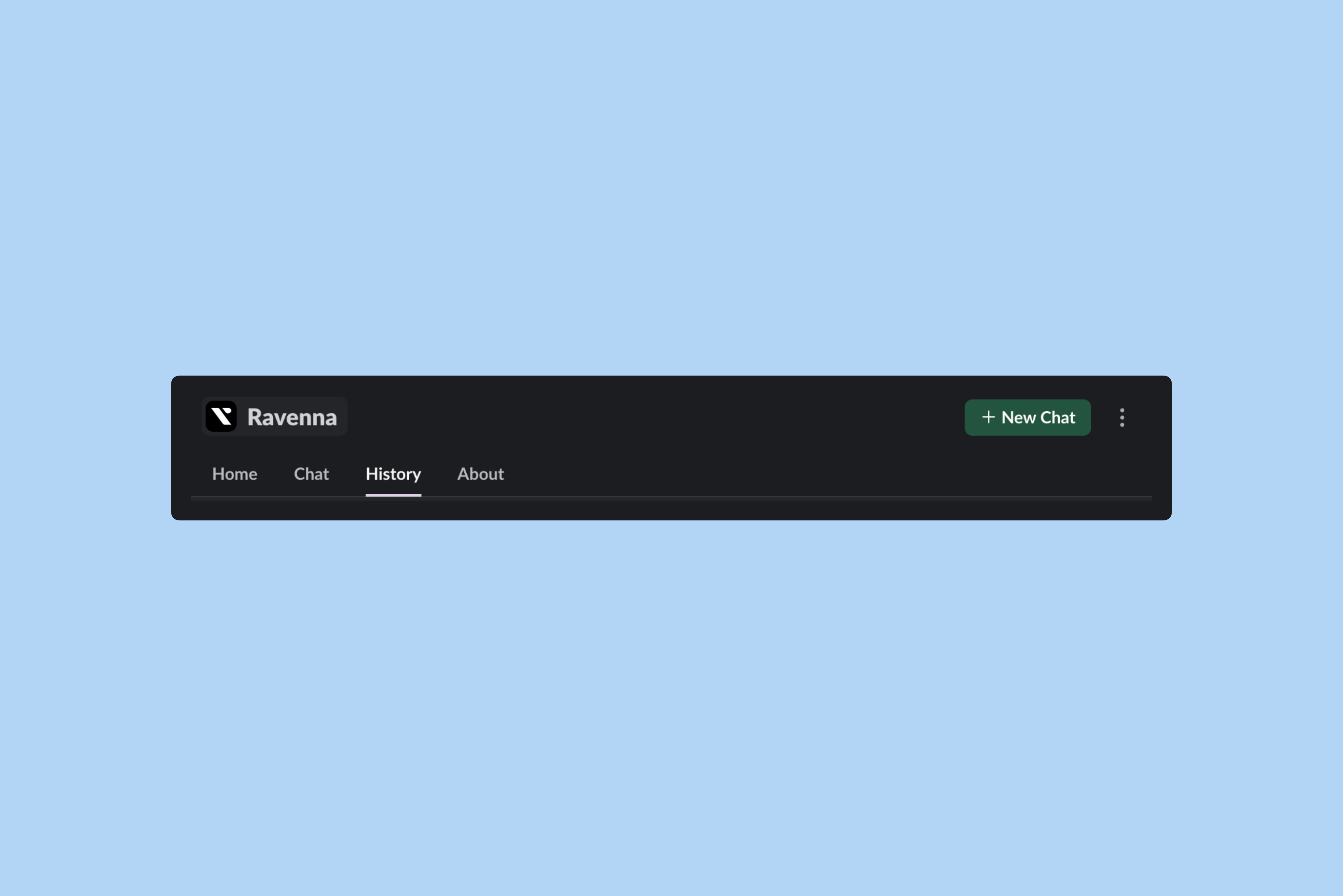
How it works
The AI Assistant uses the Agent assigned to your workspace’s default channel. The Agent follows all its configured settings when responding, just as it would in a public channel.Agent behavior
Agent behavior
The Agent responds according to its configuration, including: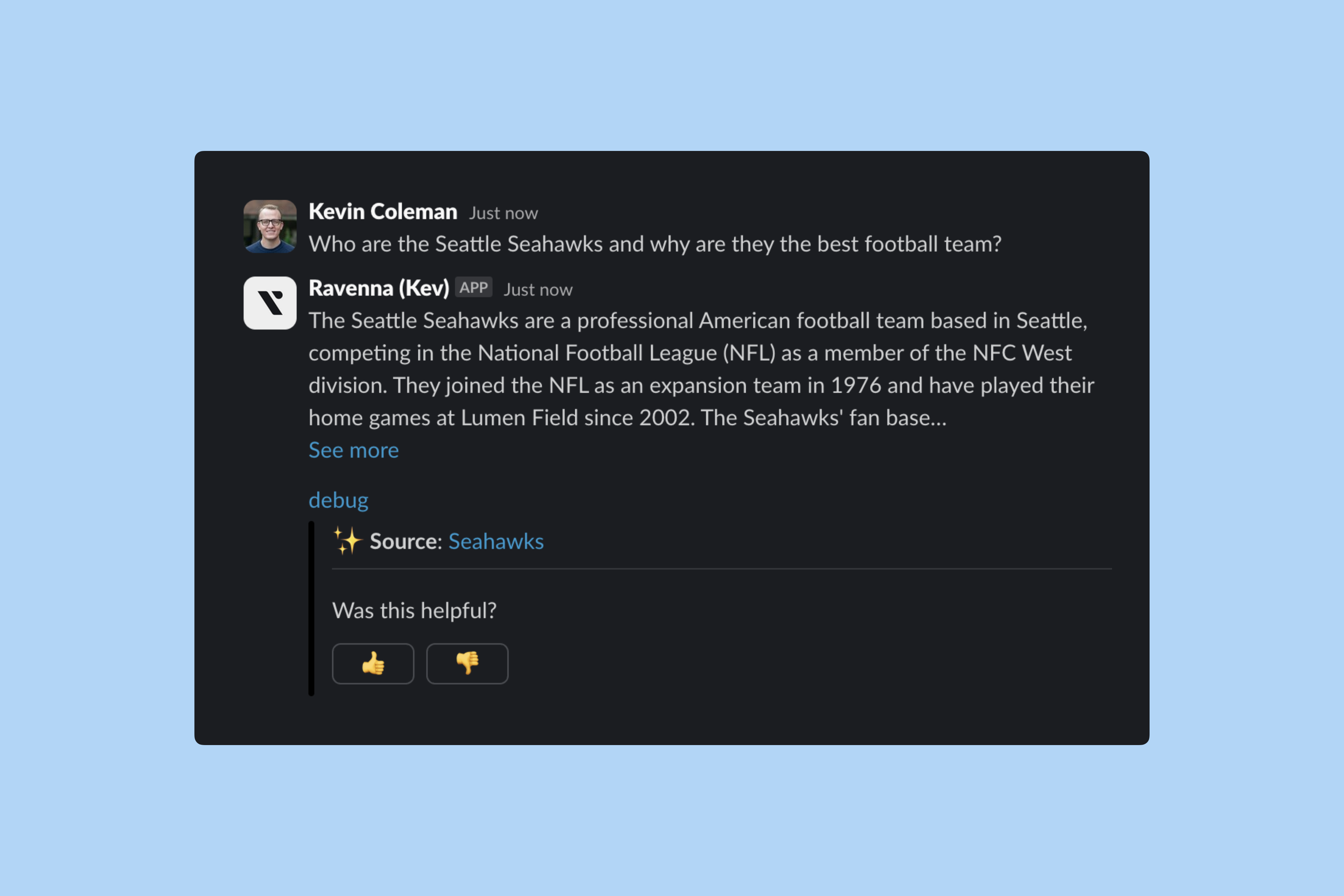
- Rules and escalation instructions
- Knowledge sources and tools
- Personality, tone, and response length
- Auto-submit and response delay settings
Workspace selection
Workspace selection
When starting a conversation, users select which workspace context to use. This determines:
- Which Agent responds (the one assigned to that workspace’s default channel)
- Which knowledge sources the Agent can access
- Which default channel receives tickets if created
- Which workspace settings apply to the conversation
Automatic ticket creation
Automatic ticket creation
When the Agent cannot answer a question, conversations automatically convert to tickets for human support. The ticket is created in the workspace’s default channel and includes the full conversation history.
Conversation history
Conversation history
All conversations are saved and accessible from the History tab in the Ravenna app. Users can review past conversations and continue where they left off.
File attachments
File attachments
Share files directly in a conversation with the AI Assistant. The Agent reads PDFs, images, and other supported documents, then uses their contents to answer questions or prefill ticket forms. The Agent briefly waits for the upload to finish before responding so the file contents are available when it replies.Learn more about file handling in agents.