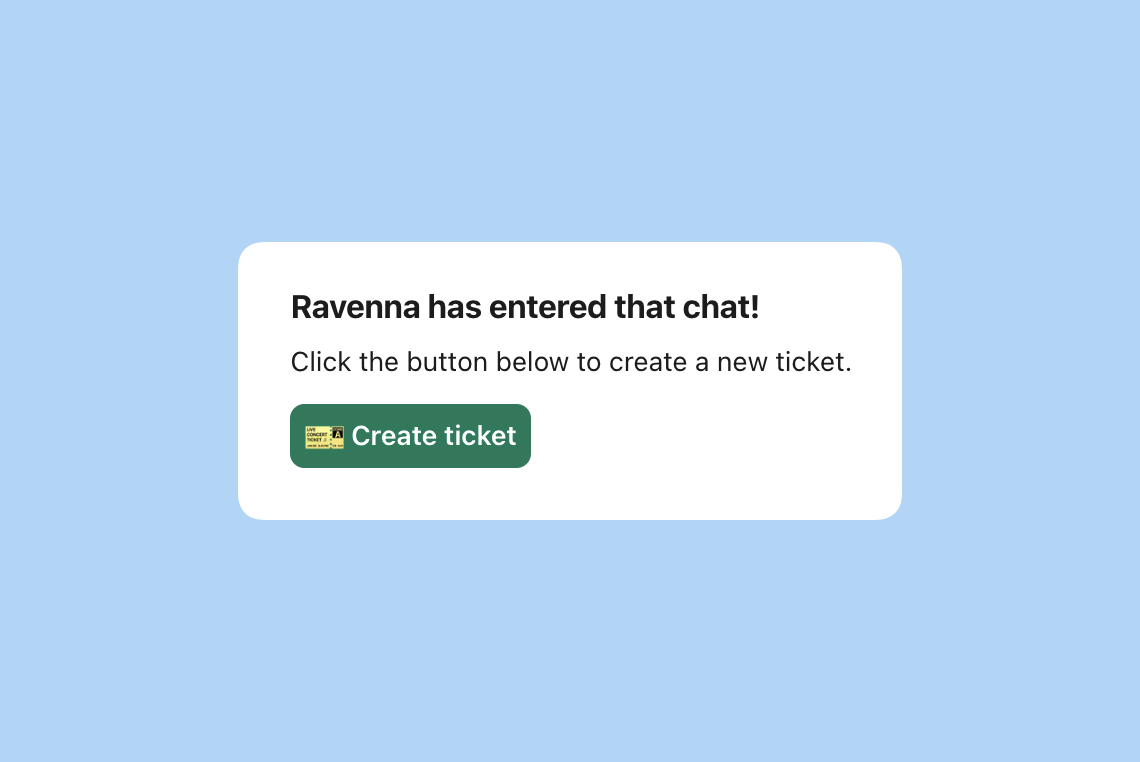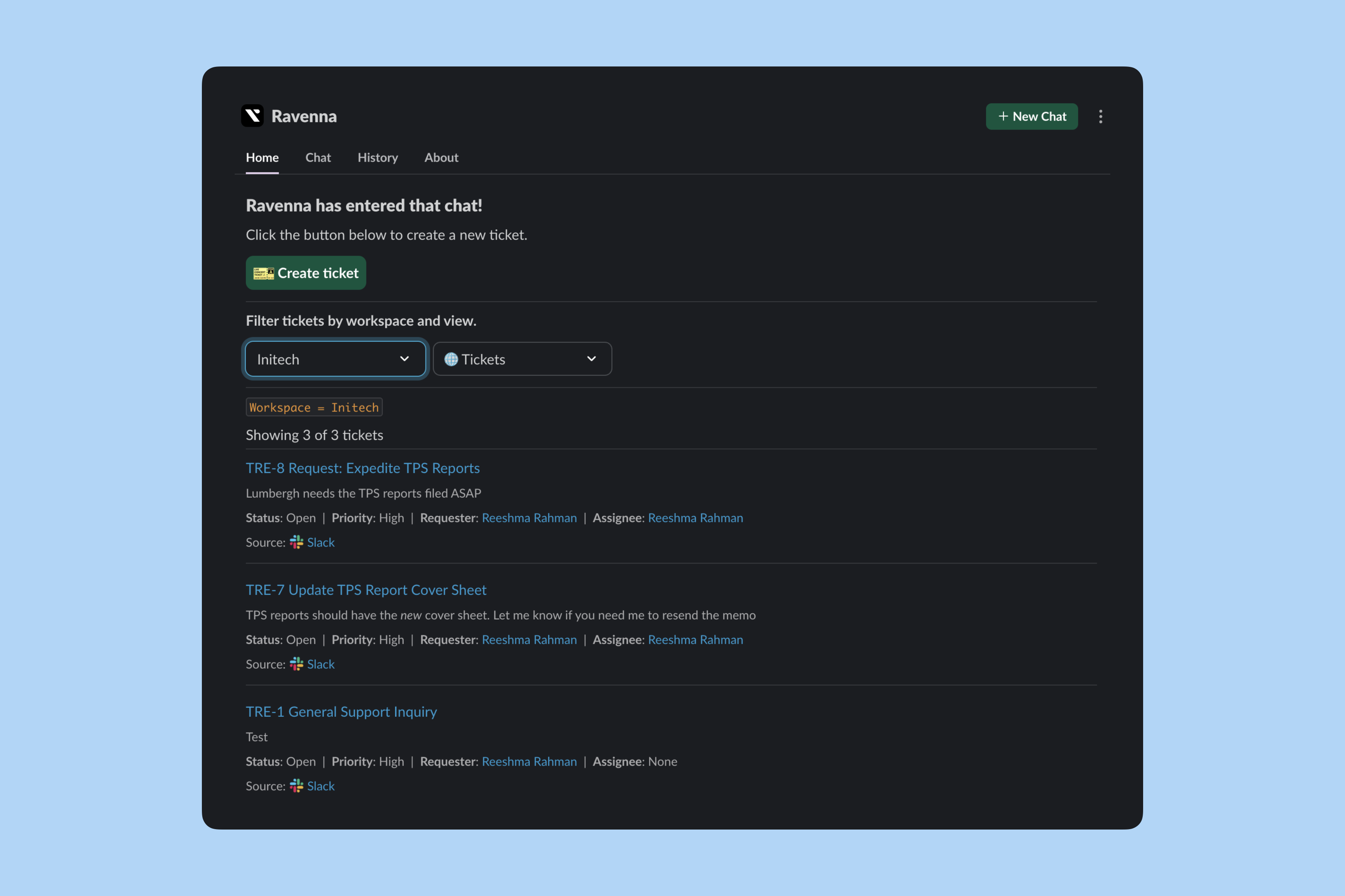
The Ravenna App Home tab is your personal dashboard within Slack, giving you quick access to tickets, views, and actions without leaving Slack.
Ravenna App Home interface
Your experience automatically adjusts when you select different workspaces based on your membership level in each workspace.

Access App Home

Open the Ravenna App Home by clicking on the Ravenna app in your Slack sidebar. The Home tab opens by default, showing your personalized ticket dashboard.

Create tickets

Anyone can submit a new ticket from the Ravenna Home tab. Click the Create Ticket button to open a modal where you can submit your request.
Create ticket modal
The create ticket modal respects your workspace’s configured and custom fields.

View tickets by role

The App Home experience adapts based on your workspace membership level:

Admins and members

Access to views and can respond to tickets just like in the web portal. Admins have additional access to all channel tickets and custom filters.

Guests

Can only see their own tickets

Workspace admins

When you’re a workspace admin, you get full access to workspace-level views and filters.
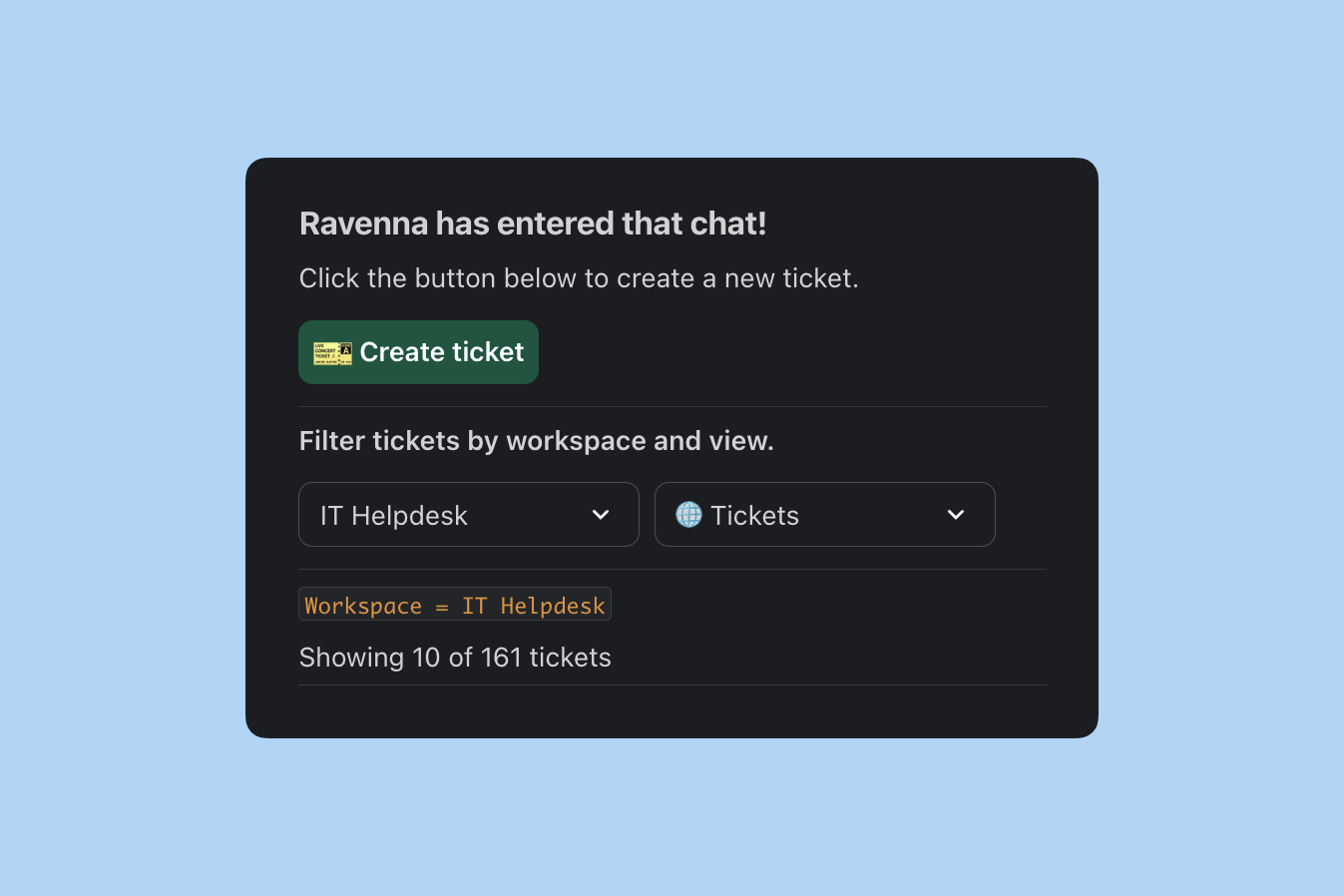
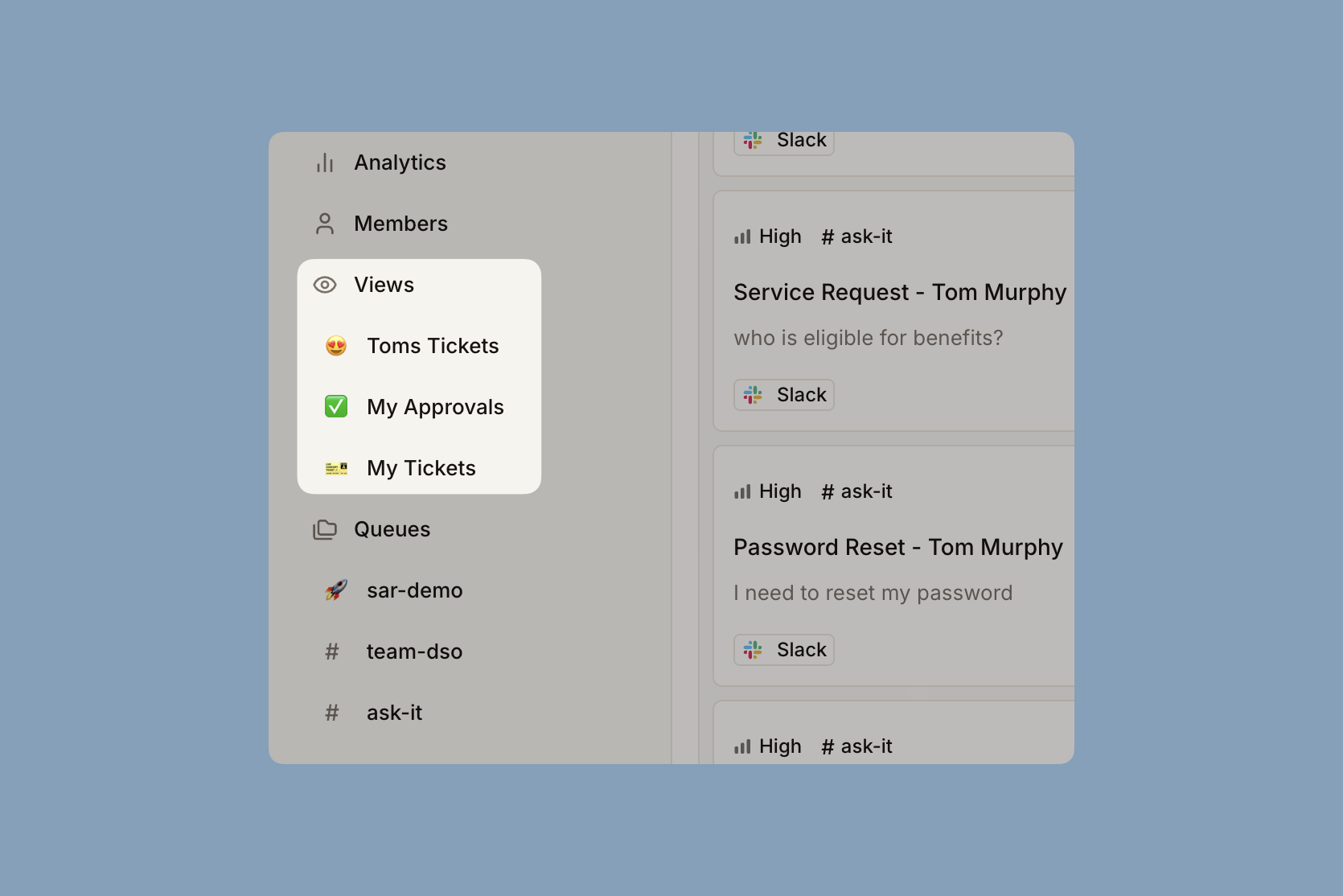
Workspace admin view with filters
Admins can filter tickets by selecting:
  • Workspace: Choose which workspace’s tickets to view
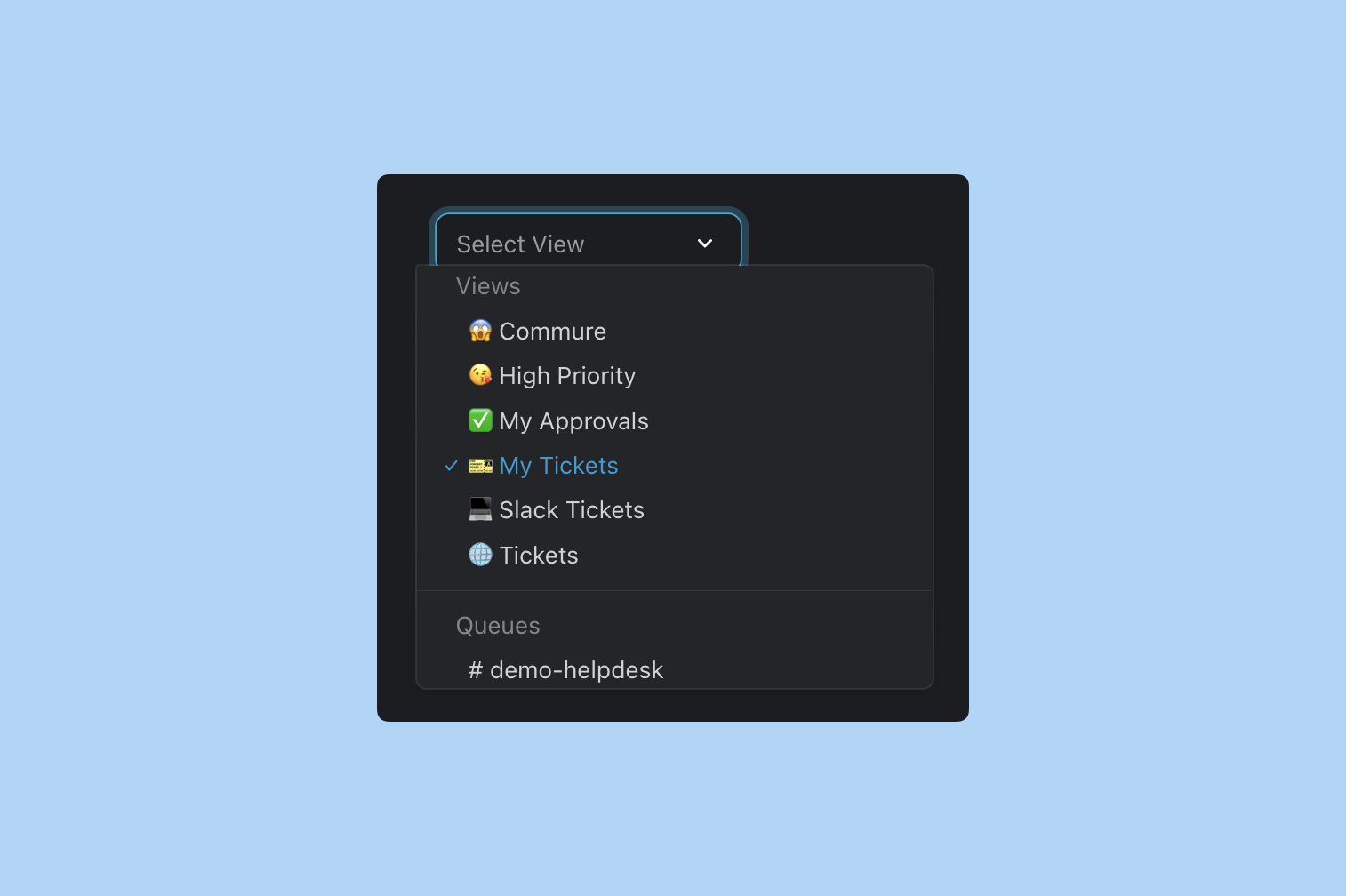
  • Custom views: Access all table views configured in Ravenna for that workspace
Workspace admin view with filters
Custom you create in Ravenna automatically sync and appear in your Slack App Home.
Available views for admins:

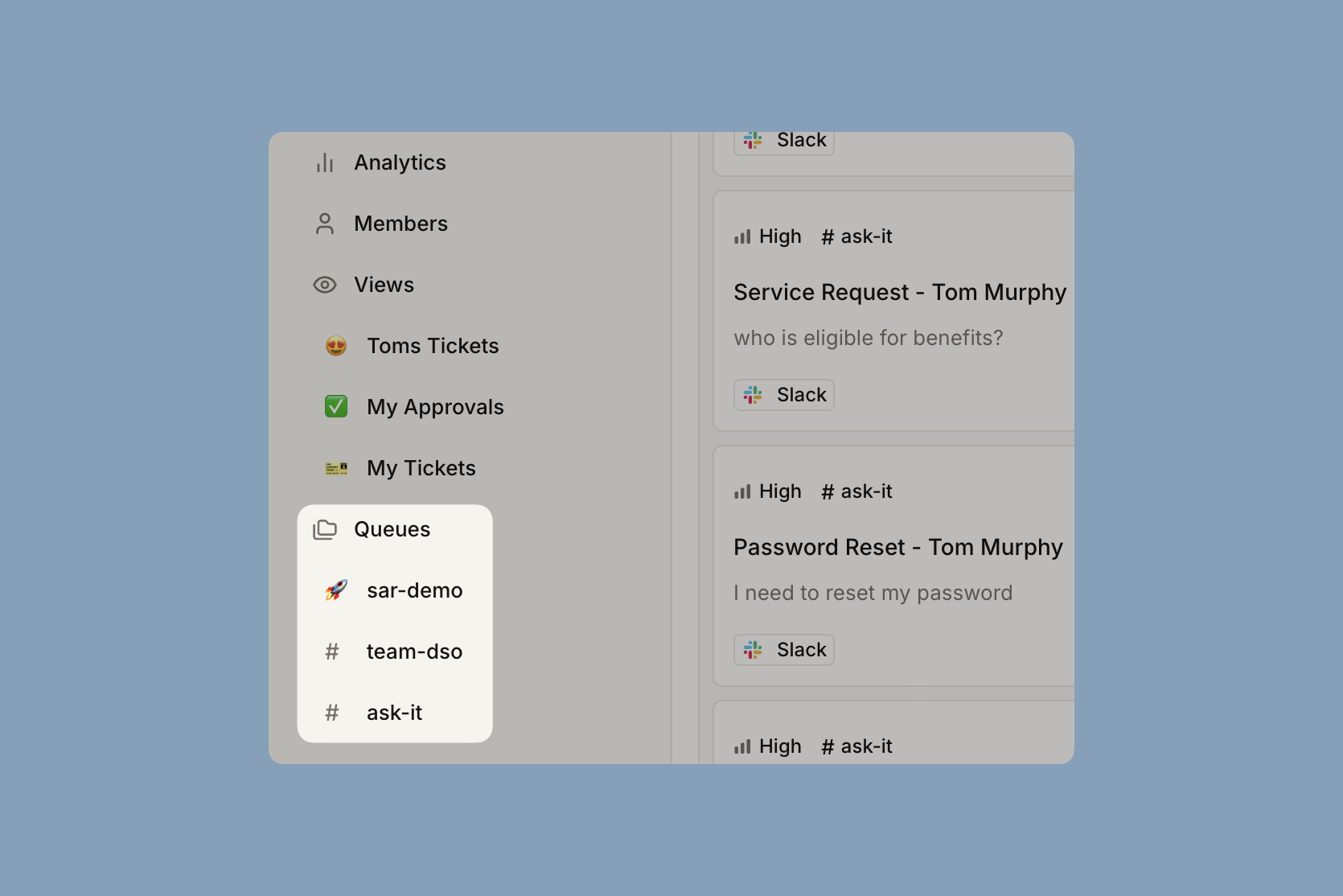
Channel views

Workspace admin view with filters
See tickets from specific channels with full filtering capabilities.
Workspace admin view with filters
Switch to personal views (My Tickets, My Approvals) even when viewing workspace data.

Members

Members have access to views and can respond to tickets just like in the web portal. Members can see and interact with all tickets they have permissions for based on channel access.
Member view
Available views for members:

My Tickets

Shows all tickets you’ve created, helping you track your requests.
Displays tickets currently assigned to you for action.
Lists tickets awaiting your approval, so you can quickly review and take action.
View your completed and resolved tickets.
Members can select different workspaces to view their tickets within each workspace context.
Member view with workspace selection

Guests

Guests can only see their own tickets. The guest experience is limited to tickets they created, ensuring privacy and access control.
Guests cannot access workspace-level views, channel filters, or tickets created by other users.

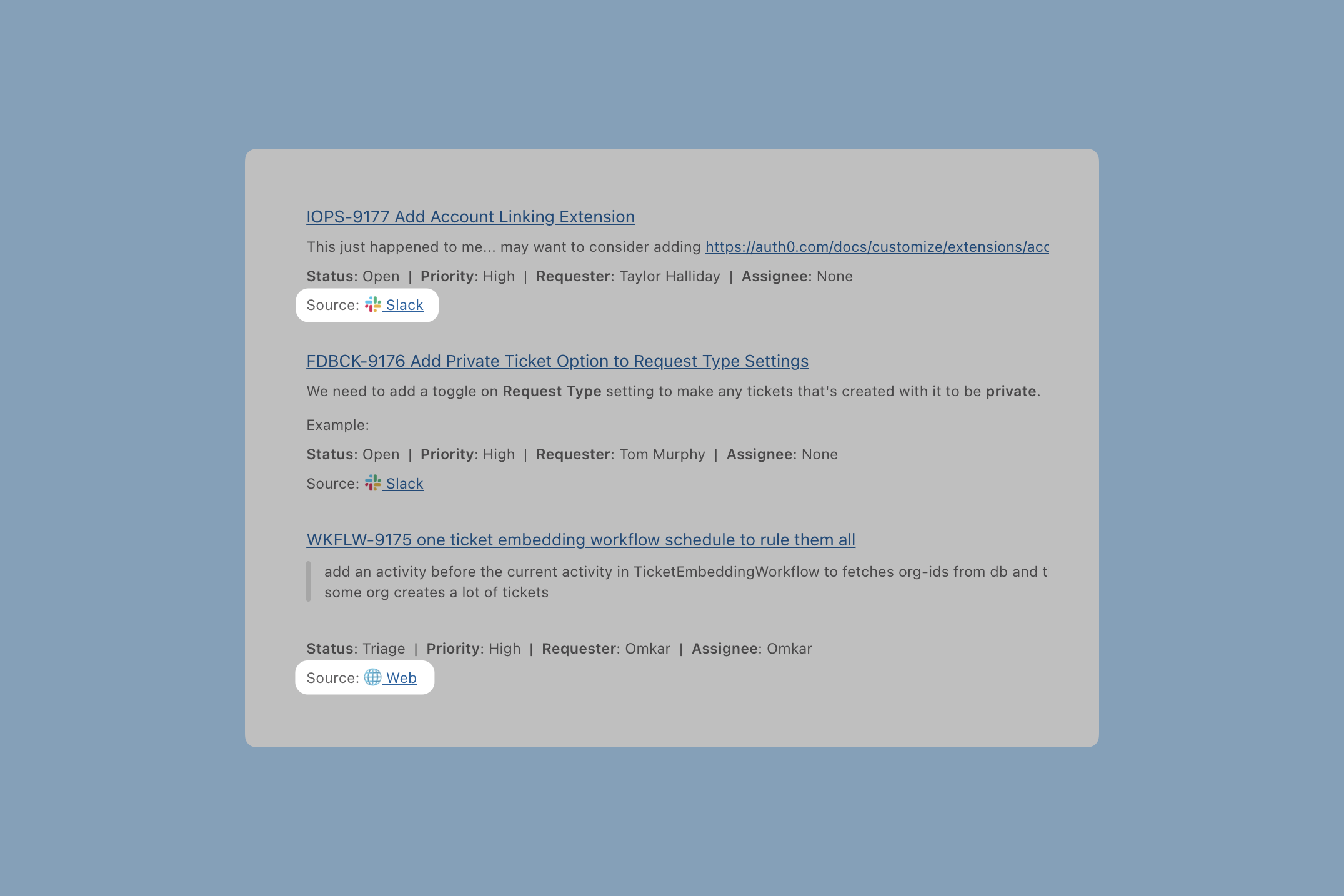
Each ticket in the Home tab includes a direct link to its original source, whether that’s Slack or web.
Workspace admin view with filters
Clicking the link opens the original Slack thread where the ticket was created, or opens the ticket in the web portal. This makes it easier to keep all communication in one place for better collaboration.