

Slack does not let third-party apps distribute workflow steps automatically, so you create the app yourself from a manifest Ravenna provides. This gives you a Workflow app that is already configured to talk to Ravenna. You only need to set the name and icon.
Prerequisites
Before you start, connect your Slack workspace to Ravenna if you haven’t already.Follow the Slack setup guide to connect your workspace first.
Create the Slack app from a manifest
1
Create a new app
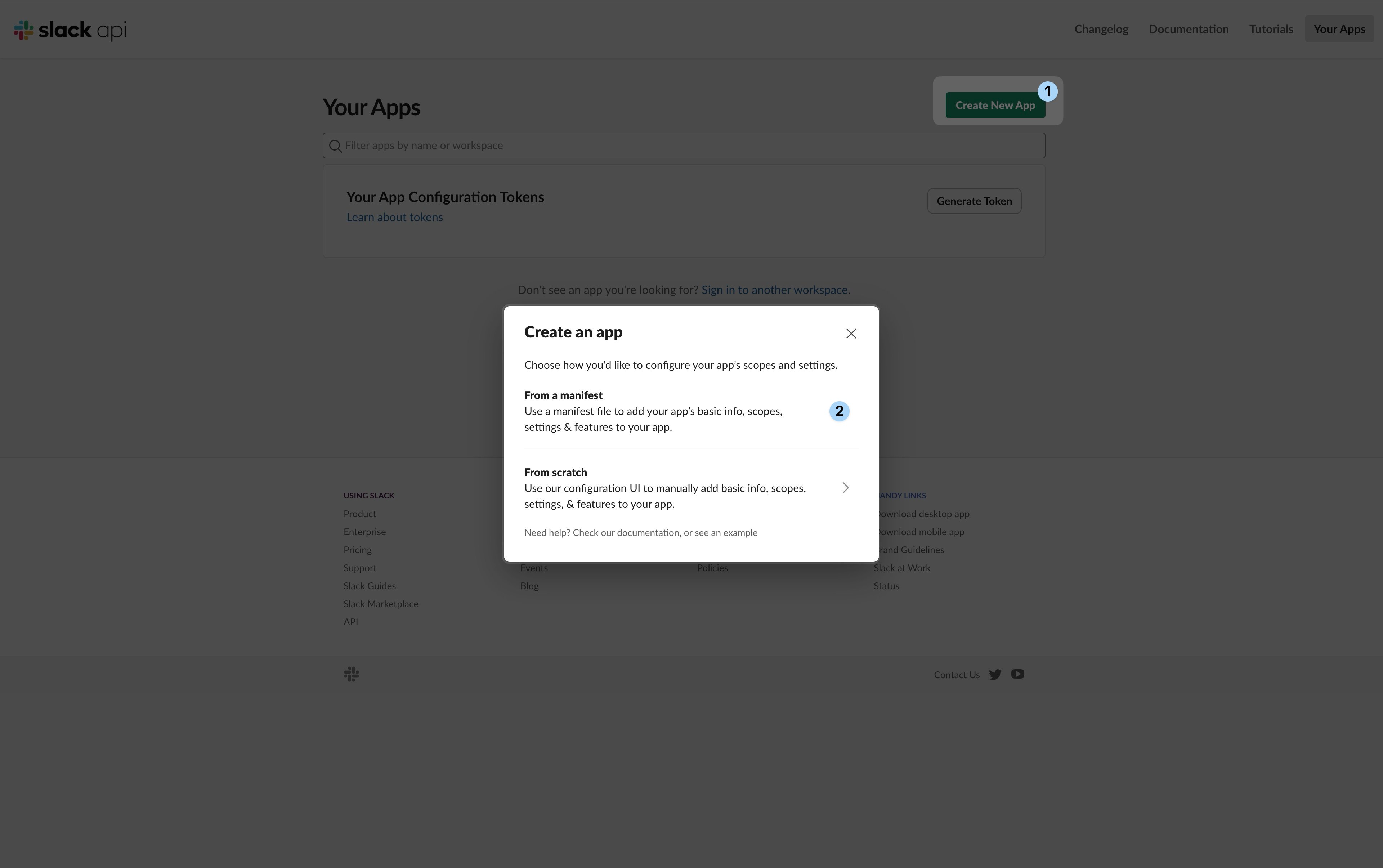
- Go to the Slack apps page and click Create New App.
- In the Create an app dialog, select From a manifest.
2
Select your workspace
Choose the Slack workspace where you want to install the Workflow app.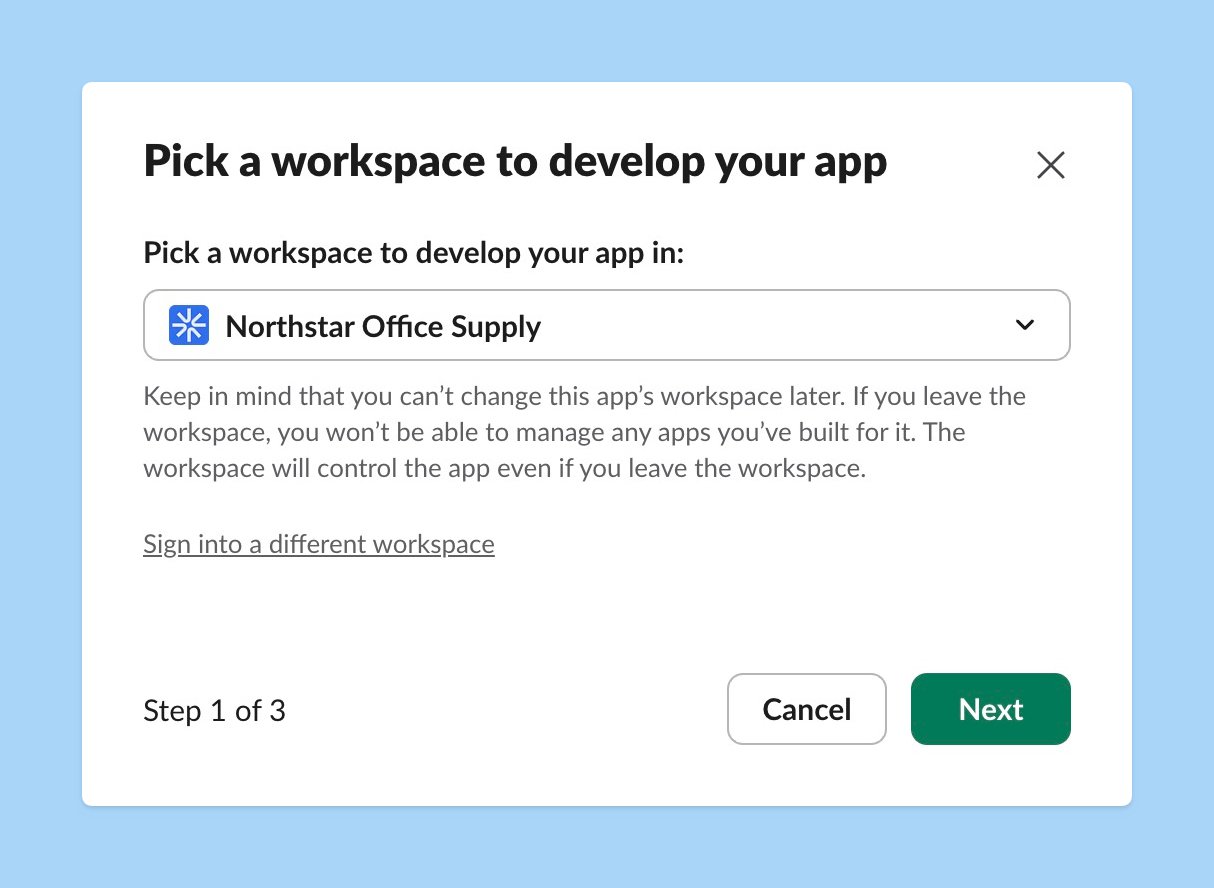
3
Paste the manifest
Copy the manifest below and paste it into the JSON editor.
View the manifest JSON
View the manifest JSON
4
Review and create
Review the configuration and click Create. Your Workflow app is now configured and ready to use.
5
Set the name and icon
On the app’s Basic Information page, set a display name and icon that match your team’s branding. The step name shown in Workflow Builder comes from the manifest, so renaming the app does not change it.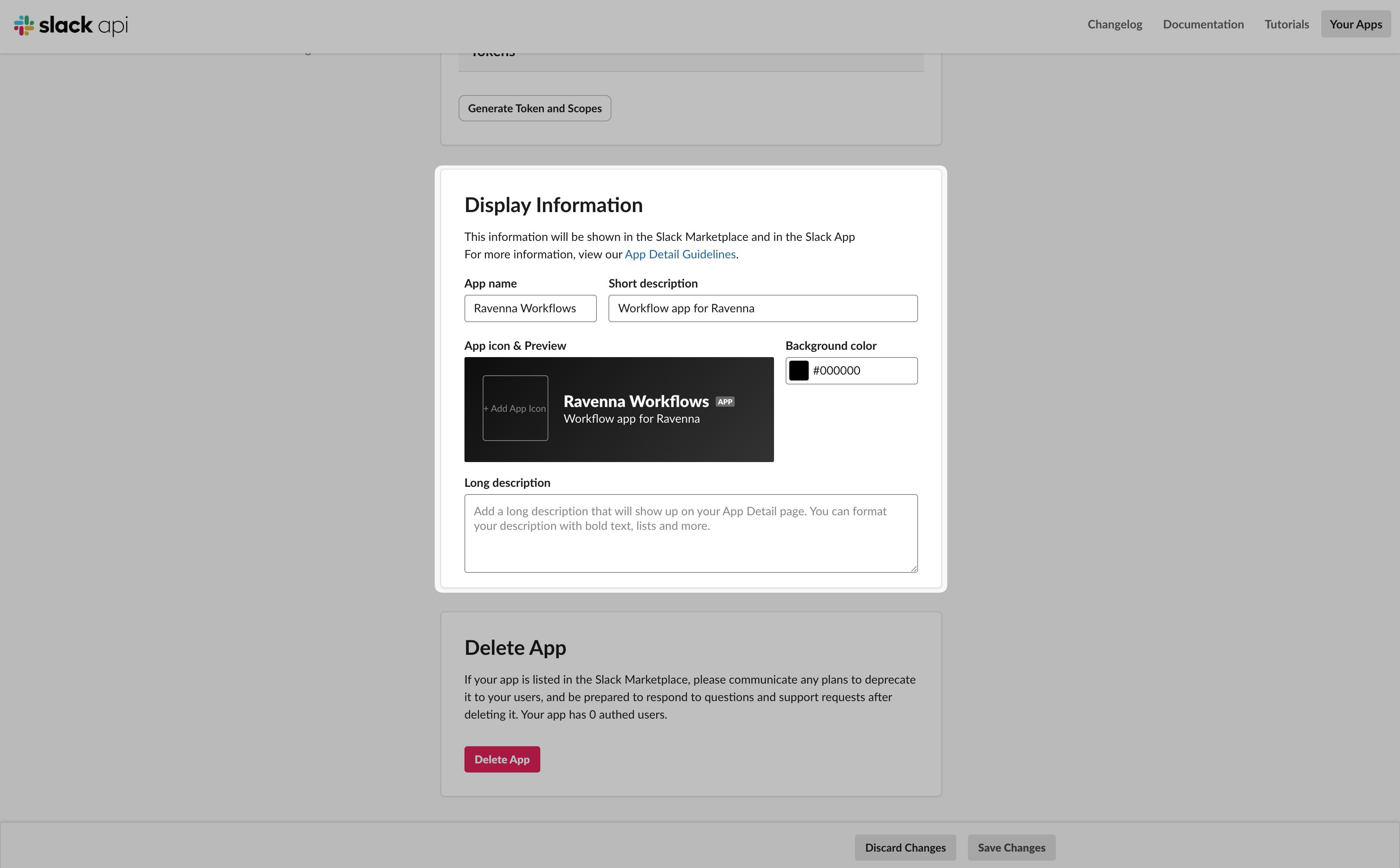
6
Install the app to your workspace
In the left sidebar, go to Install App and click Install to Workspace. Review the requested permissions and click Allow.
Connect the Workflow app to Ravenna
After you create the app, register it with Ravenna so Ravenna can verify and process requests from it.1
Copy the credentials
On the Slack app’s Basic Information page, copy the App ID and the Signing Secret.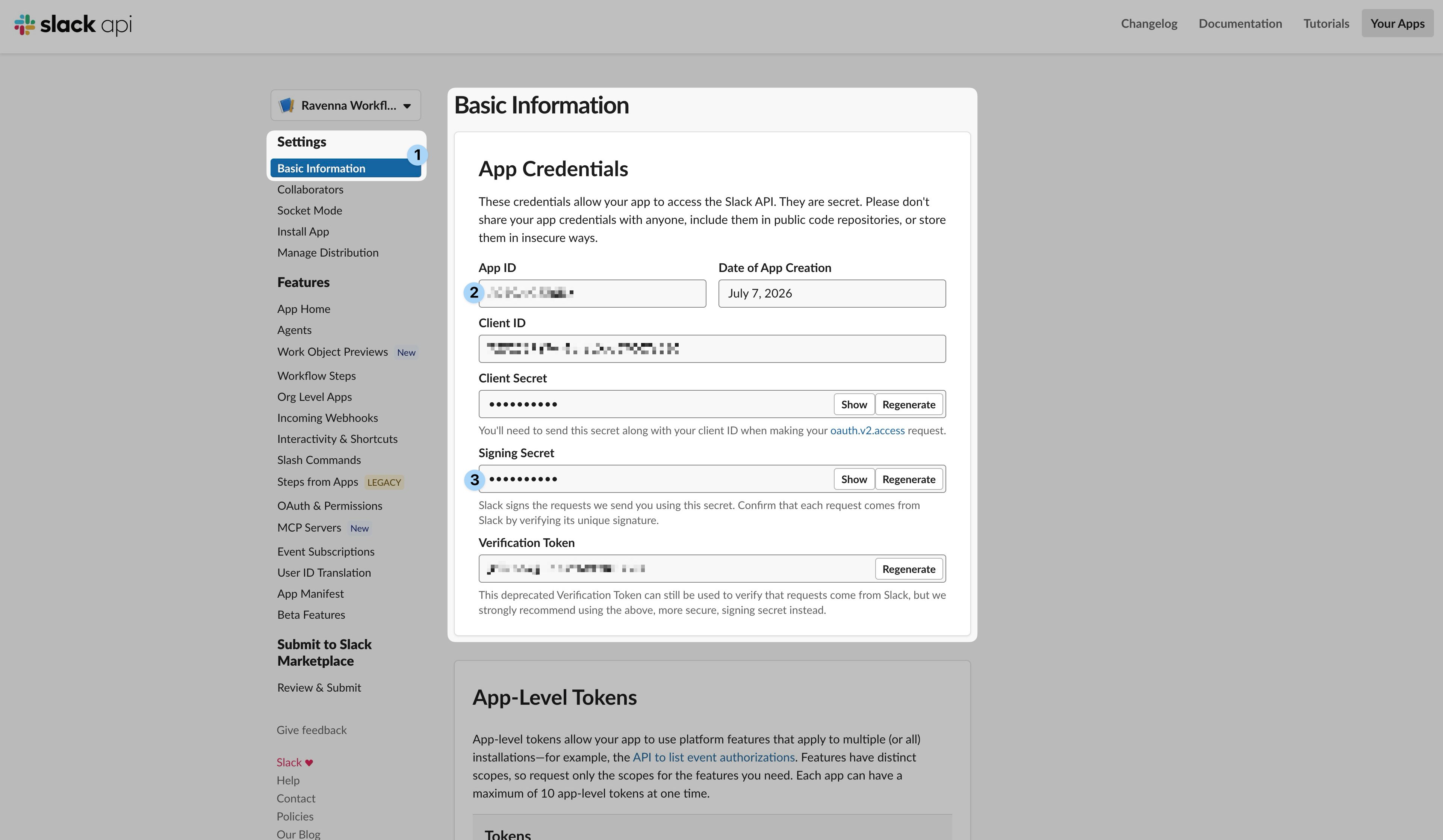
2
Copy the bot token (for file uploads)
If your forms include file uploads, also copy the Bot User OAuth Token (starts with
xoxb-) from the app’s OAuth & Permissions page. Ravenna uses it to download files that people attach in the form. You can skip this if your forms have no file fields.3
Open Ravenna integration settings
In Ravenna, go to Settings > Integrations and find the Workflow App tile for the workspace you want to connect. Click Connect.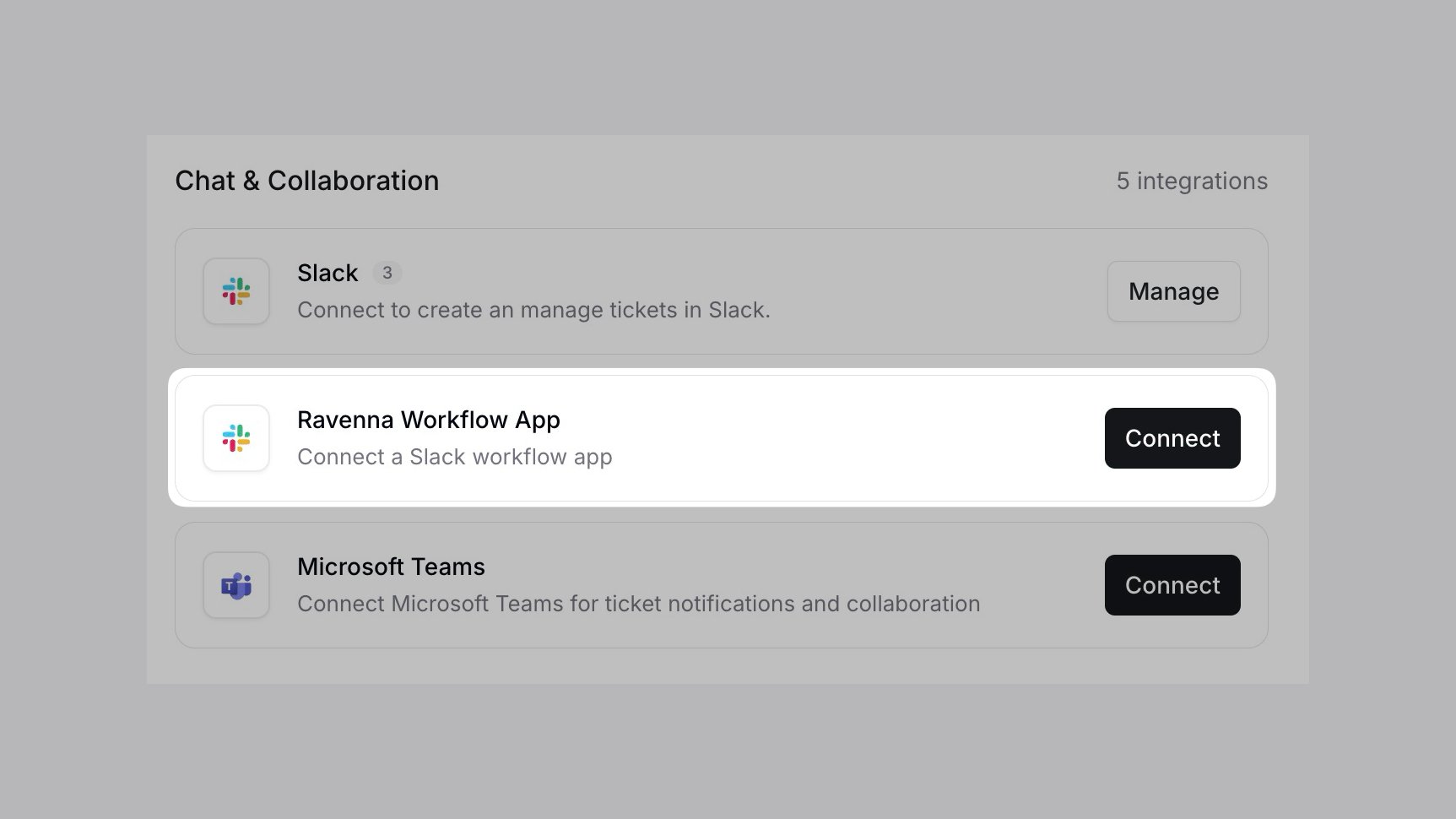
4
Enter the credentials
Paste the App ID, Signing Secret, and (if needed) the Bot User OAuth Token, then save.
File uploads in forms only work when you provide the Bot User OAuth Token. Without it, the ticket is still created but attached files are dropped, because only the Workflow app’s own token can download files uploaded through its modal.
Build a workflow that creates tickets
1
Open Workflow Builder
In Slack, click Tools in the sidebar and select Workflows. You can also press ⌘+K / Ctrl+K and search for “Workflows”.
2
Create a workflow and choose a trigger
Click New Workflow, then choose the From a link in Slack trigger. This creates a link and button that people click to start the workflow.
3
Add the Ravenna step
Click Add Steps, search for the name of the custom app you installed, and add the Open Form step.
4
Configure the step
The Open Form step has the following inputs:
-
Form ID (required): The Ravenna form to open.
How to find the Form ID
In Ravenna, go to Forms and open the form you want to use. The Form ID is the last part of the page URL:Copy the<FORM_ID>value and paste it into the step. - Slack channel: Click the channel dropdown and select Channel where the workflow was used. This passes the Slack channel to Ravenna so it can route the ticket to the matching Ravenna channel.
-
Ravenna channel: A fallback Ravenna channel to use when the workflow runs outside a connected Slack channel, such as from a direct message.
How to find the Ravenna channel ID
In the Ravenna sidebar, hover over the channel you want to use and open its actions menu (the … icon). Click Copy to copy the channel ID to your clipboard, then paste it into the step.
5
Finish and publish
Click Finish Up to save, then publish the workflow. Your team can now run it to open the form and create a ticket.
Make the workflow discoverable
Help your team find and use the workflow with either of these options.Feature the workflow in a channel
Feature the workflow in a channel
Feature the workflow so it appears in a channel’s Workflows tab. See Slack’s guide to featuring a workflow.
Add the workflow to a Canvas
Add the workflow to a Canvas
Add the workflow to a Slack Canvas for a more visual, organized entry point. See Slack’s guide to sharing a Canvas.
Troubleshooting
The step runs but no form opens
The step runs but no form opens
Cause: Ravenna cannot verify the request, or the app was not built from the Ravenna manifest.Solution:
- Confirm the App ID and Signing Secret in Ravenna match the Slack app you created from the manifest.
- Confirm you created the app from the manifest above, which includes the
ravenna_open_formfunction. - Confirm the Form ID in the step points to a valid Ravenna form.
The ticket lands in the wrong channel
The ticket lands in the wrong channel
Cause: Ravenna could not resolve the destination from the Slack channel.Solution:
- Set the Slack channel input to Channel where the workflow was used so Ravenna receives the channel at run time.
- Set a Ravenna channel as a fallback for workflows that run outside a connected Slack channel.
Learn more about creating tickets in Slack and using Slack triggers and actions in Ravenna workflows.