A Request Type in Ravenna acts as a form template that captures the exact information your team needs when someone submits a request. Use system fields like requester, description, and priority — and add custom fields for team-specific details. This ensures every request is clear and actionable from the start.
Interactive Walkthrough
Step-by-step
1
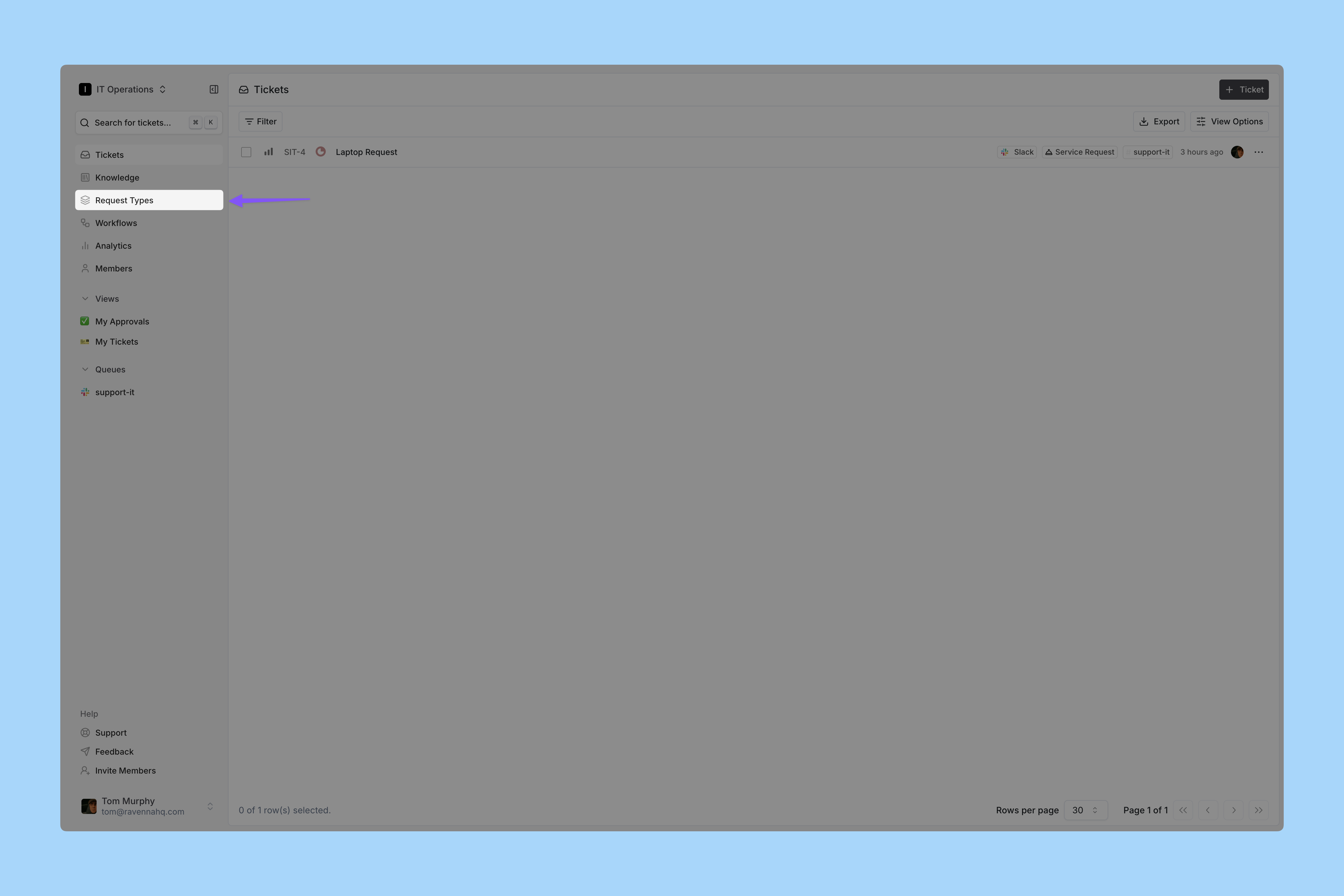
Go to Request Types
Click Request Types in the left sidebar.
2
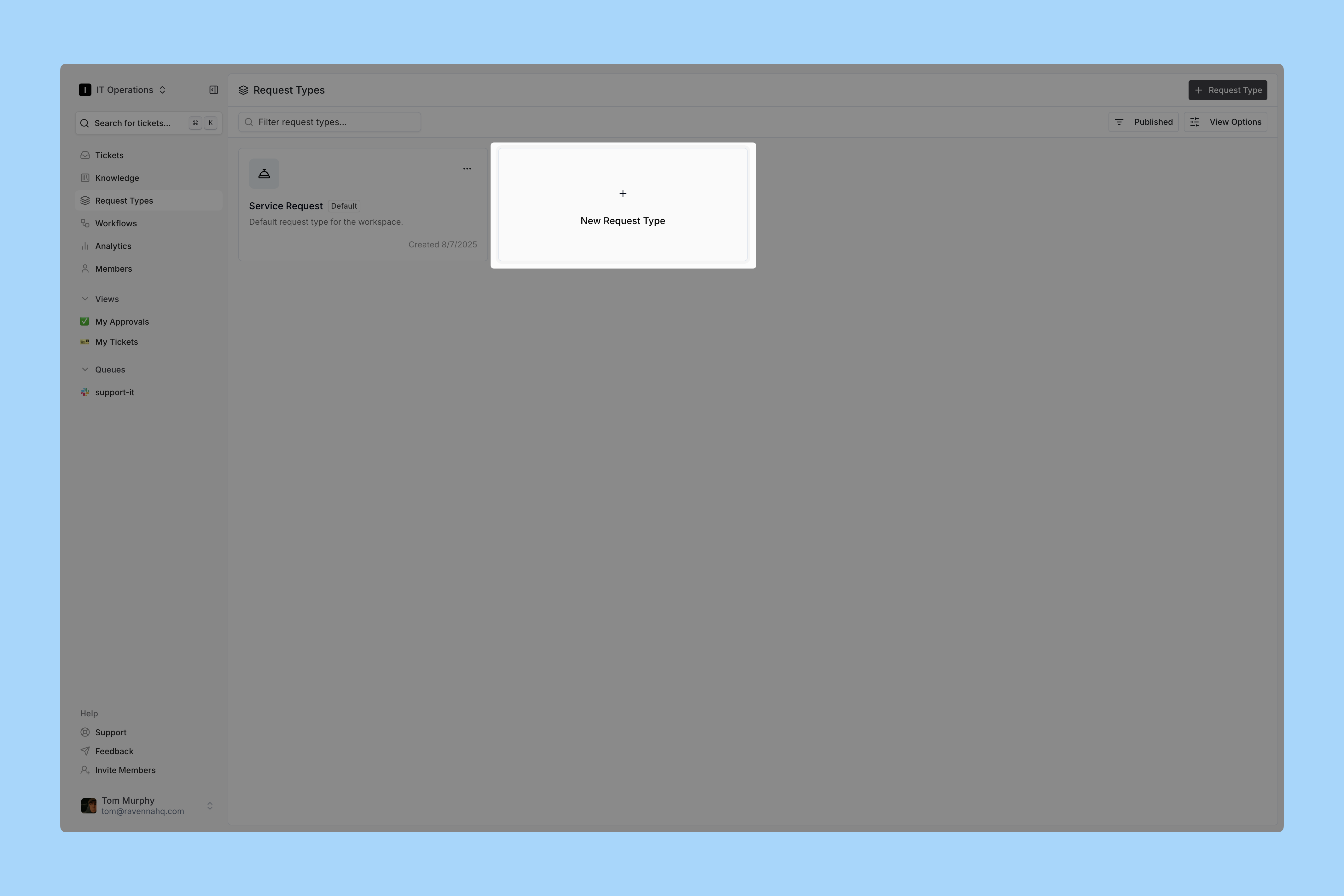
Add a new Request Type
Click the box to create a new Request Type.
3
Enter Request Type details
Fill in the form by:
Selecting an icon that represents your request type
Naming it clearly and simply; employees see this name in Slack
Adding a description that explains when to use this request type
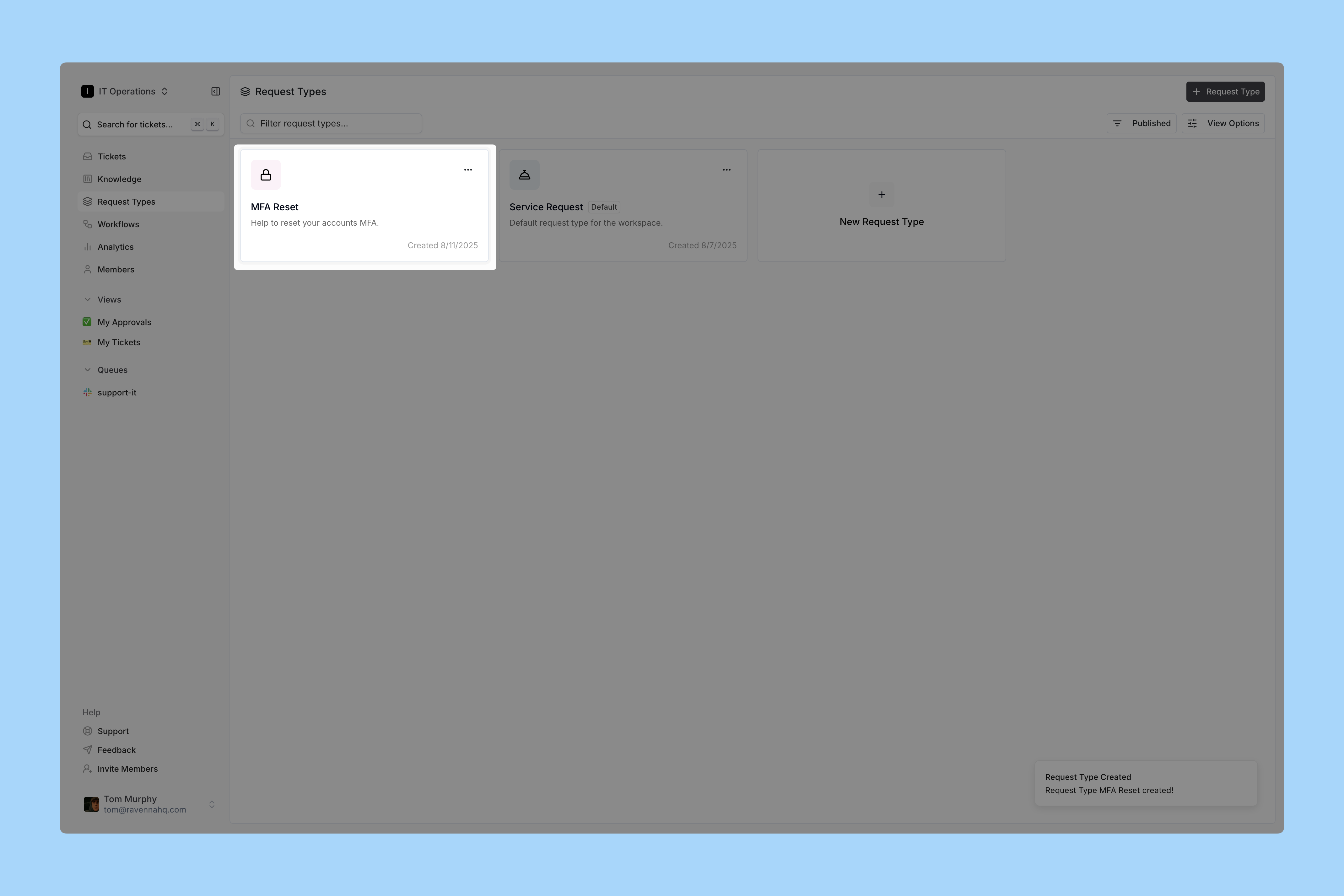
For this demo, we create an MFA Reset request type.
4
Open your new Request Type
Open it by clicking the card or selecting Edit from the three-dot menu.
5
Add fields
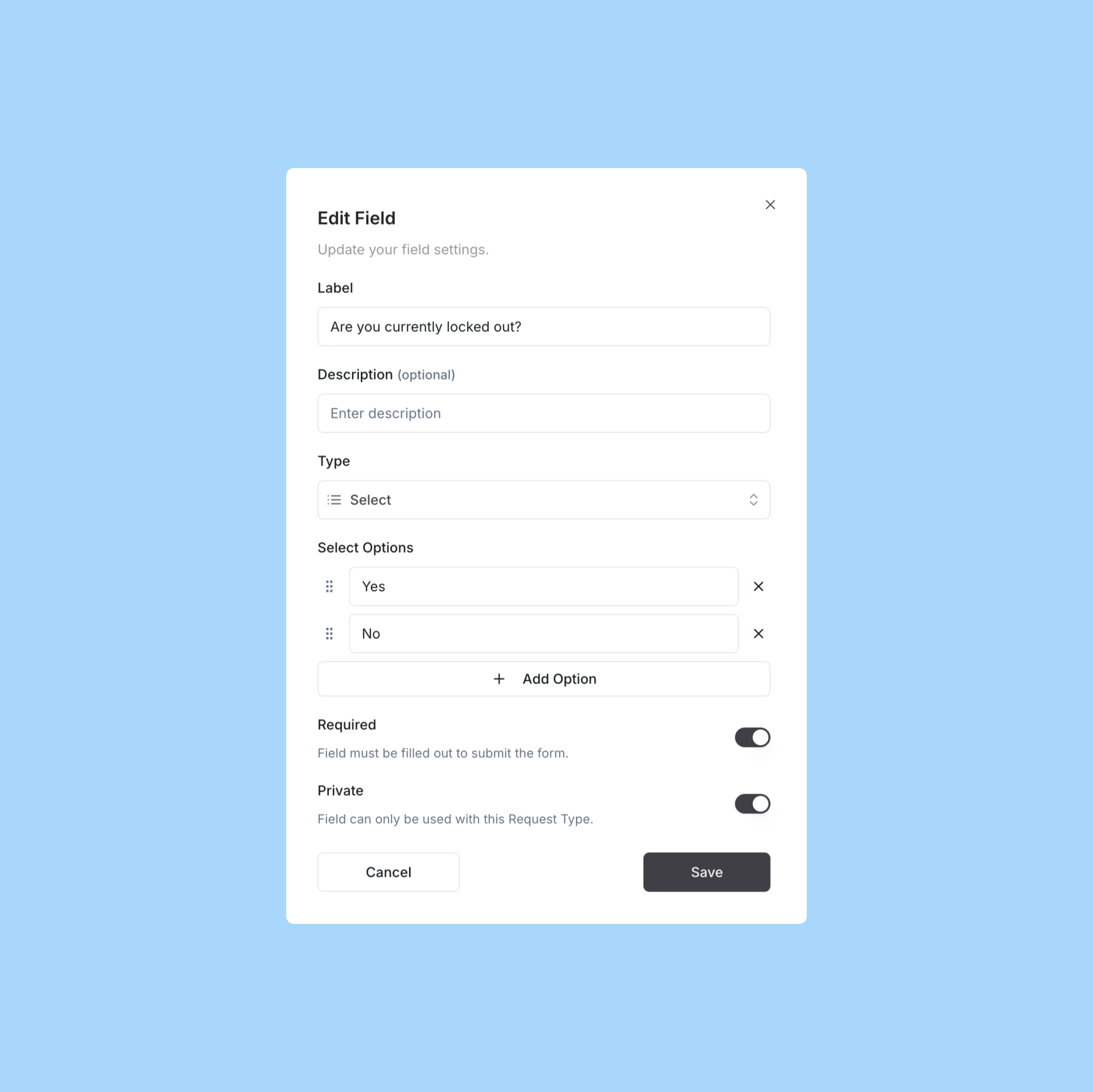
Build your Request Type structure.For the MFA Reset type, add:
A custom Select option to find out if the user is locked out
A custom Text field to confirm the email for the MFA reset
6
Configure AI Settings
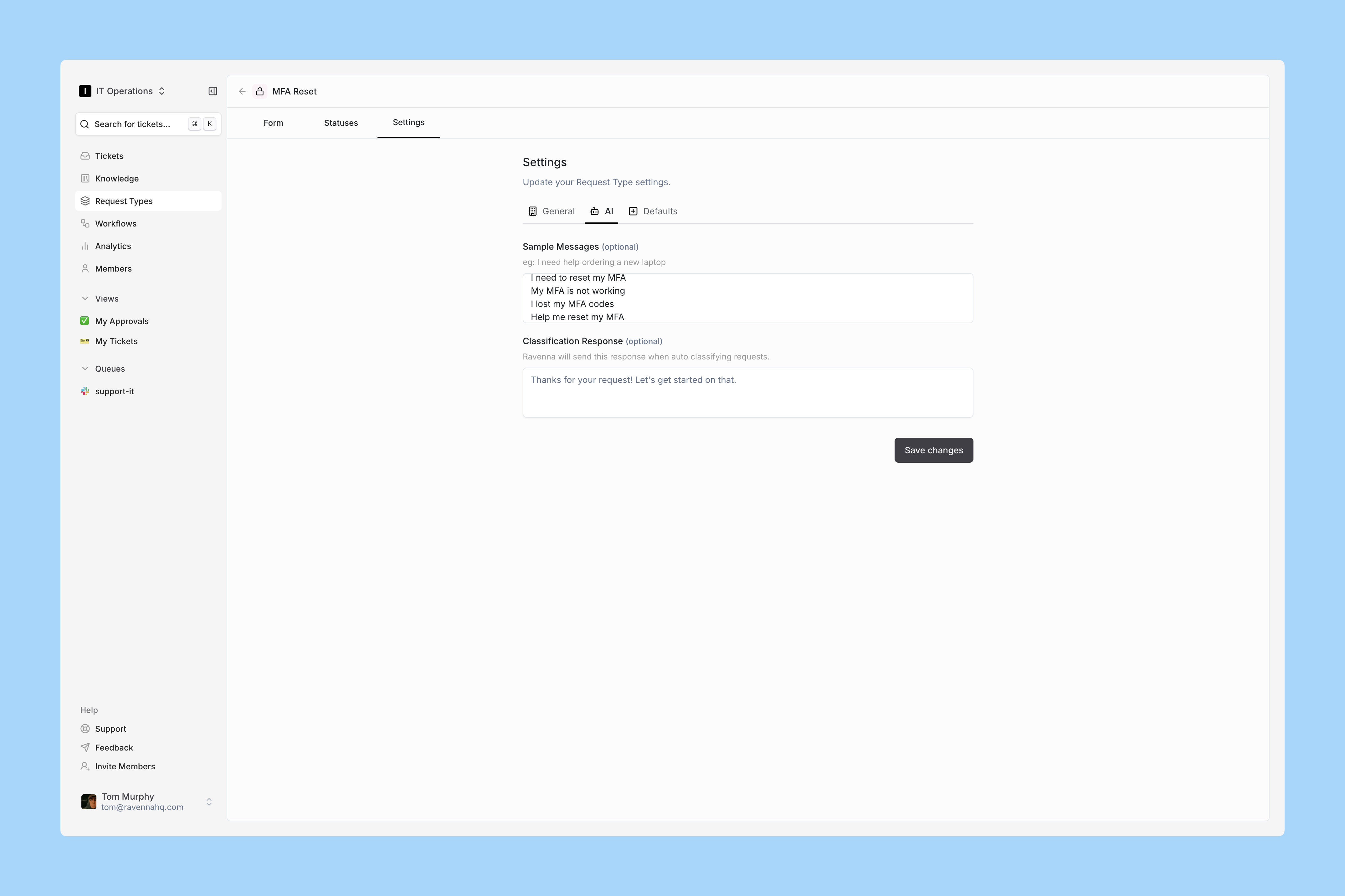
Click the Settings tab, then select the nested AI tab.
Provide sample messages to help AI identify requests matching this type.
7
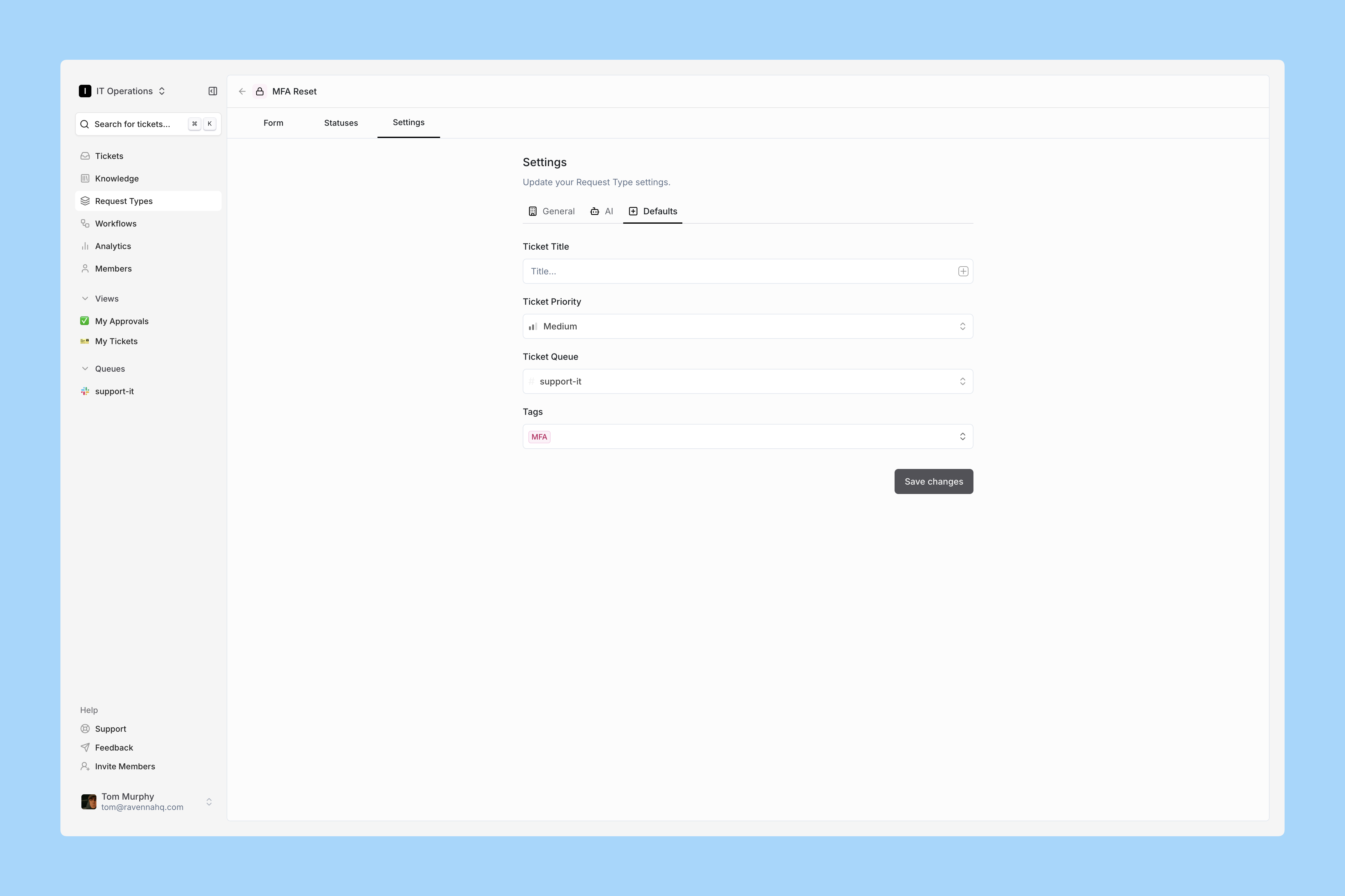
Set Default Ticket Options
Click the Defaults tab.
Pre-set defaults apply to all tickets using this request type. For example:
Priority level
Tags
Assignee (to assign ownership)
Channel (to publish tickets to a public channel)
In this demo, the Tag and Channel ensure tickets always post a Ticket Mirror in the public channel and auto-tag with MFA.You can further automate tickets with Workflows, which we cover next.